
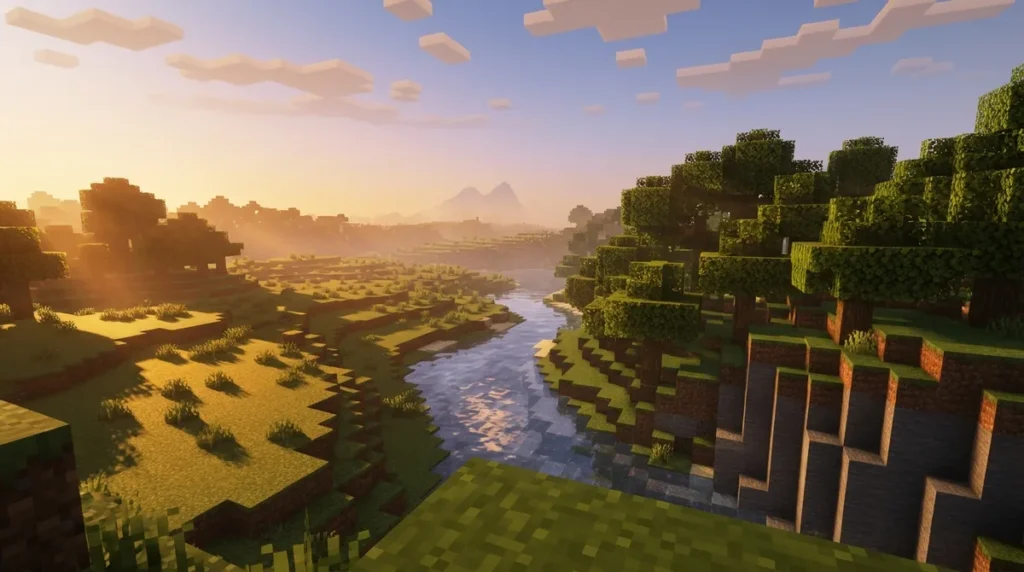
Render distance decides how many chunks of the world Minecraft draws around you. Each chunk is a 16-by-16-block column that runs the full height of the world. On Bedrock Edition, the allowed range is 4 to 96 chunks. PC can reach the top of that range, while some other devices start as low as 4 chunks by default. Anything past your limit isn’t drawn at all, so distant mountains, mobs, and dropped items vanish until you get closer.
Higher render distance means your device does more work, and that often shows up as a lower frame rate. The smart move is to start low, raise the value one step at a time, and watch how smooth the game feels. Multiplayer adds another limit, too. On Bedrock, the game draws only to the lesser of your own setting and the server’s view distance, so a high number on your device won’t help if the server caps the view.
Key Takeaways
- On Bedrock, simulation distance can never go higher than render distance, so keep it modest on busy farms.
- Realms typically max out at 20 chunks, so check the Realm’s limit if your view feels shorter than usual.
- Java Edition has its own render distance range, so a value that feels right on your Bedrock console may not match on Java.
- Keep the highest setting that stays smooth in your busiest spot, leaving a little room below it for heavier moments.
How Far Does Render Distance Reach in Chunks?
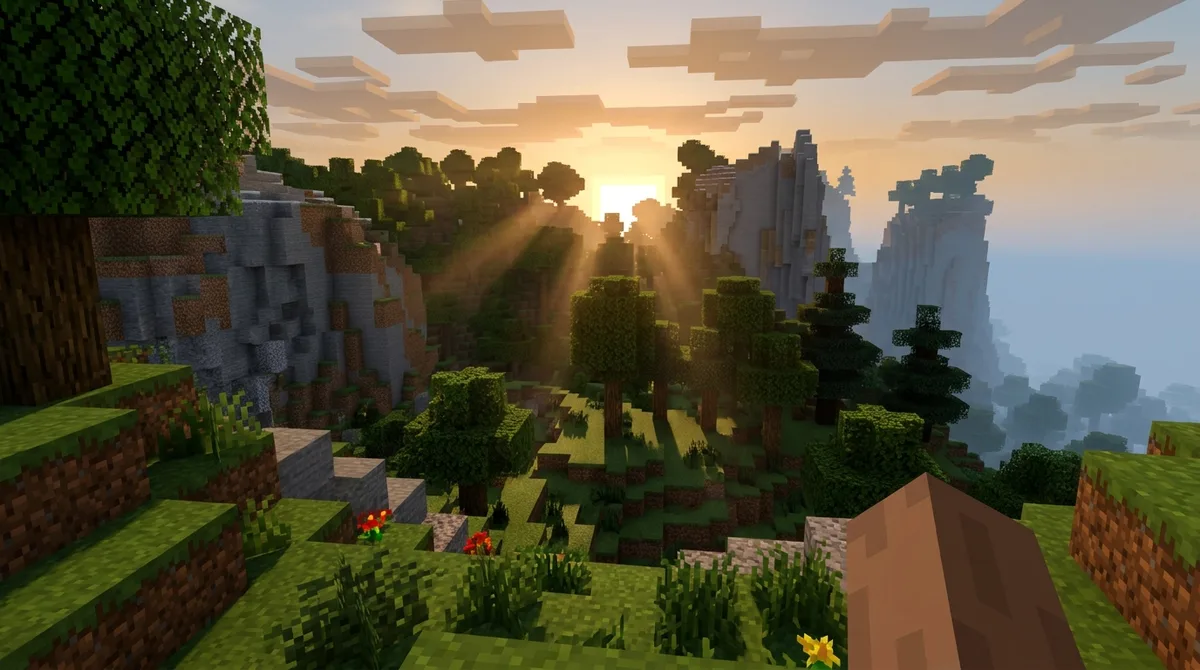
Render distance is the range around you, measured from your position, within which the game draws the world. Minecraft counts this range in chunks, not single blocks. At a setting of 8 chunks, the game draws roughly 8 chunks out in each direction, which works out to about 128 blocks from you.
Everything inside that range is drawn, including terrain, mobs, dropped items, and other visible objects. Anything beyond the range isn’t drawn at all. A village on a distant hill won’t appear until you walk closer, and a cow or a stack of dropped iron ingots just past the edge will be missing from your screen until you get within range.
Other games measure draw distance in other ways. Unity’s far clipping plane is a cutoff distance set in world units, and the camera can’t see geometry past it. Minecraft doesn’t use that system. Its setting is a count of chunks, so a number you learned in another game won’t tell you how far you can see in Minecraft.
Where Is Render Distance in Minecraft Settings?
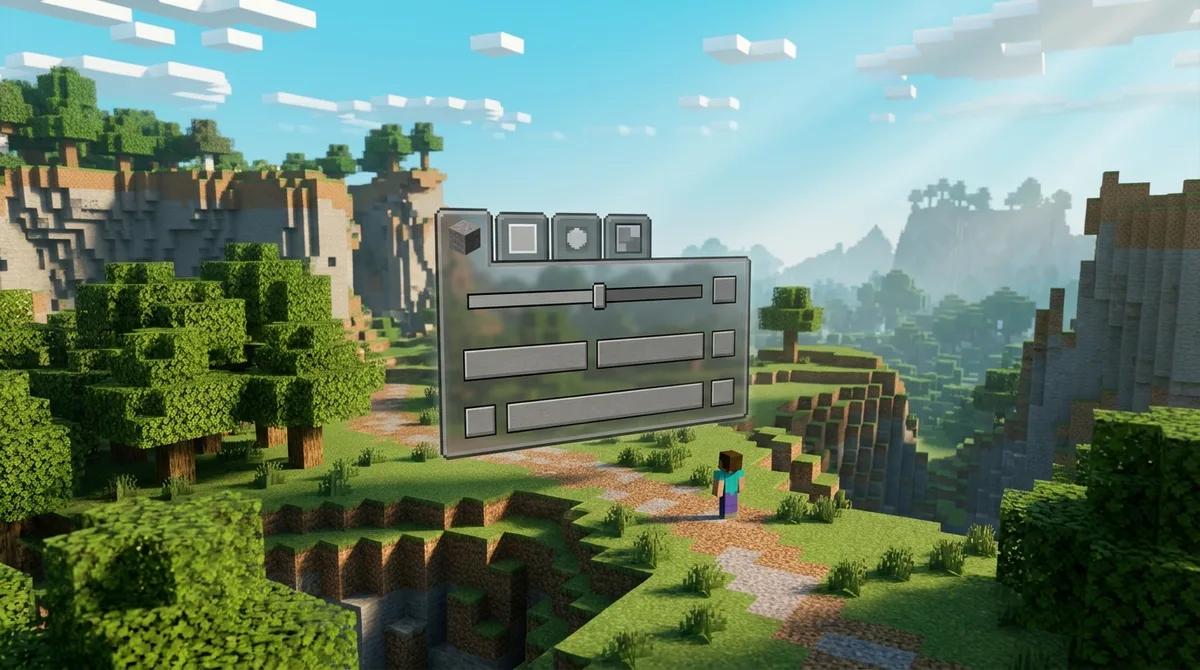
On Bedrock Edition, you’ll find the render distance slider in the Settings menu under Video, next to the other graphics options. The allowed range runs from 4 to 96 chunks. If you play on a PC, you can reach the full 96, which lets you see far across mountains and open plains. Phones, tablets, and consoles usually don’t start there. Other devices may default to as low as 4 chunks, so a brand new world on a phone can look much more closed in than the same world on a PC. If you switch between devices, don’t be surprised when the same world looks different on each one.
Java Edition handles this control differently. Open Options, choose Video Settings, and look for Render Distance on that screen. Because the two editions set their own limits, a value that felt right on your console won’t automatically feel right on your Java PC. That’s why this guide points out where Java and Bedrock differ. Before you change anything, open the video settings in your own edition and read the slider’s current value and limits. A quick look at the menu will tell you exactly what your game allows.
What Render Distance Should You Pick for Your Device?
Start low on weaker hardware, raise the value in small steps, and keep the highest setting that stays smooth in a busy spot. Don’t jump straight to the maximum, because a big jump can hide a slowdown until you’re already in a crowded base.
Each device needs its own test. A setting that runs smoothly on a gaming PC may stutter on a tablet or older console, so a number that works on one device won’t necessarily work on another.
Pick one test spot and use it every time. A village built against a large mountain or a river valley with a long view works well. Stand at the same coordinates, such as X 120, Y 70, Z -40, so you compare the same scene at each value.
Use this routine on each device, one action at a time:
- Set render distance to the lowest value your device offers, walk to your test spot, and note how far the mountain ridge draws before it fades into the sky.
- Raise the value by two chunks, return to the same coordinates, and check whether the view still feels smooth and the ridge draws farther.
- Repeat the two-chunk steps, noting each value and what changes in the frame rate and draw distance.
- Walk into the busiest area you have, such as a village with villagers and iron golems, or a base with working redstone and zombies nearby.
- Turn the camera quickly and watch for stutter, then drop back one step if the view starts to lag.
- Write down the highest value that stayed smooth in the busy area, and leave a little room below it for heavier moments.
Once you have that number, check it against a second spot, like a quiet field at dusk, to make sure it holds up in different conditions.
Render Distance Versus Simulation Distance
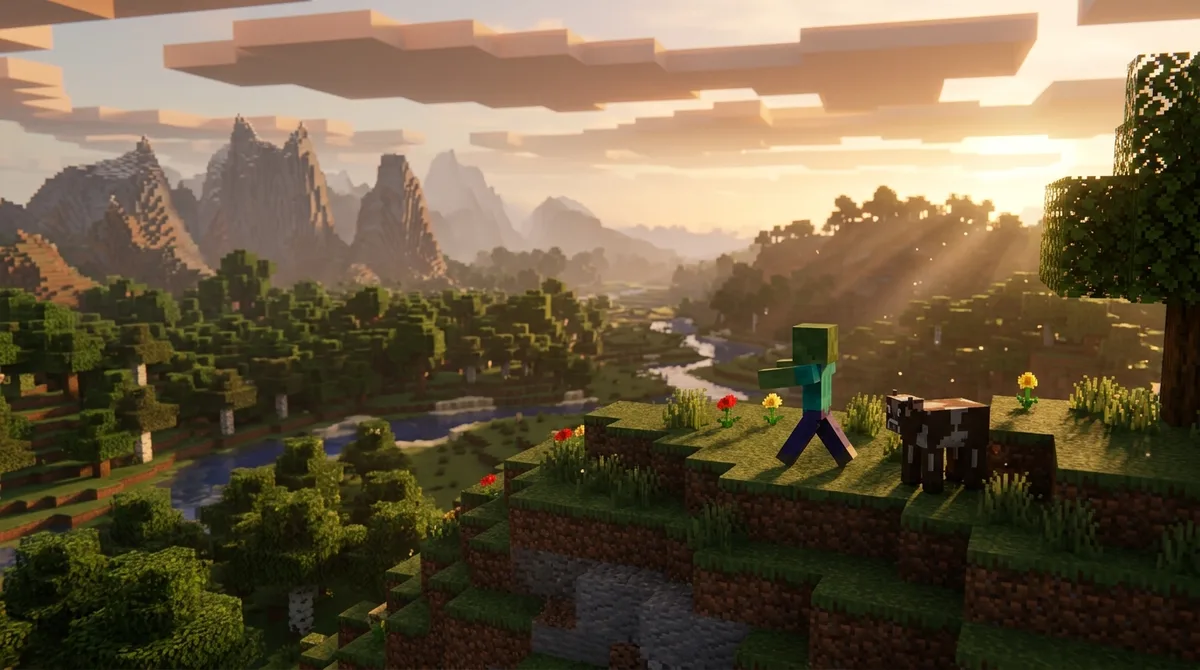
Render distance and simulation distance sound alike, but they do different jobs. Render distance controls what you see on screen. Simulation distance controls what keeps running in the chunks around you, including entity behavior, mob spawning, plant growth, and fluid movement.
Picture a wheat field six chunks away. With render distance set to 12, you can see the golden rows clearly, but if simulation distance is only 4, those crops stop growing until you walk closer. The same thing happens to a flowing water source or a mob that freezes in place outside the simulation range.
On Bedrock Edition, simulation distance can never be set higher than render distance. Its default is 4 chunks, and the device-dependent maximum can be 12, so the ceiling you get depends on the hardware you play on.
Simulation distance also costs more performance than render distance. Render distance mainly adds work for your graphics, but simulation distance affects both your device and the server, so its cost lands in two places. If you run a busy farm or a large redstone build, keep simulation distance modest even when you want a wide view.
Why Does Higher Render Distance Lower My FPS?
Higher render distance lowers your frame rate because your device has to draw more of the world on every frame. Frame rate is how many images your screen shows each second, and a wider view means more blocks, mobs, and items to prepare each time.
At a small setting, the graphics engine only handles the chunks close to you. Push the slider up, and it has to keep track of a much wider ring of terrain. That extra work comes straight out of your frame rate.
Picture a player on a phone who starts at 6 chunks and raises the slider to 16 before heading into a mountain biome. At first, the peaks sit quietly on the horizon and the game feels fine. Then the player runs down a slope, and stone ridges, snowy tops, and spruce trees suddenly load all at once. The screen hitches, the camera stutters when it turns, and the walk feels choppy.
That stutter is a clear sign that your setting is too high. It usually shows up in two situations: when you move into terrain the game hasn’t drawn yet, and when many chunks load at the same time, such as after a teleport or during a fast elytra flight over a valley. Walking across a flat plain may feel fine, so test in the places where new terrain keeps appearing.
If you notice this, lower the setting by a step or two, then walk the same route again. If the stutter fades, that lower value is a better fit for your device.
Can Servers and Realms Limit Your Render Distance?
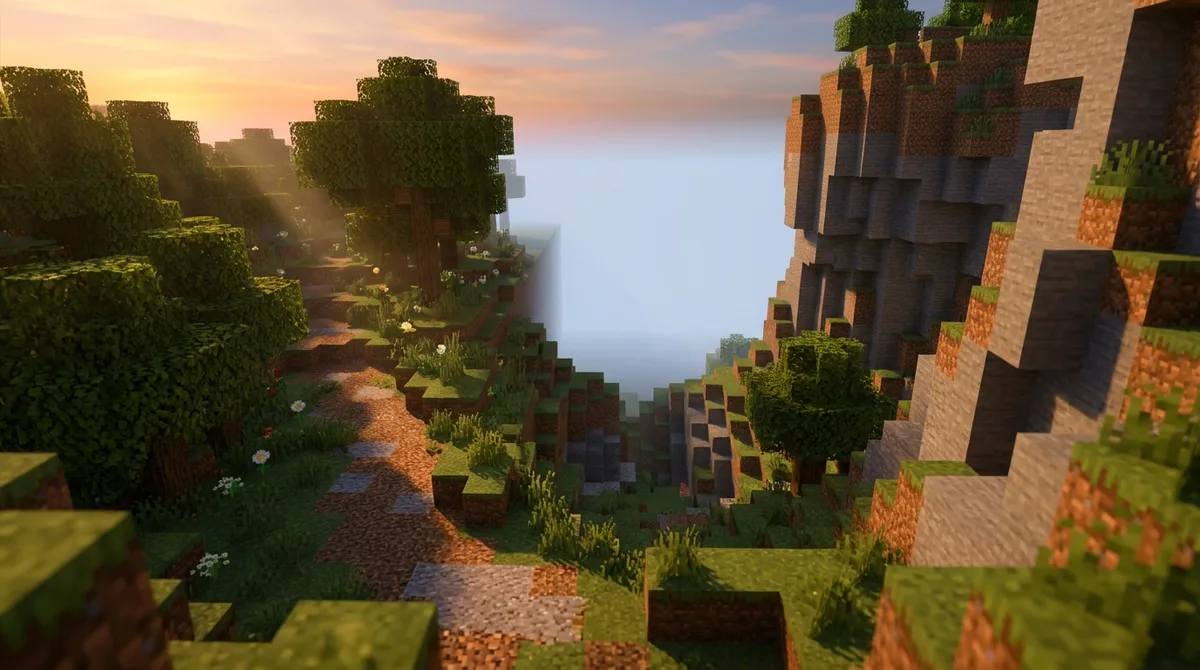
Yes, a server can cap how far you see. On Bedrock multiplayer, the game draws only to the lesser of your own render distance and the server’s view-distance setting. If the server is set to 10 chunks and your slider is at 32, you’ll still only see 10 chunks out.
Realms can work differently. A Bedrock Realm may have a different render-distance limit from a local world, and a typical maximum is 20 chunks. If your view feels shorter on a Realm than it did in a single-player world, the Realm’s limit is a likely reason.
Before you change your own slider, check the server or Realm settings. Look for:
- The server’s view-distance value, which caps what every player can draw.
- Whether the Realm’s limit is below the typical 20-chunk maximum.
- Whether your slider already sits at or above the server’s number.
If the server caps the view at 10, pushing your own setting higher only adds work for your device. Your frame rate pays the cost, but you still see the same 10 chunks, so it’s better to keep your setting where it stays smooth.
Is There a New Fog Setting in Java Snapshots?
Yes, Java Edition 26.4 Snapshot 9 added a separate Improved Fog video setting. It was posted on November 17, 2026, and it’s part of a testing version, not a regular release.
Snapshots let players try changes before they reach the main game. If you’re playing a stable release, you won’t see Improved Fog yet, so there’s nothing to switch on in your video settings.
The setting works together with Improved Transparency. When both are enabled, the Snapshot 9 patch notes say the sky and clouds blend into the fog that covers terrain at the edge of your render distance. Picture a snowy ridge fading into the clouds instead of ending in a hard line.
Don’t treat this as a render distance tip. It’s meant for players testing the snapshot who want to see how the fog looks. For everyday settings on a stable release, the smooth-frame testing method is still the best way to choose a value.
Dialing In a Render Distance You Can Keep
Before you change anything, write down three things: your device, your edition, and where you play. A phone on Bedrock connected to a Realm needs different numbers than a gaming PC running Java on a local world.
Once you have those details, follow this routine on each device you use.
- Set render distance to a conservative starting value, close to 4 chunks on a phone or older console, and lower on any device that already feels strained.
- Walk to your busiest spot, such as a village with villagers and iron golems, and stand there.
- Raise the value by two chunks, turn the camera quickly, and watch for stutter.
- Repeat the same route at each value, and stop one step below the first setting that makes the view lag.
- If the view stops growing past a certain point, check the server’s view-distance value or the Realm’s limit.
- If mobs seem to freeze far away or distant crops stop growing, review simulation distance, keeping it modest and never higher than render distance.
Finding the Render Distance Your Device Can Handle
Start with the device you play on most, since that’s where your number will matter every day. Open the video settings, note the current render distance, and then test a value you can reach on purpose, such as 8 chunks on a phone if 4 chunks runs smoothly. Write the number down in a note on that device, labeled with the device name and edition, so you don’t have to guess next time.
Next, repeat the test on the weakest device you own. Load a world you know well, walk to your busiest spot, and turn the camera quickly at your chosen value. If the view stays smooth, try a second spot with more mobs or a bigger build. A quiet field at dusk rarely shows the stutter that a crowded village or a working redstone farm will.
Last, if you play on a Realm or a server, ask the host for the view-distance value before you change anything else. That number caps what you can see, so raising your own slider past it only adds work for your device. Once you know the cap, set your slider at or just below it, and keep the value your device can hold steady.