

A gamerule list is the set of per-world settings that control how your Minecraft world plays, from whether you keep your items after death to how fast crops grow. You check or change each one with the /gamerule command. Bedrock Edition’s command does not require cheats, and each rule accepts either true or false or a whole number, depending on the rule. For example, randomTickSpeed defaults to 1, and setting it to 0 turns off random ticks entirely. The default spawnRadius is 10 blocks around world spawn.
The biggest catch is that the names differ by edition and version. Java Edition has an Edit Game Rules menu when you create or edit a world, while Bedrock exposes about half of its rules in world menus and needs commands or the Bedrock Editor for the rest. Java Edition 1.21.11 also renamed rules to namespaced snake_case IDs, such as minecraft:fire_spread_radius_around_player, while Bedrock still uses camelCase names like doDaylightCycle. Before you copy a command, check your edition and version. The guides on this site cover both Java and Bedrock, and wherever a rule works differently between them, we say so, so you can follow the right steps for your game.
Key Takeaways
- Typing /gamerule with only the rule name shows you the current setting before you change anything.
- Turn on keepInventory before a Nether fortress run so a death sends you back to spawn with your gear.
- Set playersSleepingPercentage to 40 on a five-player Java server so two sleeping players can skip the night.
- Run /weather clear, then set doWeatherCycle to false to keep a sunny sky for your screenshots.
- Set mobGriefing to false to stop creeper explosions from blowing holes in your starter house walls.
How the /gamerule Command Works in Java and Bedrock
Think of /gamerule as a readout and a switch in one. To check a setting, type /gamerule followed by the rule name and leave off the value. The game replies with the current setting, so you can see what a world is doing before you change anything. To change it, add the new value after the name, such as true, false, or a number. For example, typing /gamerule doDaylightCycle false stops the day and night cycle in that world.
Java Edition players can skip the typing for many settings. Open the Edit Game Rules menu, find the rule you want, and change it there. If you’d like to see how each setting is described before you touch it, the Minecraft Wiki’s game rule page explains what each option does in Java. Commands still come in handy on Java when you want to change a rule mid-game, since you won’t have to leave the world to open a menu.
Bedrock players have a helpful shortcut. Start typing /gamerule in chat, and the game suggests rule names as you type. You don’t have to memorize exact spellings. That matters because Bedrock names are camelCase, like doDaylightCycle, and a small typo will stop the command from working. Remember that Bedrock’s world menus only cover about half of the rules, so for the others you’ll need to type the command or use the Bedrock Editor.
Permissions are the other thing to know about on Bedrock. The /gamerule command sits at the Game Directors permission level, which means the people who run a server decide who can use it. If you play on a friend’s server and your rule change does nothing, ask the host whether you have that level before you assume the command is broken.
Finally, pay attention to the type of value each rule expects. Some rules only take true or false, while others take a whole number. Entering the wrong kind of value gives you an error instead of a change, so check the value type before you press Enter.
Java and Bedrock Rule Names at a Glance

Java Edition 1.21.11 changed the names of many rules, so a command that works on an older Java version may do nothing on the newest one. Bedrock names have stayed the same, so the Bedrock column works as a single reference.
Use the table below to find the rule you want and the name that matches your game.
| Rule | Bedrock name | Java name before 1.21.11 | Java name from 1.21.11 |
|---|---|---|---|
| Keep items after death | keepInventory | keepInventory | Check the in-game list |
| Day and night cycle | doDaylightCycle | doDaylightCycle | Check the in-game list |
| Rain and snow changes | doWeatherCycle | doWeatherCycle | minecraft:advance_weather |
| Mobs changing blocks | mobGriefing | mobGriefing | Check the in-game list |
| Natural mob spawning | doMobSpawning | doMobSpawning | Check the in-game list |
| Phantoms | doInsomnia | doInsomnia | Check the in-game list |
| Fire damage | fireDamage | fireDamage | Check the in-game list |
| Fall damage | fallDamage | fallDamage | Check the in-game list |
| Healing at full hunger | naturalRegeneration | naturalRegeneration | Check the in-game list |
| Random ticks | randomTickSpeed | randomTickSpeed | Check the in-game list |
| Mob drops | doMobLoot | doMobLoot | Check the in-game list |
| Block drops | doTileDrops | doTileDrops | minecraft:block_drops |
| Non-mob drops | doEntityDrops | doEntityDrops | Check the in-game list |
| Fire spread | doFireTick | doFireTick | minecraft:fire_spread_radius_around_player |
| Sleeping percentage | playersSleepingPercentage | playersSleepingPercentage | Check the in-game list |
Notice that doFireTick is the clearest example of the change. Java 1.21.11 replaced it with minecraft:fire_spread_radius_around_player, so a command that turns off fire spread on an older Java world will fail on a 1.21.11 world. Rules marked “Check the in-game list” have new Java IDs too, so look them up in your game before you type them.
keepInventory: Keeping Your Items After Death
keepInventory is the rule that decides what happens to your stuff when you die. When it’s set to true, you keep your items and experience after death. When it’s set to false, which is the default, your items drop where you died, and you have to go back and collect them.
Say you’re heading into a Nether fortress on Bedrock. Type /gamerule keepInventory true before you leave, and a fall or a fight in the fortress sends you back to spawn with your armor, your tools, and your blaze rods. With the rule set to false, the same death leaves everything in a pile inside the fortress, and you have to fight your way back to get it.
Keep in mind that the setting applies to every player in the world. On a multiplayer server, keep inventory applies to all players, so changing it changes the stakes for the whole group. Also, keepInventory covers only player deaths. The doEntityDrops and doMobLoot rules control drops from non-player sources, so they are separate settings.
Java Edition 1.21.11 renamed this rule to keep_inventory, while older Java versions use keepInventory. Other rules, such as stopping the day cycle or switching off natural mob spawning, can reshape play just as much.
At a glance
- Best for: Players who want to keep their gear and experience after a risky trip, such as a Nether fortress run.
- Default Value: false
- Accepted Values: true or false
- Command Syntax: /gamerule keepInventory true
- Java and Bedrock Differences: Java 1.21.11 and later uses keep_inventory, while older Java versions use keepInventory.
playersSleepingPercentage: Setting How Many Players Skip the Night

playersSleepingPercentage sets the share of players who must be in bed before the night is skipped. Its default is 100, which means every player in the world has to sleep before morning arrives. Java Edition introduced the rule with that default, so a new world plays this way until you change it.
The two ends of the scale behave differently. Set it to 0, and a single sleeping player can skip the night alone, which is handy when a small group wants to reach daylight quickly. Bedrock treats zero or a negative number the same way. A value above 100 stops sleeping from skipping the night at all. Players can still lie down, but morning won’t come that way.
Unlike the true or false rules, this one needs a whole number after the rule name. Say you run a five-player Java server and want two people in bed to be enough. Two is 40 percent of five, so you would type /gamerule minecraft:players_sleeping_percentage 40 on Java 1.21.11 or later. On Bedrock, the same idea uses /gamerule playerssleepingpercentage 40.
Remember that this is a shared setting. Changing it on a multiplayer world changes when the night can be skipped for everyone who plays there, not just the person who typed the command. Let your group know before you change it, so nobody wakes up to a skipped night they didn’t expect.
At a glance
- Best for: multiplayer worlds and servers where the group wants to decide how many players must sleep
- Default Value: 100 in Java Edition
- Accepted Values: a whole number; 0 lets one player skip the night, and a value above 100 prevents sleeping from skipping it
- Command Syntax: /gamerule minecraft:players_sleeping_percentage <integer> in Java 1.21.11 and later; /gamerule playerssleepingpercentage <integer> in Bedrock
- Needs Operator Permission: yes, level 2 in Java and level 1 in Bedrock (Game Directors or Operator)
doDaylightCycle: Freezing Time for Steady Light
The doDaylightCycle rule decides whether the day and night cycle keeps moving forward in your world. It is a true or false rule that starts out as true, so the sun rises and sets on its own. To freeze the clock, type /gamerule doDaylightCycle false. The world stays at the time it was when you pressed Enter. Type /gamerule doDaylightCycle true to start the cycle again.
Pick your time before you freeze it, because the clock locks at whatever moment you stop it. Use the time command, such as /time set day, to jump to the hour you want, then run the gamerule command. This works well for a photo build that needs soft light all day, or a crop farm that depends on steady sunlight for its plants.
This is a world-level setting, so every player in that world sees the same frozen time. On a shared world or server, one change affects everyone, so agree on the time first. If you freeze the clock at midnight, every player stays in the dark until someone turns the cycle back on. The Microsoft Learn guide to game rules describes how Bedrock handles these settings.
At a glance
- Best for: photo builds and farms that need steady sunlight
- Default Value: true
- Accepted Values: true or false (Boolean)
- Command Syntax: /gamerule doDaylightCycle false to freeze, /gamerule doDaylightCycle true to resume
- Java and Bedrock Differences: Java 1.21.11 renamed this rule to a namespaced ID, while Bedrock still uses doDaylightCycle
- Needs Operator Permission: Java requires permission level 2
doWeatherCycle: Keeping Rain and Snow Under Control

The doWeatherCycle rule controls whether rain, thunderstorms, and snow start on their own as time passes. Set it to false and the weather stays exactly as it is right now. Set it to true and natural weather changes come back. If you’re building a sunset scene while it’s raining, false locks the sky in place.
Turning the rule off doesn’t freeze the weather for good. The /weather command still works, so you can change conditions whenever you need to. With the rule set to false, the weather stays put until you run a /weather command. If you want a sunny sky to last, run /weather clear first, then set the rule to false.
Weather belongs to the whole world, not to one player, so every person sharing that world sees the same change. That makes the rule handy for builds, screenshots, and events, where a sudden storm would ruin the shot or the plan. Be careful, though. Rain, snow, and thunderstorms can affect gameplay as well as scenery.
The name also changes by version. In Java Edition 1.21.11 and later, the rule is minecraft:advance_weather, while Bedrock Edition still uses doweathercycle.
At a glance
- Best for: keeping a build, photo shoot, or event under the same sky
- Default Value: true
- Accepted Values: true or false
- Command Syntax: /gamerule advance_weather false on Java 1.21.11 and later, /gamerule doWeatherCycle false on earlier Java versions, and /gamerule doweathercycle false on Bedrock
- Java and Bedrock Differences: Java 1.21.11 and later uses minecraft:advance_weather, while Bedrock keeps doweathercycle
- Command Access: Java level 2, or Bedrock level 1 (Game Directors)
mobGriefing: Stopping Mobs from Changing Blocks
Creepers, zombies, endermen, and other mobs can change blocks in your world, and the mobGriefing rule decides whether they can. With the rule on, a creeper explosion can destroy blocks, which is the classic example. Picture a creeper wandering near your starter house. Normally its blast would blow a hole in the walls. In a Java survival world with mobGriefing set to false, that explosion leaves your base intact. The creeper can still hurt you if you stand too close, because the rule protects blocks, not players.
mobGriefing is a world-level Boolean rule, so it takes only true or false, and it starts out as true. To protect a base, type /gamerule mobGriefing false. On Bedrock, the command doesn’t need cheats and requires Game Directors permission. On Java, it needs permission level 2, which normally means operator privileges on a server or commands enabled in a single-player world.
Turning the rule off has a cost. It also stops helpful behaviors, such as mobs picking up dropped items. Villagers will no longer pick up food, and piglins will not pick up gold ingots, so a trading or bartering setup can stop working. The rule also has nothing to do with keeping your items after death. That job belongs to keepInventory, a separate setting.
Because the rule is set for the whole world, one change covers every mob in it. Think about that before you switch it off on a shared world or server. Players there will lose the pickups and trades along with the explosion damage.
At a glance
- Best for: Protecting a starter house or build from creeper explosions
- Default Value: true
- Accepted Values: true or false
- Command Syntax: /gamerule mobGriefing false
- Needs Operator Permission: Java needs level 2 access; Game Directors on Bedrock
doMobSpawning: Turning Natural Mob Spawns On or Off
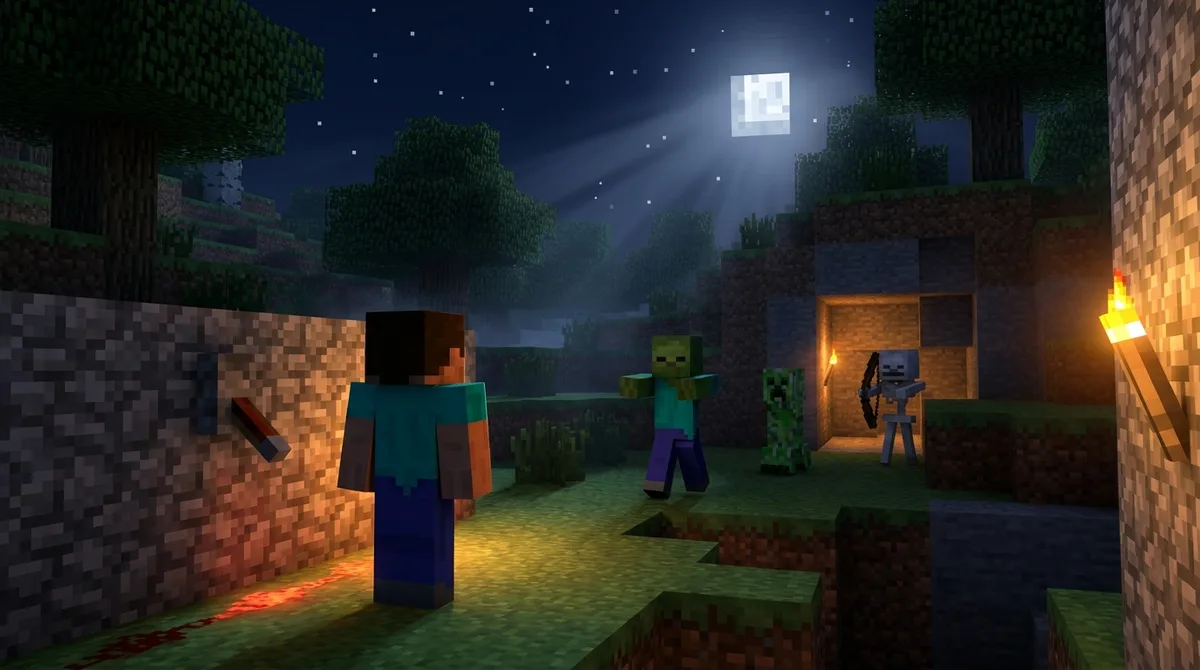
The doMobSpawning rule controls whether mobs appear naturally in your world, such as zombies on grass at night or skeletons in dark caves. Set it to false and those natural spawns stop, which makes the world much quieter. It is a true or false rule, not a percentage. It does not decide whether players keep their items after death, since that job belongs to keepInventory.
To turn natural spawning off, type /gamerule doMobSpawning false. The default is true, which keeps spawns running as normal. Setting the rule to false does not block every mob, though. Commands, monster spawners, raids, and spawn eggs still produce mobs, so a spawner you built earlier will keep working in your quiet world.
Java Edition renamed this rule in version 1.21.11, so the name you type depends on your edition and version. The rule suits a peaceful building world, where you can lay out walls and gardens without zombies wandering in. Keep in mind that it also stops mob farms that rely on natural spawns. If you plan to run a farm like that, switch the rule back to true first.
At a glance
- Best for: Peaceful building worlds where you want fewer natural mobs.
- Default Value: true
- Accepted Values: true or false
- Command Syntax: /gamerule doMobSpawning false
- Java and Bedrock Differences: Java 1.21.11 and later uses a new name, while Bedrock keeps doMobSpawning.
- Needs Operator Permission: Java needs cheats enabled in single-player or operator status on a server; Bedrock requires Game Directors permission.
doInsomnia: Phantoms and Sleepless Nights
The doInsomnia rule controls the effects of not sleeping, and phantoms are the most noticeable one. Phantoms are flying mobs that show up when you go too long without sleeping. Microsoft’s Bedrock GameRule reference says that setting it to false turns off phantoms and other insomnia effects.
The rule accepts only true or false, and it starts out as true. Type /gamerule doInsomnia false to stop phantoms from spawning on players who skip sleep. This is useful in a world where you want to spend several nights mining or farming without going to bed. Because the rule is world-level, you can also pair it with playersSleepingPercentage if you want to control how sleep changes the night.
The name matches across editions before Java 1.21.11, so Bedrock and older Java worlds both use doInsomnia. Java 1.21.11 replaced it with a namespaced ID, so look up the new name in your game’s rule list before you type the command. On Java, you need permission level 2 to change it, and on Bedrock the command is open to Game Directors.
Remember that this is a setting for the whole world, not for one player. On a shared world or server, turning phantoms off means nobody gets them, so agree with your group first. Switch the rule back to true when you want sleep and the night to carry their usual risks again.
At a glance
- Best for: worlds where players want to spend several nights mining or farming without sleeping
- Default Value: true
- Accepted Values: true or false
- Command Syntax: /gamerule doInsomnia false
- Java and Bedrock Differences: Java 1.21.11 uses a namespaced ID, while Bedrock keeps doInsomnia
- Command Access: Java level 2; Game Directors on Bedrock, and no cheats needed
fireDamage: Turning Off Harm from Fire and Lava
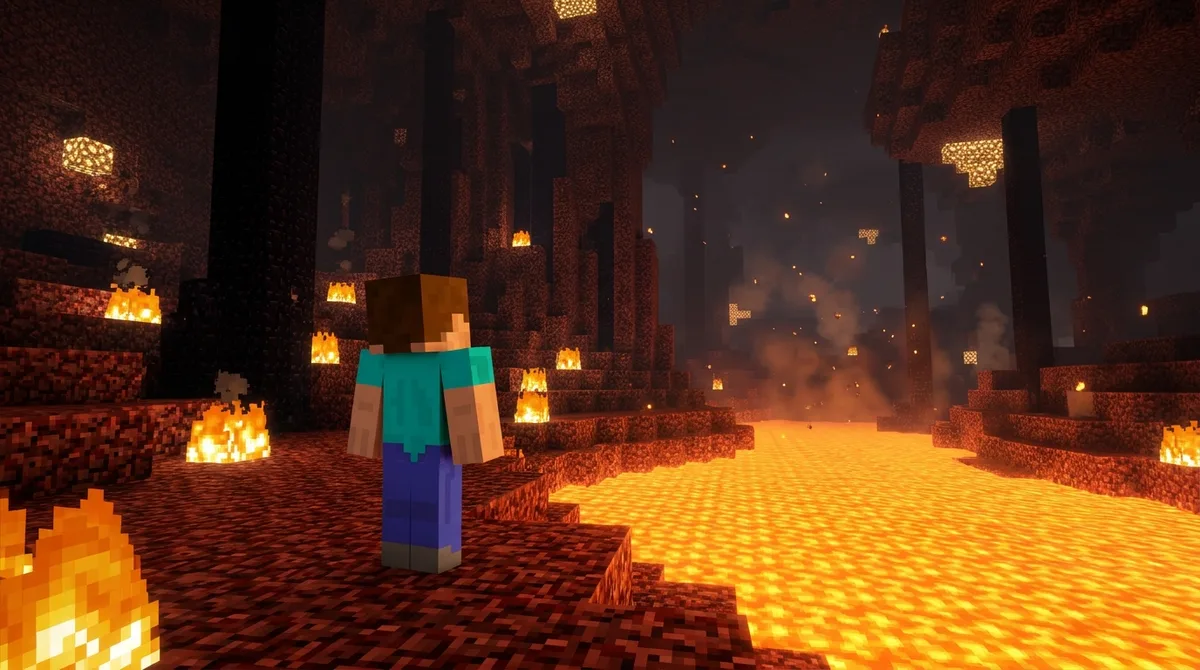
The fireDamage rule decides whether entities take damage from fire and lava. Those entities include players and mobs, so a zombie standing in flames gets hurt the same way you do. On Bedrock, the rule’s description also covers campfires and magma blocks, so standing on a magma block or next to a campfire counts too.
The default is true, which means fire and lava hurt as usual. Set it to false if you want those hazards to be less dangerous, such as when you’re building in a lava-heavy area or exploring a Nether zone full of fire.
Keep in mind that this rule is separate from fire spread. Turning off fire damage does not stop fire from spreading, and you can still be set on fire even though the damage is switched off. Changing the rule also affects every player in the world, so on a shared world or server, everyone takes the same reduced harm from lava.
On Java Edition 1.21.11 and later, type /gamerule fire_damage false. On earlier Java versions, use /gamerule fireDamage false, and on Bedrock, use /gamerule firedamage false. Type true instead of false to bring back normal damage.
At a glance
- Best for: Players who want to explore lava-heavy areas or build near fire without taking damage
- Default Value: true
- Accepted Values: true or false
- Command Syntax: /gamerule fire_damage false on Java 1.21.11 and later; /gamerule fireDamage false on earlier Java; /gamerule firedamage false on Bedrock
- Java and Bedrock Differences: Java 1.21.11 and later uses fire_damage, while Bedrock uses firedamage
doFireTick: Controlling How Fire Spreads
doFireTick is the rule that decides whether fire spreads through your world. Fire can creep from a burning block onto nearby wood, so this setting controls how far the flames travel. In Bedrock Edition, it is a true or false rule that starts out as true, which means fire spreads by default.
To stop the spread, type /gamerule doFireTick false. Say you have a wooden base near a Nether portal, where a stray flame could catch the planks and keep moving. Setting the rule to false keeps the fire from taking hold. Set it back to true when you want fire to spread again.
Java players need to pay attention to their version. Java Edition 1.21.11 removed doFireTick and replaced it with minecraft:fire_spread_radius_around_player, so the old command will not work on a 1.21.11 world. On Java versions before 1.21.11, the doFireTick command still applies.
Remember that this is a world-wide setting. On a shared server, changing it changes fire behavior for everyone playing there, not just the person who typed the command. Tell your group before you switch it, so nobody is surprised when fire stops spreading across their builds.
At a glance
- Best for: protecting a wooden base near a Nether portal from spreading fire
- Default Value: true
- Accepted Values: true or false
- Command Syntax: /gamerule doFireTick false
- Java and Bedrock Differences: Java 1.21.11 replaced it with minecraft:fire_spread_radius_around_player; Bedrock still uses doFireTick
- Command Access: Game Directors on Bedrock; cheats optional
fallDamage: Removing Harm from Long Drops

Falling is one of the first things that can ruin a build test. The fallDamage rule decides whether a fall causes damage in your world. Leave it on true, the default, and a long drop hurts the way it normally does. Set it to false, and you can jump off a tall pillar to check how a build looks at that height without losing your health.
The rule accepts only true or false. It’s a world-level setting, not a player-specific toggle, so changing it affects everyone who plays in that world. On a shared server, one change covers every player on it, so tell your group before you switch it off.
The command name depends on your edition and version. On Java Edition 1.21.11 and later, type /gamerule fall_damage false. Java Edition 1.21.10 and earlier used fallDamage, while Bedrock uses falldamage. For the latest Bedrock syntax, see Microsoft’s gamerule command reference. Microsoft describes the Bedrock rule as controlling whether entities take damage from falling, so mobs are covered too, not just players.
At a glance
- Best for: Players who build tall towers or explore cave drops and want to test heights safely
- Default Value: true
- Accepted Values: true or false
- Command Syntax: /gamerule fall_damage false on Java 1.21.11 and later; /gamerule fallDamage false on Java 1.21.10 and earlier; /gamerule falldamage false on Bedrock
- Java and Bedrock Differences: Java 1.21.11 and later uses fall_damage, older Java uses fallDamage, and Bedrock uses falldamage
naturalRegeneration: Healing Over Time at Full Hunger
naturalRegeneration decides whether your health climbs back on its own. When your hunger bar is full enough, the game slowly heals you without potions or food. The rule does not control whether you keep your items after death, which is the job of keepInventory. It also leaves golden apples and the Regeneration effect alone, so those healing sources still work when the rule is switched off.
Leave it set to true for the default survival experience. Set it to false when you want a tougher run. Picture coming back from a Nether fortress with only a few hearts left. With the rule off, your health won’t refill just because you’re well fed, so you have to rely on golden apples, healing potions, or the Regeneration effect. Every fight suddenly matters more.
The command depends on your edition and version. On Bedrock, type /gamerule naturalregeneration false to turn it off. On Java Edition 1.21.11 and later, the rule uses the namespaced ID minecraft:natural_health_regeneration, so you would type /gamerule minecraft:natural_health_regeneration false instead. The rule accepts only true or false, so there is no number to enter. On a shared server, the change applies to every player at once, so talk to your group before you make it.
At a glance
- Best for: players who want a tougher survival run where healing takes planning
- Default Value: true
- Accepted Values: true or false
- Command Syntax: /gamerule naturalregeneration false on Bedrock; /gamerule minecraft:natural_health_regeneration false on Java 1.21.11 and later
- Java and Bedrock Differences: Java 1.21.11 and later uses a namespaced ID, while Bedrock uses naturalregeneration
randomTickSpeed: Crop Growth, Leaf Decay, and Server Load
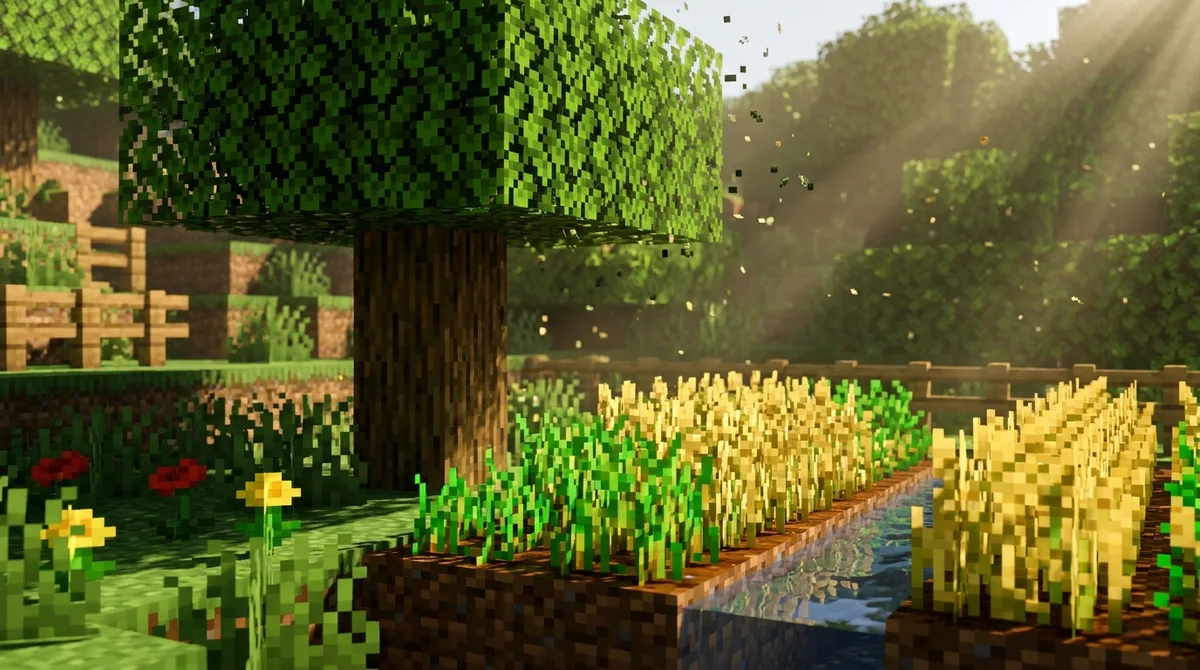
randomTickSpeed sets how often random block updates happen in your world. Each random update gives a block a chance to change, which is why wheat, carrots, and potatoes grow over time, why grass slowly spreads, and why leaves with no nearby log eventually disappear. Set it to 0, and random ticks stop, so your crops stop growing and your leaves stop decaying.
This is a whole number rule, not a true or false switch. Bedrock accepts values from 0 to 4096, and zero or any lower number turns random ticks off. Java Edition’s default is 3, according to the game tick page, while Bedrock’s default is 1. Java uses the value to choose how many blocks are picked per subchunk, but Bedrock treats it as a relative speed. Some guides list a default of 3 and a maximum of 4096, so check which edition and version those numbers describe before you set a value.
randomTickSpeed is not the same as changing the game’s overall tick rate. It only changes how many random updates happen, so it doesn’t speed up or slow down everything else. Be careful with very high values, though. Pushing the number up can increase server load and cause lag. Because the setting applies to the whole world, every player on that server feels the slowdown.
At a glance
- Best for: players who want faster crop growth, or who want to pause crops and leaf decay by setting it to 0
- Default Value: 1 in Bedrock Edition; 3 in Java Edition
- Accepted Values: whole numbers from 0 to 4096 in Bedrock; Java’s current rule has a minimum of 0
- Command Syntax: /gamerule randomTickSpeed 0 in Bedrock and older Java versions
- Java and Bedrock Differences: Java picks blocks per subchunk, while Bedrock uses a relative speed
- Needs Operator Permission: Bedrock Game Directors level only
doMobLoot: Controlling Mob Drops and Experience
doMobLoot controls whether mobs drop items and experience orbs when they die. It is on by default, so a zombie still leaves rotten flesh, a skeleton still leaves bones, and a blaze still leaves blaze rods for you to collect. Set the rule to false with /gamerule doMobLoot false on older Java, and those death drops stop. Drops that don’t come from a mob dying can still happen, because the rule only covers mob deaths.
The change applies to everyone in the world, so it shapes survival progression for every player there. Without blaze rods, you can’t brew as many potions, and without experience orbs, enchanting gets much harder. Mob farms feel it most. A skeleton farm stops producing bones and arrows, and a zombie farm produces nothing you can use. On a server, every farm goes quiet at once.
doMobLoot does not decide whether you keep your items after death, since keepInventory covers that. The names differ by version: Java 1.21.11 and later uses mob_drops, older Java uses doMobLoot, and Bedrock uses domobloot. Changing the rule needs operator permission level 2 in Java and Game Directors permission on Bedrock.
At a glance
- Best for: Players who want mobs to leave no drops or experience orbs, such as a challenge run without farm rewards.
- Default Value: true
- Accepted Values: true or false
- Command Syntax: /gamerule mob_drops false on Java 1.21.11 and later; /gamerule doMobLoot false on older Java; /gamerule domobloot false on Bedrock
- Java and Bedrock Differences: Java 1.21.11 and later uses mob_drops, while Bedrock uses the lowercase domobloot.
- Needs Operator Permission: Java level 2; the Bedrock side uses the Game Directors level
doTileDrops: Deciding Whether Blocks Drop Items

doTileDrops decides whether blocks leave items behind when you break them. With it on, mining stone gives you cobblestone and chopping a log gives you wood. It only affects what blocks leave behind, so it has no bearing on the gear you carry when you die. Your inventory after death is handled by keepInventory.
This is a true or false rule, and it starts out as true. To turn drops off on Java Edition 1.21.10 or earlier, type /gamerule doTileDrops false. On Bedrock, type /gamerule dotiledrops false. On Java 1.21.11 the rule’s ID is minecraft:block_drops. The wiki’s gamerule entry lists true as the default.
Turning drops off makes gathering in Survival much harder. Mined stone, dug dirt, and chopped logs all vanish, so you can’t stock up on wood for a crafting table or stone for a furnace. Set the rule back to true to restore normal drops. Because it applies to the whole world, a change affects every player on a shared server at the same time, so agree on it with your group first.
At a glance
- Best for: Worlds where you want broken blocks to leave no items behind, such as a test world for a build.
- Default Value: true
- Accepted Values: true or false
- Command Syntax: /gamerule doTileDrops false on Java 1.21.10 and earlier; /gamerule dotiledrops false on Bedrock
- Java and Bedrock Differences: Java 1.21.11 uses minecraft:block_drops, while Bedrock uses dotiledrops
- Bedrock access: Game Directors level; cheats are not needed
doEntityDrops: Item Frames and Non-Mob Drops
doEntityDrops controls whether non-mob entities drop items when they are broken or otherwise made to drop them. Item frames are the main example. Break a frame that holds a map or a banner, and the item pops out onto the floor. With the rule set to its default of true, that happens as normal. On Bedrock, the rule is named doentitydrops.
Set it to false to stop item frames from dropping their contents when broken. Say you have a museum wall of maps and banners, and you don’t want a visitor’s stray hit to empty the display. On Bedrock, type /gamerule doentitydrops false. On Java versions before 1.21.11, type /gamerule doEntityDrops false.
This rule is not the one that keeps your items after death, so it won’t save your gear in a Nether fortress. Java Edition renamed it to minecraft:entity_drops in version 1.21.11, so on a newer Java world you would type /gamerule minecraft:entity_drops false. The rule takes only true or false, and it applies to the whole world, so every player sees the same item frames when it is switched off.
At a glance
- Best for: keeping item frame displays from emptying when they are broken
- Default Value: true
- Accepted Values: true or false
- Command Syntax: /gamerule doentitydrops false on Bedrock; /gamerule minecraft:entity_drops false on Java 1.21.11 and later
- Java and Bedrock Differences: Java 1.21.11 renamed the rule to minecraft:entity_drops, while Bedrock keeps doentitydrops
- Bedrock access: Game Directors level, with cheats optional
Choosing Your Rules for Your Next World

Start with the goal for your world. A peaceful build world might turn off natural mob spawning and freeze the sky, while a harder survival challenge might turn off natural regeneration and leave keepInventory at false. Pick the few rules that match your plan, and leave the rest at their defaults so you can tell which change caused which result.
Before you type anything, check your edition and version. A command copied from an older guide may do nothing on a 1.21.11 Java world, so look up the rule name in your own game first.
Test each change in a single-player world before you apply it to a shared server. Create a throwaway world, run the command, and see what happens. For fall damage, for example, jump off a tall pillar and confirm you take no harm.
Finally, remember that every rule applies to the whole world. Changing it affects every player there, not only the person who typed the command, so tell your group before you switch anything on a shared server.
Making Your First Change Safely
Start by choosing one goal for your next world. If you want a tougher Bedrock survival run, naturalRegeneration is a good first rule to change. Write down its exact name and the value you want before you open the game, so you don’t change five settings at once and lose track of which one caused which result.
Next, create a fresh world and type the rule name on its own, with no value, to read its current setting. The reply shows what the world is doing before you touch it. Then type the new value, play for a few minutes, and check the result. Only after that should you apply the same change to your real world.
If your plan involves where players start, look at spawnRadius too. On Bedrock, its default is 10 blocks around world spawn, and it sets the area where a player may spawn. It does not affect Adventure mode, so if you’re building an adventure map, you’ll need to plan spawn placement separately.
Keep a short note of every rule you change, with its value and the date you changed it. If a world behaves oddly later, that note will tell you where to look first.