
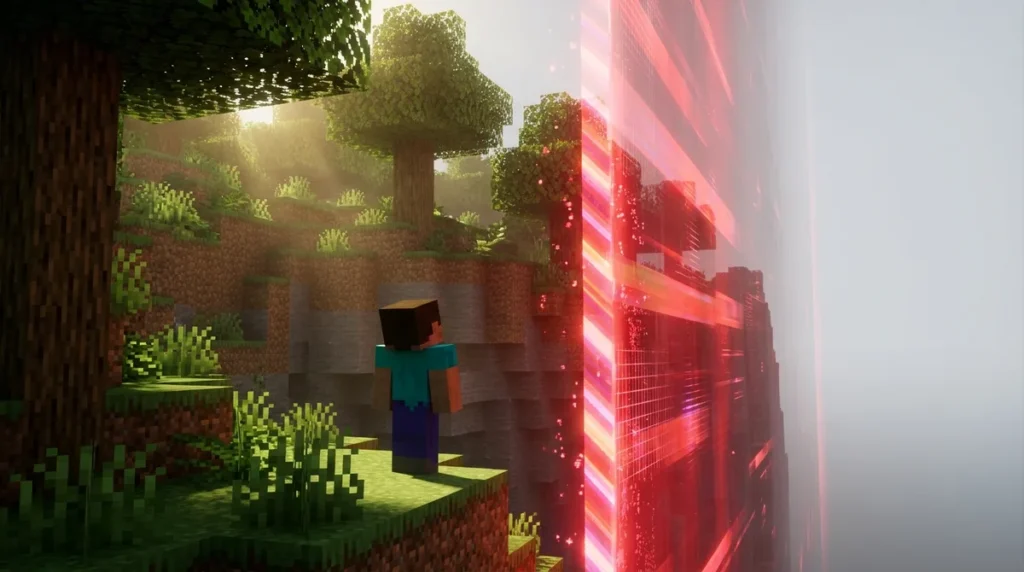
The Minecraft world border is a flat, square boundary that limits how far you can travel in Java Edition. By default, it spans 59,999,968 blocks across, with each face about 29,999,984 blocks from the world origin on the X and Z axes. That distance is so large that most survival players will never reach it, but custom worlds can shrink it dramatically.
Look for its animated diagonal stripes. They are aqua when the border is stationary, green while it expands, and red while it shrinks. Press F3 to open the debug screen and read your XYZ coordinates, so you can judge how close you are. If you step more than 5 blocks past the edge, you start taking damage at 0.2 per second for every block beyond that buffer, so keep an eye on your position.
Key Takeaways
- In Java Edition, the default world border sits about 29,999,984 blocks from the world origin on each face, so most Survival players will never reach it.
- The Java Edition world border stripes show you which way the edge is moving: aqua means stationary, green means expanding, and red means shrinking.
- In Java Edition, pressing F3 opens the debug screen so you can read your X and Z coordinates and compare them to the border’s center and size to see how close you are to the edge.
- Survival and Adventure players take 0.2 damage per second for every block they travel beyond the 5-block buffer past the Java Edition world border, while Creative and Spectator players are not affected.
- Players who add or remove a border mod in Java Edition should back up their world first, because removing a mod can leave saved border settings behind that the game no longer understands.
How Big Is the Default Minecraft World Border?
The default Java Edition border is a square 59,999,968 blocks across. Each of its four faces sits 29,999,984 blocks from the world origin, the point at 0 on the X and Z axes. If you stood at the origin and walked straight east, west, north, or south, you would need to cover roughly 30 million blocks before reaching a wall.
That distance is far beyond what a normal survival world asks of you. Most players will never get close to the edge, since they rarely travel far from their starting area. The border still matters as a hard boundary, though. Players normally cannot walk through a stationary border, so the edge is always there, even if you never see it.
The limit applies only to horizontal travel. It is a flat square on the map, not a ceiling or a floor, so it does not stop you from flying higher or digging deeper. Your vertical range is set by the world’s own height limits instead.
These numbers describe the default border only. You can change the border’s size and center, so the origin is not always the middle of the square in a custom world. Recent Java updates also made borders specific to each dimension, which means the Overworld, the Nether, and The End can each have their own settings. Check the world’s settings before you assume the edge is 30 million blocks away.
If you plan to play a challenge with a custom border, write down your spawn coordinates as soon as you start. That gives you a fixed reference point, so you can track how far you have traveled from the center and how much room you have left before the edge.
How Do You Find the Border in Java Edition?
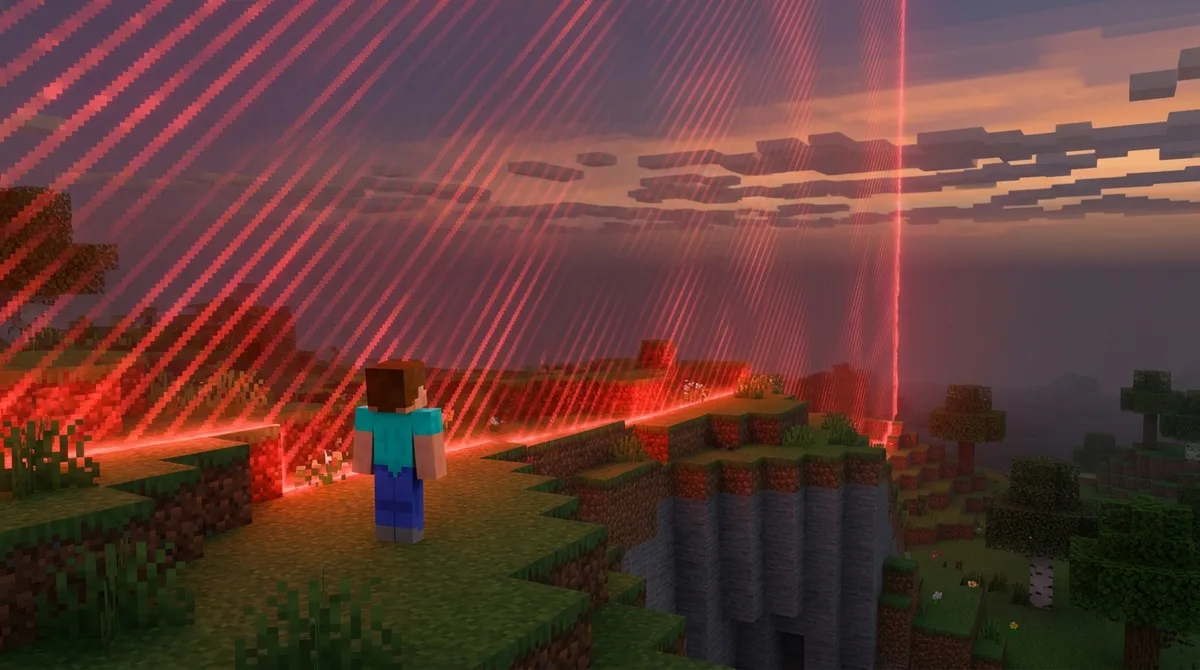
You can spot the border in Java Edition by finding its wall of animated stripes, then reading your X and Z coordinates to see how close you are. Those coordinates only mean something once you compare them to the border’s real position, which depends on how your world was set up.
The stripes are your clearest sign. They appear aqua when the border is stationary, green while it expands, and red while it shrinks, so the color also hints at whether the edge is about to move. Java’s default warnings tint your screen red when you are within 5 blocks of the border, or when a shrinking border is due to reach you within 15 seconds.
Coordinates give you the second half of the picture. Java Edition players can press F3, or Fn+F3 on some Macs and laptops, to open the debug screen, which shows your current XYZ position. Your X and Z values place you on the flat map, while Y only shows your height, which the border does not limit.
Don’t assume the default numbers match your edge. A custom world can have a smaller border or one whose center sits away from the origin. Check the border’s center and size in the world’s settings, or ask whoever built the challenge for those values.
Use this routine to measure your distance in a custom world:
- Open the world’s settings and write down the border’s center X and Z, along with its size.
- Divide the size by two to find how far each face sits from the center.
- Press F3 (or Fn+F3) and note your current X and Z.
- Subtract the center coordinate from your X or Z to find how far you are from the nearest face.
- Walk toward the stripes and watch their color as you get close.
What Happens When You Reach or Cross the Border?
Crossing the border means running into an invisible wall, and the game is built to stop you there. In Java Edition, you normally cannot walk through a stationary border, so you will bump against it and stay on the playable side.
The game gives you a chance to back off first. Java’s default warning settings tint your screen red when you come within 5 blocks of the edge. The same red tint appears when a shrinking border is due to reach you within 15 seconds, which gives you a short window to move inward before the wall catches up.
Damage only starts once you are more than 5 blocks past the border. Think of that 5-block band as a safe buffer. If you stand 8 blocks beyond the edge, you are 3 blocks past the buffer, so you take 0.6 damage each second. At 13 blocks beyond the edge, you are 8 blocks past the buffer and take 1.6 damage each second, which can wipe out your health quickly.
The rules depend on your game mode. Creative and Spectator players are not affected by border damage, so you can fly past the edge to scout terrain or check a build without getting hurt. Survival and Adventure players take the full damage.
If you are playing a challenge, don’t wait for the red screen to tell you that you are close. Watch the stripes as you approach, and head back toward the center once you see them change color. Keeping a few blocks of margin gives you room to react if you sprint too far by accident.
How Does the Border Shrink, Expand, and Move Over Time?
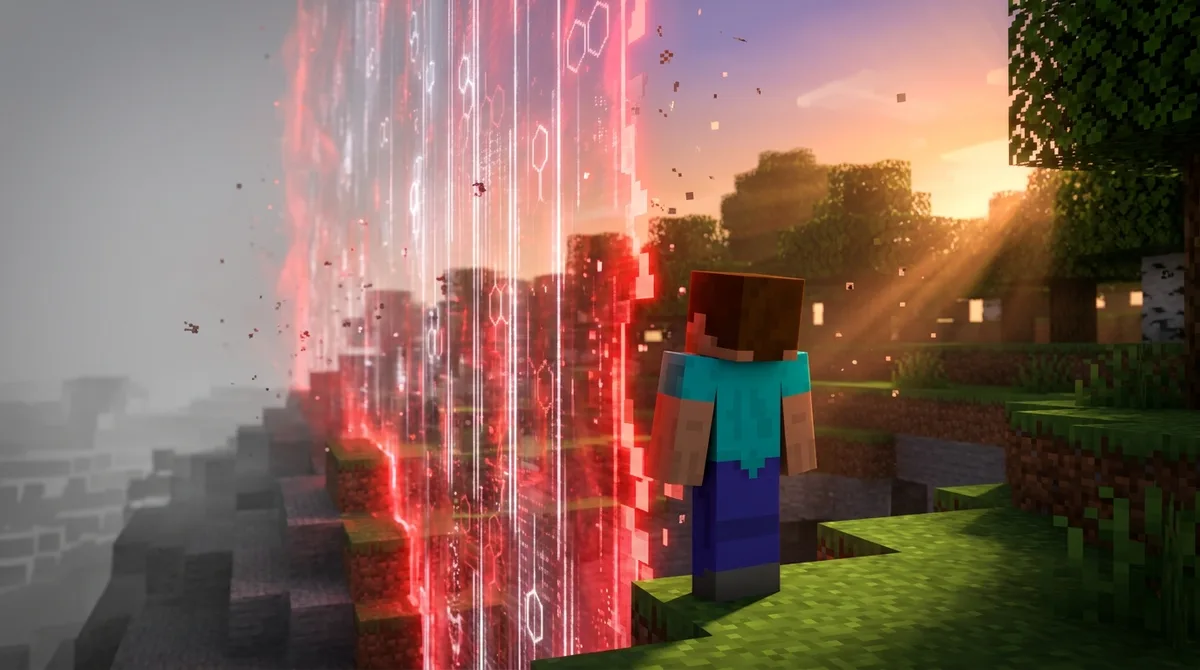
The border can change during play because its size and center are settings you can alter. That means it can grow, shrink, or shift to a new spot on the map. A custom challenge might start with a wide border that closes in over time, while another world might move the center so the edge sits over a different region.
The stripes show you which way the border is heading. A shrinking border turns red, and a growing one turns green. When you plan a route, pay attention to that color, because a red wall means the ground near the edge may soon fall outside the playable area.
Dimensions have their own limits, too. Recent Java updates made borders dimension-specific, so the Overworld, the Nether, and The End can each have different settings. This matters for progression. Your Overworld base might sit well inside its border, while a Nether highway you built runs close to a much tighter edge. Check each dimension separately before you travel between them.
Recent Java updates also changed how a moving border advances while the world is paused. If you pause the game during a shrink or an expansion, the border may not be where you left it when you return. Check the stripes and your coordinates before you walk off. Because these changes are recent, players on older versions may see different behavior.
What Are Good Survival Challenges and Custom Worlds with a Border?
Good border challenges give you a clear edge to play against, like a shrinking safe zone around spawn or a small custom world you have to search thoroughly. Two ideas are worth trying first.
The first is shrinking-zone survival. Start at spawn, then shrink the border by a set amount each in-game day. Gather your food, tools, and loot only from inside the safe area. The red stripes act as a deadline that keeps pushing you toward the middle of the map. Villages near spawn are your early targets, and once their chests are picked clean, you have to decide whether a trip past the edge is worth the risk.
The second is a bounded custom world. Set the border around a region small enough to search in one play session. Because you cannot wander far, you will reach desert temples and pillager outposts much sooner than you would on a normal map. Pick a region with a few landmarks you can use, and keep track of which ones you have already explored.
Named landmarks make a border easier to read. Use a feature like a river bend, a lone oak, or a mesa edge as your reference point, and write its coordinates next to its name. A simple setup might look like this:
- Spawn Hill: the starting point, your center reference
- River Bend: the western landmark you use to judge how close the edge is
- Mesa Ridge: the northern marker, where you should place a line of torches
Be careful about staying near the warning area. When the red tint appears, the shrinking wall may already be closing in, and if you keep mining or building beyond it, the edge can carry you into the damage zone. Head back toward the center as soon as the warning shows, rather than waiting until the screen is fully tinted.
How Do You Add a Border with Mods and Servers?
You can add or change a border with a mod on Java Edition, but only if the mod fits your game. Mods are the usual way Java players alter border behavior beyond the default settings, which is one reason the border is a Java-focused feature.
Fabric, Forge, NeoForge, and Quilt are the main Java mod loaders, and each one runs mods differently. A mod is built for a specific loader and a specific Minecraft version, so a Fabric mod will not load in a Forge install, and a mod made for one game version may fail on another. Before you download anything, confirm which loader you already use and which game version you are running.
Next, read the mod’s compatibility notes and check that they list your exact version, such as Minecraft 1.21.9 or 1.21.11. If the notes name a different version, expect crashes, missing features, or border settings that do not work the way the mod describes.
Singleplayer and server use work differently. In singleplayer, a border change only affects your own world, so you can build a tight edge for a challenge without bothering anyone else. On a multiplayer server, the server owner controls the border for everyone through the game’s own settings and commands. Players cannot set their own border there.
Always back up the world before you add or remove a mod. Removing a mod can leave saved border settings behind that the game no longer understands, and a copy of your world folder lets you roll back if something goes wrong.
Does Bedrock Edition Have a World Border?
No, Bedrock Edition does not have a customizable world border like the one in Java Edition. The adjustable square boundary described above is exclusive to Java, so Bedrock has no fixed horizontal limit of the same kind. Don’t expect the same stripes, the same F3 workflow, or the same damage rules when you travel far from spawn.
The Overworld page on the Minecraft Wiki makes the same point, so Bedrock players can plan travel without a set edge to measure against. That doesn’t mean distance is unlimited. Normal gameplay can break down at extreme distances on either edition, so the world may stop behaving the way it does near spawn.
Think of the Java border as a rule you can set and tune. On Bedrock, the far-distance problems are more like practical limits you run into while exploring. If you plan a long expedition, leave yourself a clear route back to your base and keep a log of landmarks as you go.
Bug reports and known issues change with every update, so check the Minecraft Wiki before planning a long Bedrock trip. Look for the notes on the pages that cover the mechanic you care about, and compare them to the version you run, such as Minecraft 1.21.9 or 1.21.11.
Planning Your Next Border-Based Challenge
Start with a small test world before you commit to a long challenge. Create a new Java Edition world, open its settings, and set a border around spawn that you can cross on foot in one short walk. Write down the border’s center X and Z and its size, so you know exactly where each face should sit.
Next, walk straight out from spawn toward one face and watch for the animated stripes. Press F3 when you first see them and note your X or Z value. If that number does not match your calculation, check the center again before you go any farther.
Once the test lines up, plan your real challenge the same way. Pick a few landmarks you can find again, such as a river bend, a lone oak, or a mesa ridge, and write each one’s coordinates beside its name. Keep a running list of the villages and chests you have already searched, so you don’t waste a trip.
Finally, set one rule for your first session. For example, decide that you will turn back the moment your screen tints red, no matter what loot you can see past the edge. Stick to that rule, and you will spend your time searching for loot instead of recovering from border damage.