

The clone command syntax starts with /clone, followed by three coordinate sets: a begin point, an end point, and a destination. The first two mark opposite corners of the box you want to copy, and the destination marks the lower northwest corner of where the copy lands. For example, /clone 10 64 10 20 70 25 30 64 10 copies everything inside that box and places it starting at 30 64 10. You can add two optional settings after the coordinates, a mask mode and a clone mode. Together they decide what gets copied and whether the original stays put.
Bedrock players need cheats turned on and Game Director permission to run the command. Java Edition added its own syntax for cloning between dimensions in version 1.19.4, so the two editions don’t always match. This guide covers both Java Edition and Bedrock Edition, and it points out where the syntax or rules differ so you can follow the version you actually play.
Key Takeaways
- Press F3 to read your exact coordinates before typing a relative command, since the tilde measures from wherever the command actually runs.
- Choose masked mode when you want to copy a build onto existing terrain without erasing the dirt and stone already there.
- Only use move mode after checking the copy, because the original source area becomes air once the copy finishes.
- Add a full block name after filtered, such as minecraft:glass, so the copy includes only that block type.
How Is the Clone Command Syntax Laid Out?
/clone is followed by three coordinate triplets, and each triplet is three numbers separated by spaces. In Bedrock Edition the full pattern is /clone <begin x y z> <end x y z> <destination x y z> [maskMode] [cloneMode]. The first two triplets and the destination are required, so the command won’t run without all three.
The begin and end triplets mark two opposite corners of the region you want to copy. Together they form a box, called a cuboid, and every block inside that box can be copied. Think of it like drawing a rectangle on a map by picking two diagonal corners.
The destination triplet tells the game where the copy starts. It marks the lower northwest corner of the new region, which is the corner with the smallest x and z values. Everything else in the copy is placed relative to that point.
The mask and clone modes come after the coordinates and are optional. If you leave them out, the command uses its default settings, so a basic copy needs only the three triplets.
Say you built a small stone brick house that is 9 blocks wide, 7 blocks tall, and 7 blocks deep, with its floor at height 64. Its opposite corners are 100 64 100 and 108 70 106. To place a copy 20 blocks east, starting at 120 64 100, you would type:
/clone 100 64 100 108 70 106 120 64 100
That one line copies the whole house. The new house appears from x 120 to 128 at the same height, and you don’t need any modes.
How Do Relative Coordinates Work in Clone?
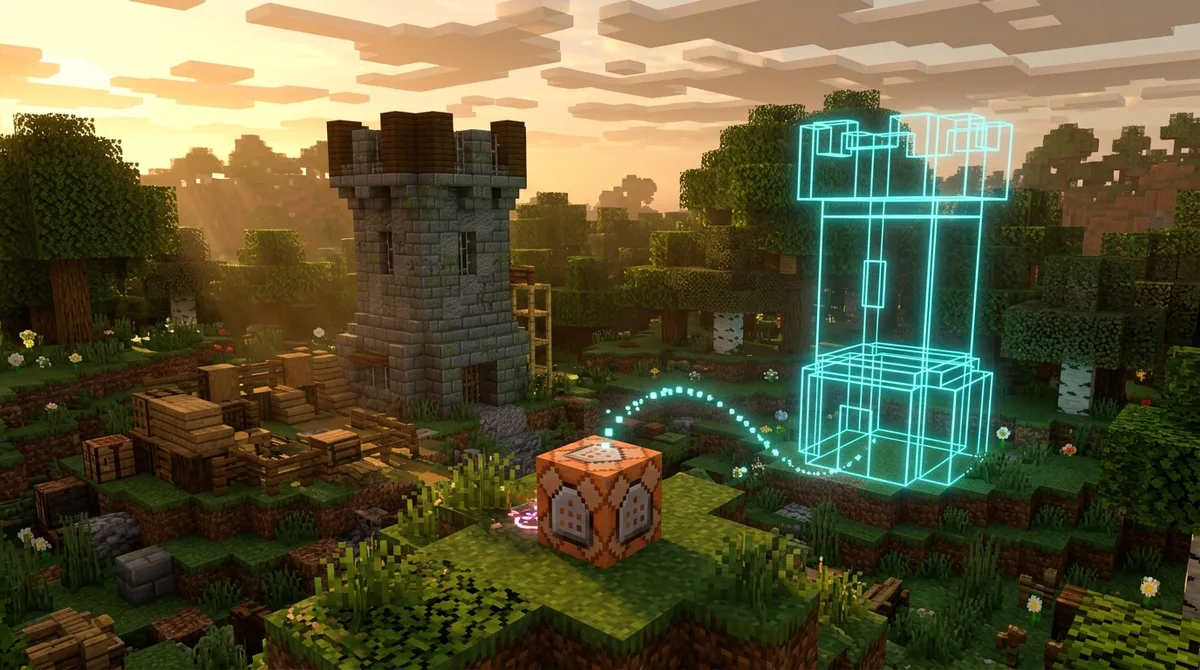
Relative coordinates let you describe a spot by its distance from where the command runs, instead of by a fixed point in the world. You do this with the tilde symbol, ~, which stands for the execution origin on that axis. A plain ~ means “right here,” ~5 means five blocks past that origin, and ~-5 means five blocks the other way. This is handy when you build the same design in different spots on a map.
Before you type anything, press F3 to open the debug screen. It shows your exact position as X, Y, and Z values, so you can read the numbers instead of guessing.
Say you are standing at 200 64 50 and want to copy a flat 10 by 10 patch that starts five blocks west of you. Your begin point is ~-5 ~ ~, which lands at x 195, the same height, and z 50. Your end point is ~4 ~3 ~9, which reaches x 204 and z 59, and three blocks up. To paste the copy 20 blocks south, use ~-5 ~ ~20 as the destination. The full command is:
/clone ~-5 ~ ~ ~4 ~3 ~9 ~-5 ~ ~20
The origin depends on where the command runs. From a command block, ~ measures from the block’s own position. Typed in chat, it measures from your character at the moment you press Enter. The same numbers can copy to different places, so test from the spot you plan to use.
What Do Masked and Replace Modes Do?
Masked mode copies only the non-air blocks in your source box and leaves whatever already sits at the destination in place. Replace mode copies the source blocks over everything at the destination, including dirt, stone, and anything else you wanted to keep. The two words look harmless in a command, which is why so many players get surprised by the results.
Picture a tree-shaped build made of oak logs and leaves, sitting on flat ground. If you clone it onto a hillside with masked, the tree lands on the slope and the hill stays around the leaves. The dirt and grass that were already there remain exactly where they were. Run the same copy with replace, and the tree’s box overwrites the hill, leaving a blocky trunk and leaves carved into the slope.
Air in the source works differently. Under masked, the air blocks in your build are skipped, so the empty gaps around the tree never erase the terrain they overlap. That means you can copy a build with lots of open space inside its box without digging a hole in the hill.
Before you run either mode on a finished world, walk to the destination and look at what is there. Open the debug screen with F3 to confirm your exact coordinates, so you know which blocks the copy will touch.
Normal, Force, and Move Clone Modes Explained
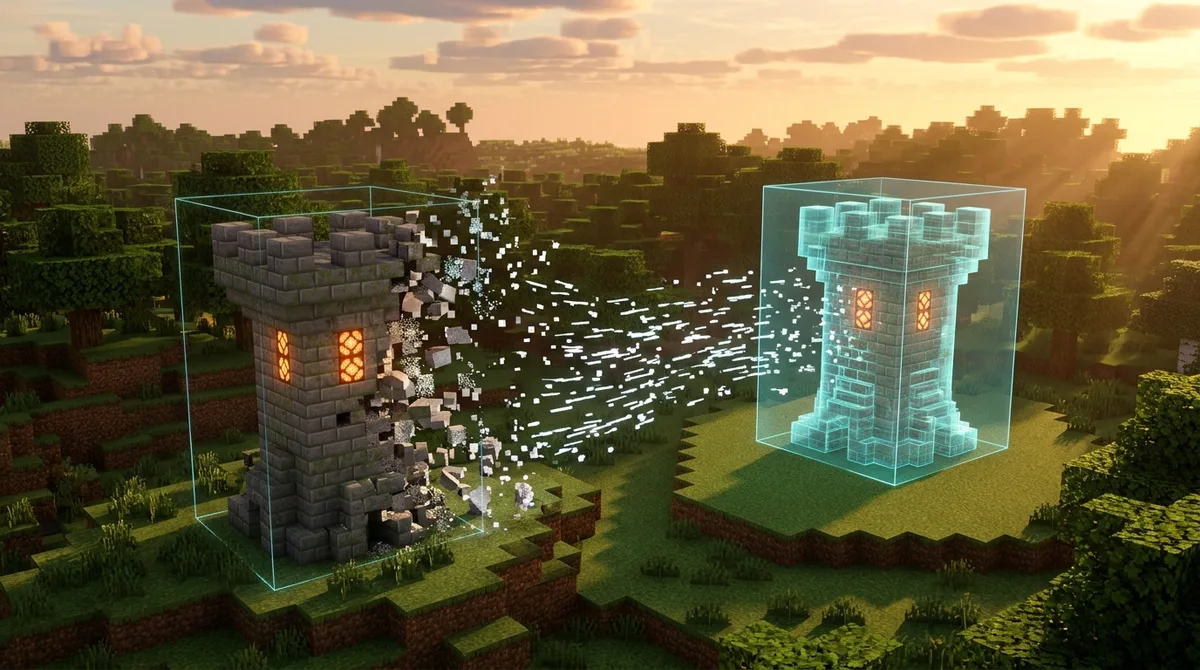
Bedrock Edition gives you three clone modes: normal, force, and move. You add one after the coordinates, and if you skip it, the command uses the default copy. Each mode changes what happens to the original area, so pick the one that fits your goal.
- normal copies the region and leaves the original where it is.
- force lets the source and destination regions overlap.
- move copies the region, then clears the original source area to air.
Force is the mode you need when the new copy would sit partly on top of the old one. Picture a row of five farmland plots spanning x 50 to 54 at z 20 and height 64, and you want the whole row shifted one block east. The new row starts at x 51, so the two boxes share four columns. Run this:
/clone 50 64 20 54 64 20 51 64 20 replace force
Because the overlap is allowed, the row lands one block over in a single step.
Move needs more care. Once the copy finishes, the original box turns to air, so the old plots disappear. If you used move on the farm row, it would erase the part of the row you just pasted, since those columns overlap the source. Move works best when you are relocating a finished build and don’t need the first copy.
Test with normal first. Copy a small piece to an empty area, check the result, and then switch to force or move once the numbers are right. Use move only when you are sure you want the original gone.
How Do You Filter Clones to One Block Type?
Filtered mode copies only the blocks that match one block name you give it, and it skips everything else in the box. You write the word filtered after the coordinates, followed by the block’s full name, such as minecraft:oak_log.
Say a forest section has oak logs, oak leaves, and dirt inside a box from 40 60 40 to 55 75 55. To copy just the logs to a spot starting at 40 60 70, run:
/clone 40 60 40 55 75 55 40 60 70 filtered minecraft:oak_log
The leaves and dirt stay where they are, and only the logs appear at the destination.
Block states narrow the match further. A log has an axis property that shows which direction its grain runs, so a log lying sideways in a fallen tree has a different state from an upright trunk. If you name only the block, both kinds get copied. Add the state in square brackets after the block name to match one orientation only.
The same idea works for a window wall. Filter for minecraft:glass, and the stone frame, lanterns, and wall blocks stay behind.
A useful habit is to think of filtered like masked mode. Blocks that don’t match your filter are never copied, so whatever already sits at the destination stays put unless it matches. Stand at the destination and check what is there before you run the command.
How Does Clone Differ Between Java and Bedrock?
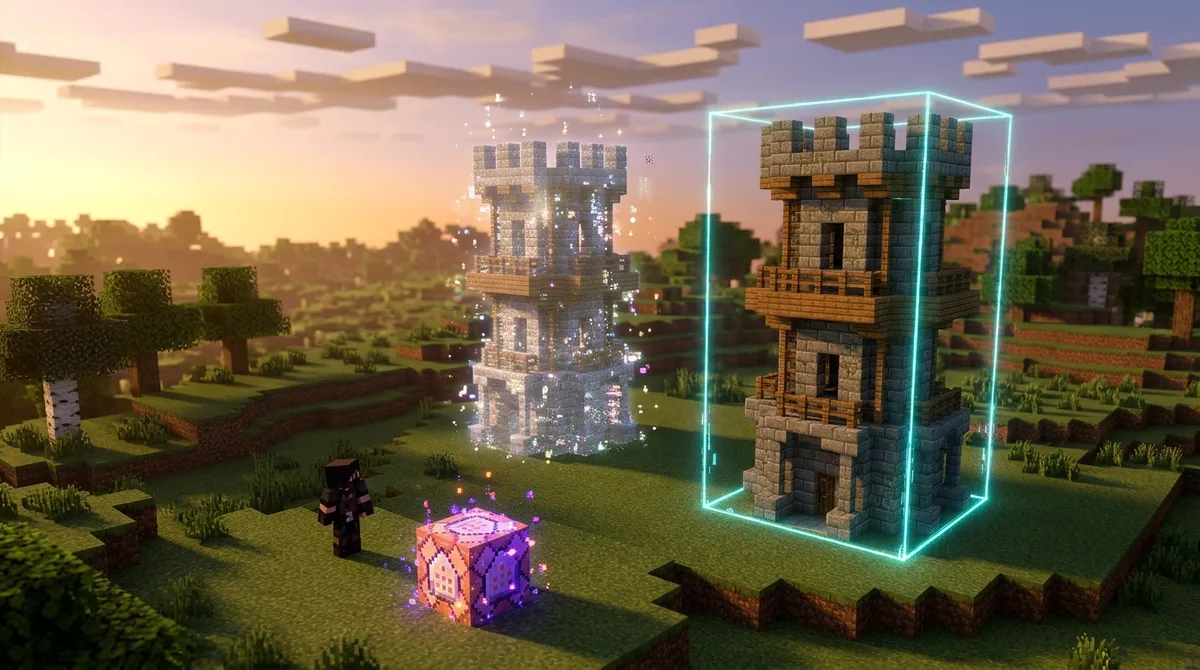
Java and Bedrock share the same basic pattern: a begin triplet, an end triplet, and a destination triplet. The difference shows up when you want to copy between dimensions. Java Edition added its own syntax for that in version 1.19.4, so a Java world on an older release won’t have it, and Bedrock tutorials don’t cover it.
Say you built a blackstone tower in the Nether and want a copy in the overworld. On Java 1.19.4 or newer, you can use the cross-dimension syntax to name the Nether as the source and the overworld as the destination. Pick a flat, clear spot in the overworld first, so the copy doesn’t land inside hills or trees. On 1.19.3 or older, that route isn’t available, and you would need to rebuild the tower by hand.
Version 1.21.5 added a strict placement option to Java Edition. When you use it, the copy goes in without sending block updates or shape updates to the blocks around it. That matters for redstone builds, where a newly placed block could otherwise set off a circuit you didn’t mean to start.
Before you follow any tutorial, check your game version. A guide written for 1.21.5 may use the strict option, and an older Java release won’t recognize it. You can find your version on the title screen, then compare it with the version the guide names. Guides on this site name the release whenever a feature depends on it, such as Sentry Armor Trim, which arrived in Minecraft 1.20.
Do You Need Cheats to Use the Clone Command?
On Bedrock Edition, you need cheats turned on and Game Director permission before /clone will run. Without both, the game won’t carry out the command, even if your coordinates are perfect.
In a survival world, that means you have to make two changes before you can use clone at all. Cheats must be enabled for the world, and your player must hold Game Director permission. Until both are in place, the command is rejected.
Command blocks and chat both need that same permission level. A command block that runs a clone fails just as a typed command would if the permission is missing, so a block doesn’t get around the requirement. If a copy refuses to run, check the cheats setting and your permission level first, before you look for mistakes in the coordinates.
Planning Your First Structure Copy
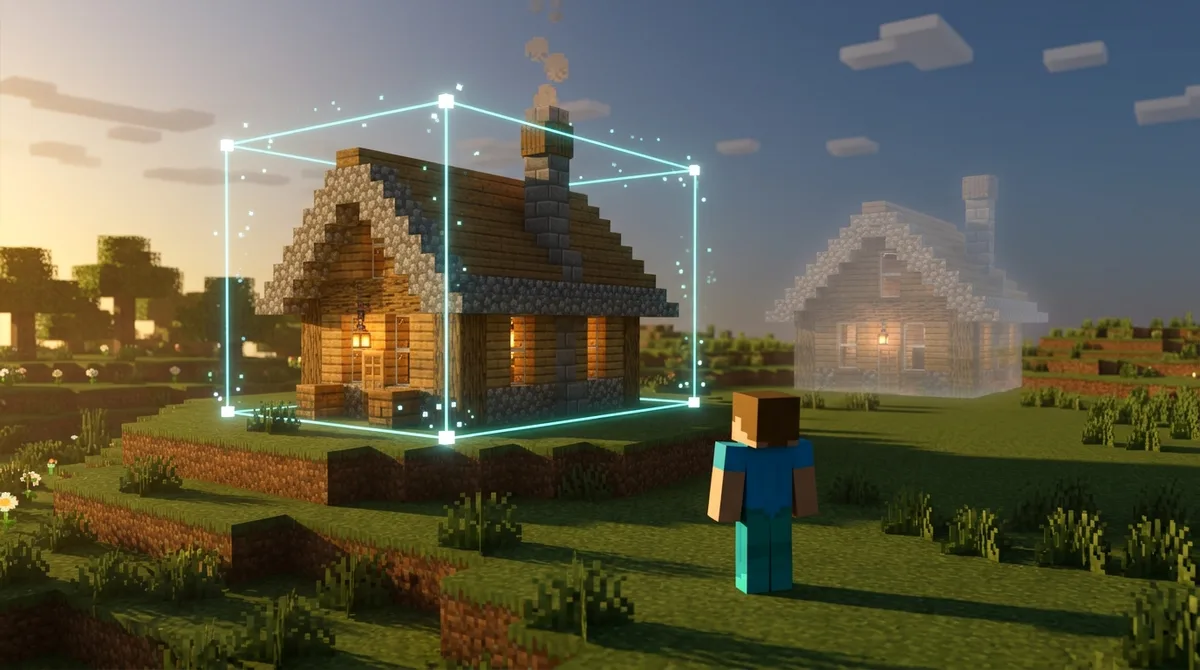
Here is a routine you can follow in your own world. Working through the steps in order keeps any mistake on a test patch instead of your finished base.
- Turn on cheats in your world settings, since Bedrock Edition won’t run the command without them.
- Stand at the corner of the build you want to copy and press F3 to read your exact X, Y, and Z values.
- Write down the begin triplet for one corner, the end triplet for the opposite corner, and then the destination triplet where the copy should start.
- Pick masked or replace, then normal or force, and run the command in a flat, empty area before you use it on anything important.
- Use move only after you have checked the copy and confirmed it looks right, because move clears the original source to air.
Keep the exact command you tested written down. If the first copy lands where you wanted, you can run the same line again in a new spot without rechecking every number.
Planning Your First Structure Copy
Start with a small test box. Find a flat, empty spot in a spare world, build a three-block stone pillar with a torch on top, and copy it with normal mode to a spot a few blocks away. Then place some dirt where you want the next copy to land, and run the same copy with masked. Watch which blocks stay put and which the pillar covers.
Once both tests behave the way you expected, move to a real build. Pick one you could rebuild if something goes wrong, and run the copy with normal before you try force. Keep a short note beside each command you run, with the coordinates and the result, so you can repeat a working line later without guessing.
If you play Java Edition, check your version before you try cross-dimension copies. Cross-dimension syntax needs version 1.19.4 or newer, and version 1.21.5 adds the strict option, which is useful for redstone builds where block updates could start a circuit you didn’t plan. Read a guide that names your release, then test the exact command on your test pillar first.