
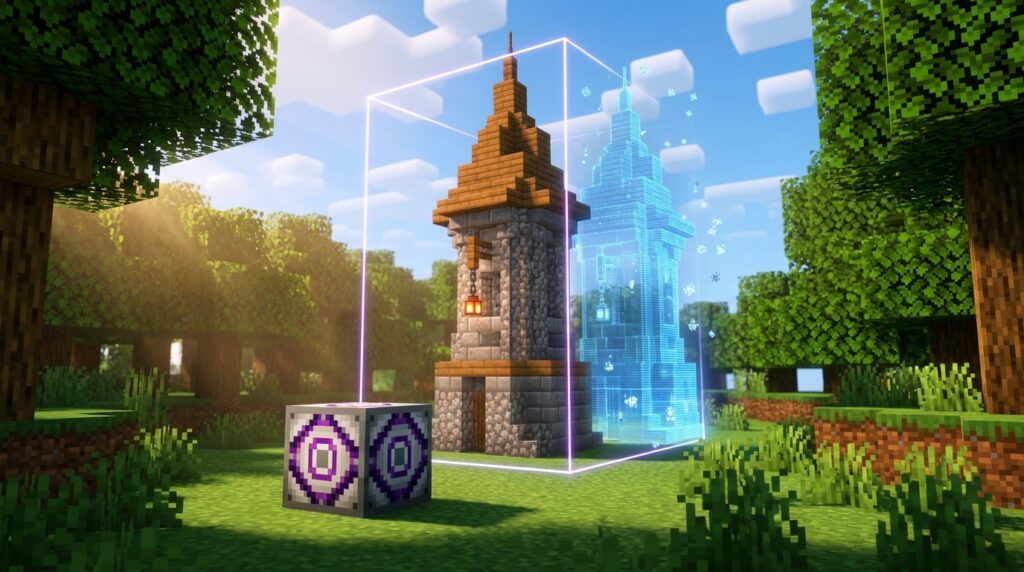
Building a massive castle or a complex redstone machine block-by-block takes hours, but you don’t have to rebuild it from scratch every single time. Following a simple structure block tutorial gives you the power to copy and move your favorite builds anywhere in your world. You can easily save custom houses, clone secret bases, and load huge projects without downloading outside programs. Simply grab your block in Creative Mode using the /give @s structure_block command to get started.
These powerful blocks are totally unbreakable and immune to TNT or Ender Dragons, making them safe to use anywhere in your world. Java players can copy areas up to 48 blocks in every direction, while Bedrock players can save huge builds up to 384 blocks tall. You can easily duplicate an entire village, back up your best redstone farms, or move a custom tree straight into a new location. Mastering these simple steps saves tons of time and lets you build bigger, better worlds faster than ever before.
Key Takeaways
- Structure blocks are unbreakable administrative tools obtained using the
/give @s structure_blockcommand, allowing players to copy and paste builds in vanilla Minecraft without external tools. - Save and Load modes enable quick duplication, rotation, and repositioning of complex builds like houses, redstone contraptions, or entire villages anywhere in a world.
- Corner Mode simplifies selection by automatically calculating bounding boxes between two anchor points, while entity toggles offer precise control over cloning mobs, villagers, and decorative items.
- Utilizing structure blocks eliminates repetitive manual block placement, saving hundreds of hours on large-scale creative projects, mega-bases, and custom maps.
Getting Your Block and Using Save Mode
To get your hands on this powerful building tool, you need to use a simple chat command because you can’t craft it or find it in the standard Creative inventory. Open your chat window while in Creative mode with cheats enabled, and type /give @s structure_block to instantly place one in your hotbar. This special admin block is completely unbreakable, so you don’t have to worry about accidentally destroying it while working on massive projects. Once you place it on the ground near your build, right-click it to open its unique control menu. This main screen gives you full control over how you capture, save, and clone your creations across your world.
- Structure Name: The unique label you create to identify your build later.
- Structure Size: The X, Y, and Z values that control the width, height, and depth of the capture area.
- Structure Offset: The offset coordinates that shift the capture box to perfectly frame your structure.
When you open the menu, make sure the mode is set to Save so you can outline your building. You will see fields for size and offset, which help you position the invisible bounding box directly around your construction. The size numbers dictate how wide, tall, and deep the selection area is, while the offset numbers shift the box left, right, up, or down. Adjusting these numbers creates a visible white box around your build so you can double-check that every block is included. In Java Edition, you can capture structures up to 48 blocks in each direction, while Bedrock Edition supports massive builds up to 64 by 384 by 64 blocks.
After your white bounding box perfectly covers your castle, house, or redstone contraption, click the Save button on the right side of the screen. Minecraft will instantly save your creation to your world files without needing any third-party mods or external tools. Using this feature saves you hundreds of hours when building big creative projects or repeating modular structures. Now that your creation is safely saved, you’re ready to load or clone it anywhere in your world with ease.
Loading and Cloning Your Saved Structures Anywhere
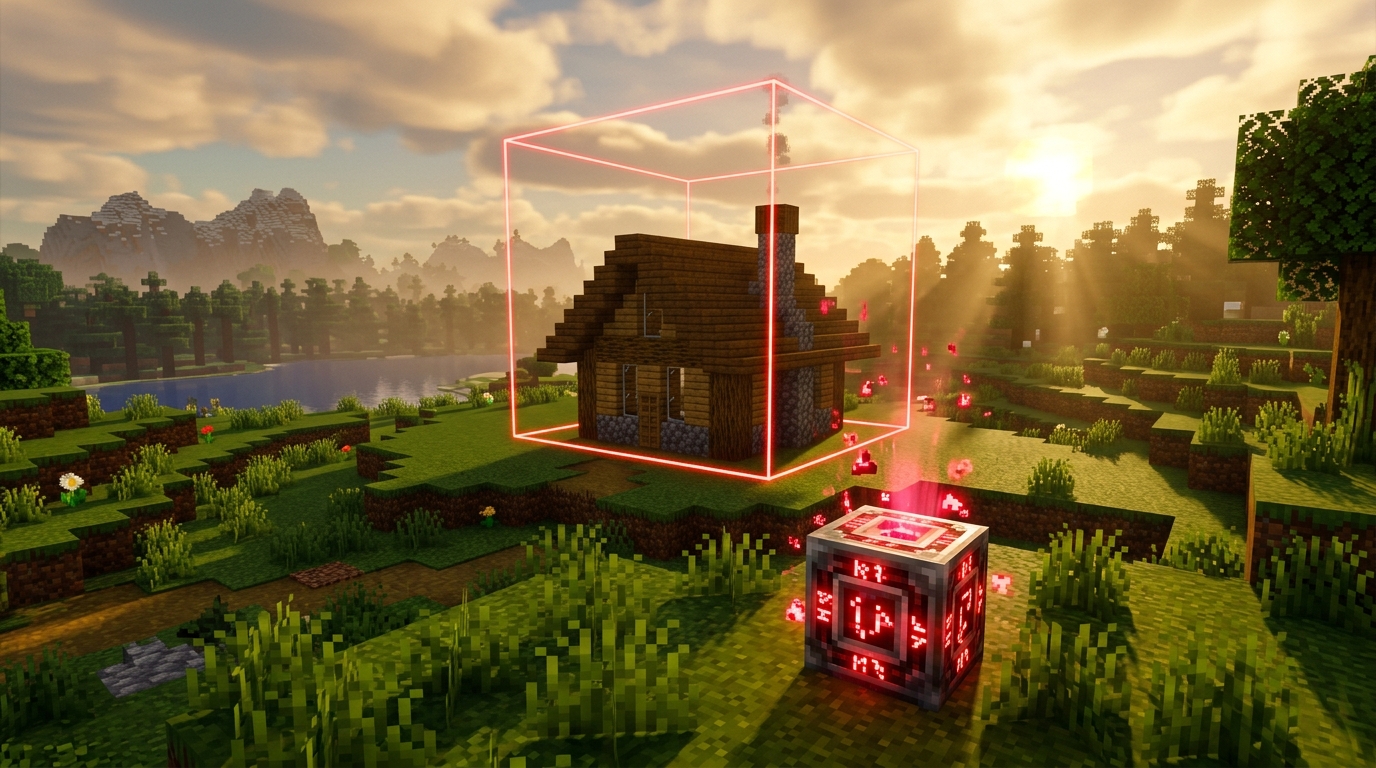
Once you have saved your build in Save Mode, pasting it anywhere else in your Minecraft world takes only a few simple clicks. Place a new structure block at your target location and right-click it to open the interface. Switch the block mode from Save to Load and type the exact name of your saved structure into the text box. A colored wireframe outline will appear in the world to show you exactly where your house, farm, or custom tree will generate. You can adjust the X, Y, and Z relative coordinates to nudge the outline into the perfect position against your terrain. Press the Load button again, and your complete creation will instantly clone into place.
- Structure Name: Enter the precise name of your saved creation to retrieve its file.
- Position Offsets: Adjust the X, Y, and Z values to shift the preview box relative to the structure block.
- Rotation and Mirroring: Spin your build by 90, 180, or 270 degrees so it fits naturally into your terrain.
- Include Entities: Choose whether to clone decorative items like armor stands, villager mobs, and item frames.
Using structure blocks to clone builds fills a huge gap for vanilla players working on massive creative projects. Instead of spending hundreds of hours placing individual blocks for an entire village or custom forest, you can duplicate complex assets in seconds. Rotating your pasted structures gives your builds a realistic, hand-crafted feel without forcing you to build everything from scratch every time. This built-in feature works entirely in vanilla Minecraft, so you don’t need to install complex third-party tools or external world editing software. It gives map makers and server admins complete creative freedom while saving an incredible amount of effort.
Mastering Corner Mode and Entity Toggles
When you are building massive structures like medieval castles or detailed custom trees, manually typing in width and height coordinates can take forever. This is where Corner Mode becomes your best friend for saving time on large creative projects. Simply place one structure block set to Corner Mode at the front-bottom corner of your build, and place another at the back-top corner. Give both corner blocks the exact same structure name in their menus. Next, open your primary Save block, type in that name, and press the Detect button to automatically calculate the perfect bounding box.
Beyond setting boundaries, you also need to decide what happens to the living creatures and interactive objects inside your build space. The Include Entities toggle gives you complete control over whether armor stands, item frames, villagers, and mobs get cloned with your blocks. If you are copying a busy market square full of custom armor displays and villager shopkeepers, keep this setting turned on so every detail stays intact. Turning this feature off is ideal when you want a fresh, empty version of a structure without duplicating stray farm animals or mobs. Making smart use of this toggle keeps your cloned projects organized and clutter-free.
- Corner Mode: Snaps your structure boundaries into place automatically without needing to count individual blocks manually.
- Include Entities (ON): Copies armor stands, mobs, villagers, and item frames right along with your building.
- Include Entities (OFF): Creates a clean clone of your physical build while clearing out any unwanted creatures or interactive items.
Save Hours on Your Next Big Minecraft Build
Mastering the structure block completely changes how you approach massive creative builds in Minecraft. Instead of placing tens of thousands of blocks by hand to duplicate a custom village house or a massive castle wall, you can clone entire structures in just a few seconds. This simple vanilla feature saves you hundreds of hours during huge projects, letting you focus on creative design rather than repetitive labor. Whether you are building an epic adventure map, copying complex redstone contraptions, or rearranging a mega-base, these administrative blocks handle the heavy lifting natively. You no longer need to rely on complicated external tools just to copy and paste your hard work into new locations.
Now that you know how to save borders and load your creations, it is time to put these skills to work in your own worlds. Jump into Creative Mode, enable cheats, and give yourself a block using the /give @s structure_block command to start saving your designs today. Try building a single detailed custom tree, saving it, and duplicating it across a plain field to create a dense forest in minutes. As your library of saved structure files grows, you will assemble massive worlds and intricate build projects faster than you ever thought possible. Take control of your creative toolset today and watch your biggest Minecraft design ideas come to life with total ease.