
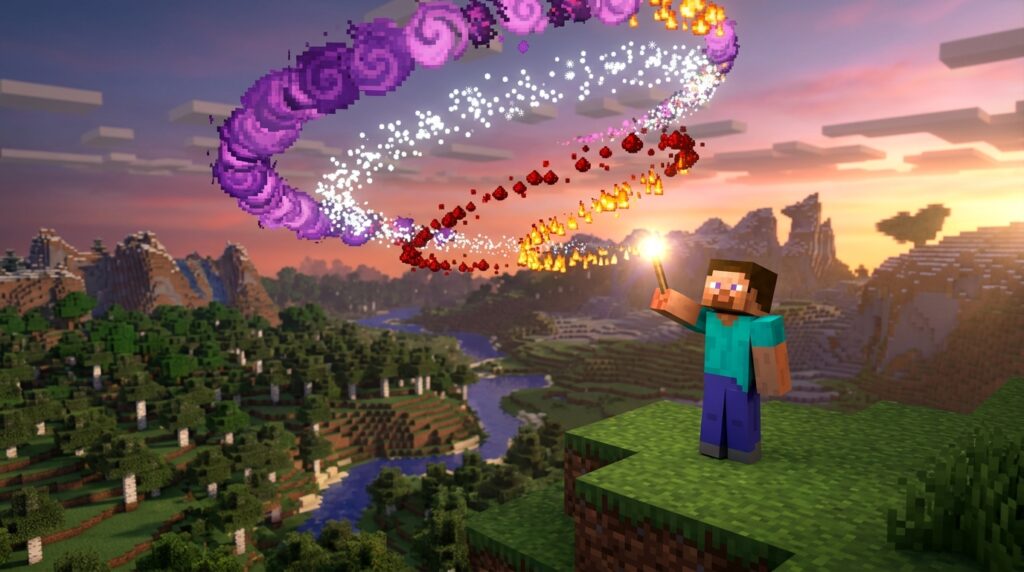
Spicing up your Minecraft builds with floating magic stars, thick smoke, or campfire sparks can completely transform your world. If you want to build a glowing wizard tower or give your diamond sword a trail of flame, you need a reliable Bedrock particle command list to find the exact effect names. Typing /particle minecraft:basic_flame_particle ~ ~2 ~ in Bedrock requires exact text names because chat won’t auto-complete them for you. Having the right names handy saves you from endlessly guessing inside command blocks as you build.
Bedrock Edition requires every effect to have its full name and exact target coordinates to spawn properly. Missing a single character or forgetting the minecraft: prefix means your end rod sparkles or dripping lava effects won’t show up. Once you master how these command strings work, you can trigger dramatic explosion clouds when opening secret redstone doors or surround armor stands with glowing potion bubbles.
Key Takeaways
- Spawning particle effects in Minecraft Bedrock Edition requires exact syntax, including mandatory coordinates and the ‘minecraft:’ namespace prefix, due to the lack of in-game autocomplete.
- Creators can build atmospheric details, visual combat feedback, and custom magic spells without mods by targeting specific particle identifiers like basic flames or critical hits.
- Pairing particle commands with repeating command blocks and relative coordinates creates dynamic, moving particle trails that automatically anchor to players across custom adventure maps.
How the Bedrock Particle Command Works in Minecraft
Spawning visual effects in Minecraft Bedrock Edition starts with the particle command syntax. The basic structure requires the full particle name and the precise location where you want it to appear, written as /particle [effect] [x] [y] [z]. For example, typing /particle minecraft:basic_flame_particle ~ ~2 ~ creates a bright campfire flame two blocks above your current position. Tilde symbols (~) act as relative coordinates, letting you trigger effects relative to yourself, another player, or a command block. This flexible system lets you craft atmospheric trails and interactive highlights anywhere in your world.
- Namespace Prefix: Always include the
minecraft:prefix before vanilla effect names. - Required Coordinates: You must enter X, Y, and Z coordinates for every particle command.
- Manual Typing: Chat windows and command blocks do not auto-complete particle names, so exact spelling is mandatory.
Bedrock Edition treats particle strings differently than Java Edition. The biggest mistake creators make on console or mobile devices is forgetting the required minecraft: prefix before the effect name. Without this prefix tag, your command block won’t register the particle and will fail silently. Because Bedrock lacks an in-game autocomplete list for particle names, a single mistyped letter stops your visual effect from appearing. Keeping a trusted reference list nearby saves you from frustrating typing errors while entering long effect names.
You can build cool custom animations once you get comfortable with the command syntax. Try hiding command blocks under pathways to generate glowing dust trails whenever a player steps on a hidden pressure plate. You can also trigger /particle minecraft:heart_particle ~ ~1 ~ right above a villager to show a successful quest interaction. Combining different particle strings lets you craft magical spell effects and ambient room fog without downloading any mods. Practicing these basic commands in a creative world gives you full control over your custom adventure maps.
Essential Flame Smoke and Fire Particle Names
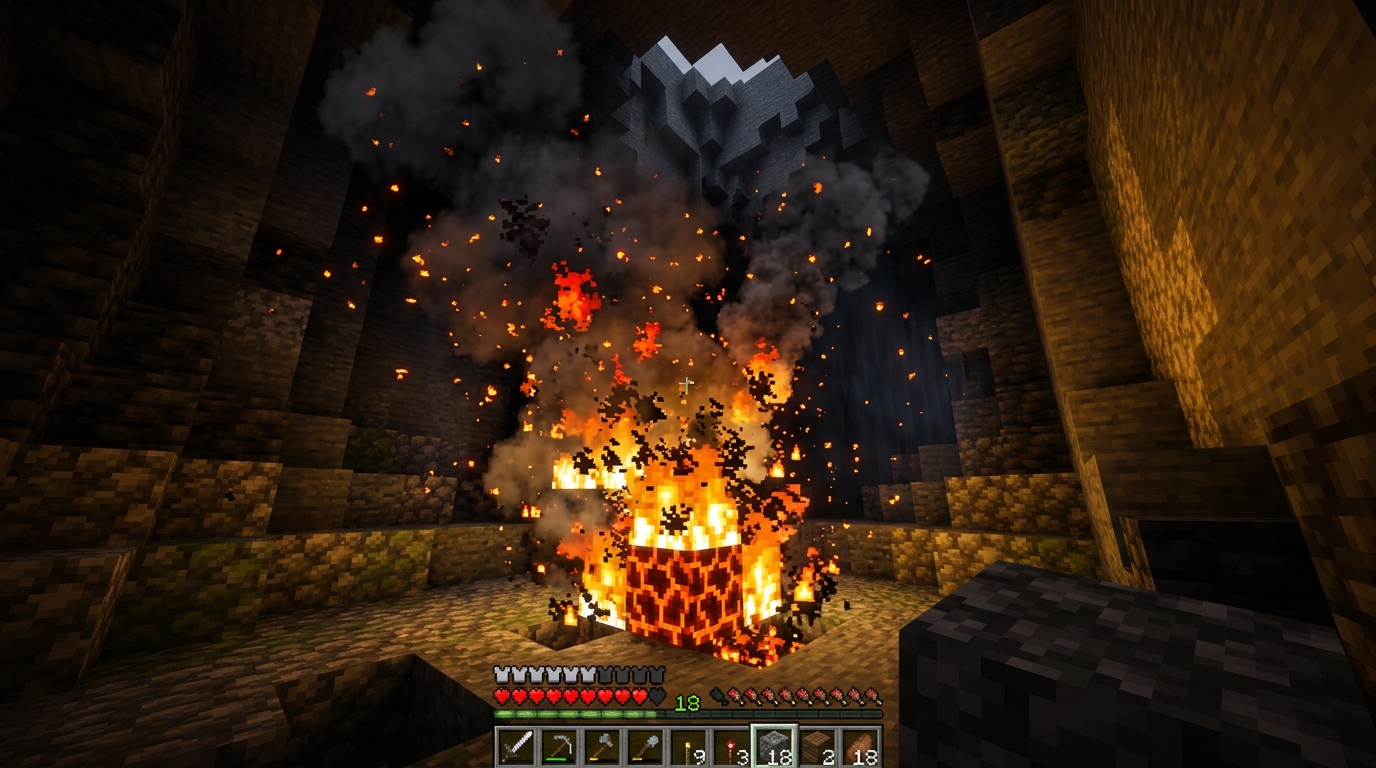
Bringing your custom Minecraft maps to life is easy once you use Bedrock’s built-in visual effects. When you want to build cozy fireplaces or fiery magic spells, you need specific particle names inside your command blocks. Always include the minecraft: namespace prefix followed by the exact particle identifier. For classic fire builds, some of the most reliable options include standard orange flames, eerie blue soul fire, and tiny candle flickers.
minecraft:basic_flame_particle: Spawns standard orange fire sparks, perfect for torches and campfires.minecraft:blue_flame_particle: Produces intense soul fire visuals, ideal for spooky builds and dark magic spells.minecraft:candle_flame_particle: Creates tiny embers that add extra detail to cozy interiors or custom lanterns.
Mixing these particle names inside command blocks opens up awesome design possibilities for your worlds. Place a repeating command block beneath a campfire set to run /particle minecraft:candle_flame_particle ~ ~1 ~ to create delicate, drifting embers. Combining this small flicker with a second command block running smoke particles creates a realistic fireplace effect that standard blocks cannot match. Adjusting the coordinate offsets lets you place flames exactly where you want them without cluttering your build. This simple trick gives your adventure maps a polished look that will impress your friends.
If you are designing action-packed minigames, layering flame particles creates stunning trails and spellcasting effects for your players. Setting up a chain of command blocks triggered by a player using an item can spawn a swirling burst of minecraft:blue_flame_particle around them. You can alternate between standard orange flames and magical blue sparks to show when an ability powers up or deals damage. Experimenting with relative coordinates lets you project flame paths across the ground or float glowing orbs in midair. With a little practice, these visual effects will make your combat systems feel energetic and unique.
Magic Combat and Trail Particles for Custom Maps
Creating custom magic spells and combat hits in Bedrock Edition is a great way to make your custom maps feel alive. You can trigger flashy visual effects around players using simple command blocks on your phone, console, or PC. For instance, spawning minecraft:critical_hit_emitter right at a target gives your custom weapons an extra powerful punch during fight scenes. If you want to build peaceful areas or magical shrines, effects like minecraft:villager_happy instantly add green sparkles to the air. You just need to specify the exact effect name along with relative coordinates like ~ ~1 ~ to place the visual right where you want it.
minecraft:critical_hit_emitter: Spawns sharp burst particles, perfect for heavy weapon strikes and combat impacts.minecraft:villager_happy: Creates glowing green star sparkles, ideal for healing spells, buff trails, or magical nature zones.minecraft:basic_flame_particle: Generates classic fire visuals for fireballs, fiery boots, or active arena hazards.
You can build custom particle trails that follow players wherever they walk across your arena. Put your particle command inside a repeating command block to continuously anchor visual effects to everyone on your map. Running a command like /execute as @a at @s run particle minecraft:villager_happy ~ ~ ~ creates a steady trail of green sparkles right at your friends’ feet. This technique works amazingly well for parkour maps, custom player classes, or showing who currently has a potion boost active. Your players will love seeing instant visual feedback whenever they cast spells or step into battle zones.
Keep in mind that Bedrock Edition handles particle commands differently than Java Edition. Always include the minecraft: prefix before the particle name, or the command block will fail to trigger. Since Bedrock chat does not give you auto-complete suggestions for particle names, keeping a reference list handy saves you tons of trial and error. Make sure you also include the exact target coordinates, even if you are using relative tildes to center the effect on a player. With just a few simple lines of logic, you can turn a basic arena into a breathtaking magical showdown.
Add Custom Particle Effects to Your Minecraft World
Adding custom particle effects to your Bedrock worlds is easier than it looks. With a single command block, you can transform plain areas into magical spaces using simple particle strings. Whether you want to make a fiery aura with minecraft:basic_flame_particle or leave a sparkly trail behind a player, the options are endless. You do not need any external software or mods to make your adventure maps look professional. Just type the right particle name with your target coordinates into your game and watch your world come alive.
Now that you know how these particle strings work, grab some command blocks and start experimenting. Try setting up a repeating command block with relative coordinates like ~ ~2 ~ to hover glowing smoke right above a campfire altar. You can also hook command blocks up to simple redstone clocks to build animated magic spells for your custom minigames. Playing around with different coordinate offsets lets you place effects exactly where you want them, whether high in the sky or right at a player’s feet. Small tweaks to your position numbers can completely change how an animation looks and feels.
Designing visual effects is one of the best ways to make your creations stand out. Because Bedrock Edition runs across consoles, phones, and computers, everyone can enjoy these visual upgrades without complex setup. Just keep your favorite particle names handy since Bedrock requires exact spelling without chat auto-complete. Jump into your creative world today, test out a few cool combinations, and show off your spectacular custom builds.