
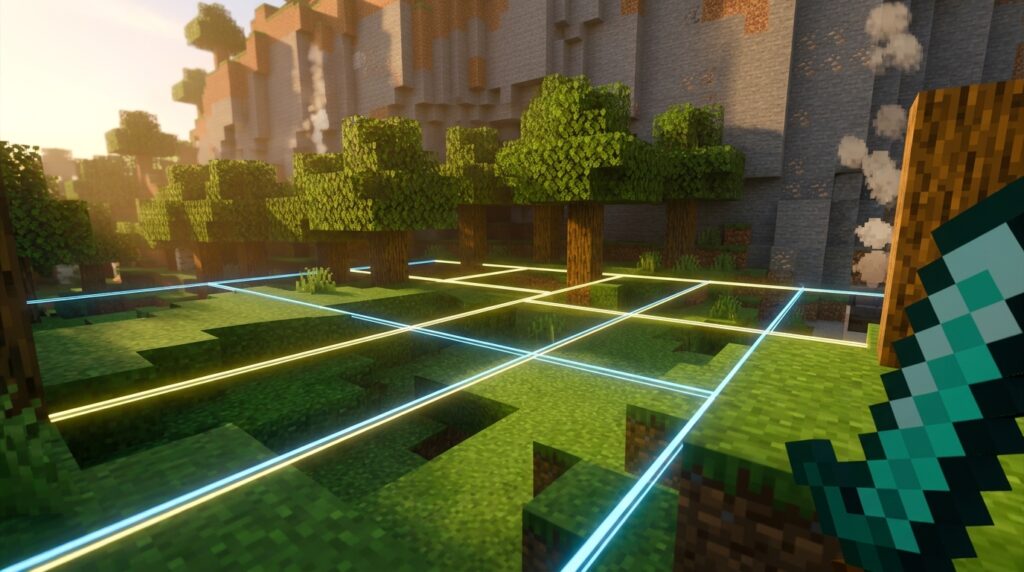
Ever built an awesome iron farm or redstone machine only to have it break because part of it crossed into the wrong area? Mastering the chunk border shortcut is the easiest way to make sure your builds stay perfectly aligned inside a single 16×16 block space. In Minecraft, these invisible 16×16 segments control everything from mob spawning to how redstone signals flow. Seeing these exact boundaries helps you plan bigger bases and automated farms without any annoying surprises.
Pressing the F3 and G keys together immediately turns on a bright 3D wireframe grid around your current standing area. If you play on a laptop or a compact keyboard, holding down your Fn key at the same time helps the grid show up instantly. Once those colorful lines outline your block boundary, you can easily build slime farms, spawn-proof your base, or place your walls with complete confidence.
Key Takeaways
- Pressing F3 and G in Minecraft Java Edition toggles a 3D wireframe grid that visually outlines 16×16 block chunk boundaries from bedrock to the build limit.
- Laptop, Mac, and compact keyboard users can bypass media key conflicts by pressing Fn + F3 + G or adjusting standard function key settings in their operating system.
- Keeping redstone machinery, flying machines, and automated farms entirely within a single chunk prevents circuits from breaking or freezing when adjacent chunks unload.
- Utilizing chunk borders ensures maximum efficiency for technical builds by helping players accurately locate slime chunks and optimize mob spawning areas.
Pressing F3 and G in Java Edition
Toggling chunk borders in Minecraft Java Edition is quick and easy using a simple keyboard shortcut. When you press F3 and G at the same time, the game instantly displays a color-coded wireframe grid around your character’s current 16×16 block segment. You will also see a small chat message confirming that chunk borders are now visible. This visual overlay extends from the bottom of the world all the way to the build limit, giving you a clear view of where one chunk ends and the next begins. It is an essential feature when you plan large projects like automated crop farms, villager trading halls, or precise redstone builds.
If the shortcut does not work immediately, your keyboard layout might require a slightly different key combination. Many laptops and Mac computers share the F3 function key with system controls like volume or screen brightness. To bypass this, simply hold down the Function key while pressing the shortcut, resulting in Fn plus F3 plus G. Players using compact 60 percent keyboards may also need to hold their board’s specific secondary function key to activate the F3 button properly. Once activated, red lines mark the exact corners of the chunk, while yellow lines highlight the individual block borders within it.
Understanding how to quickly toggle these grid lines makes technical building much smoother and prevents frustrating mistakes. For example, keeping complex redstone machinery inside a single chunk helps avoid lag and stops your circuits from breaking when chunks unload. You can also use the grid to locate slime chunks accurately or to ensure your perimeter lighting completely covers a spawn area. When you finish aligning your build, pressing the same shortcut again cleans up your screen by hiding the wireframe instantly.
Fixing Shortcut Issues on Laptops and Mac
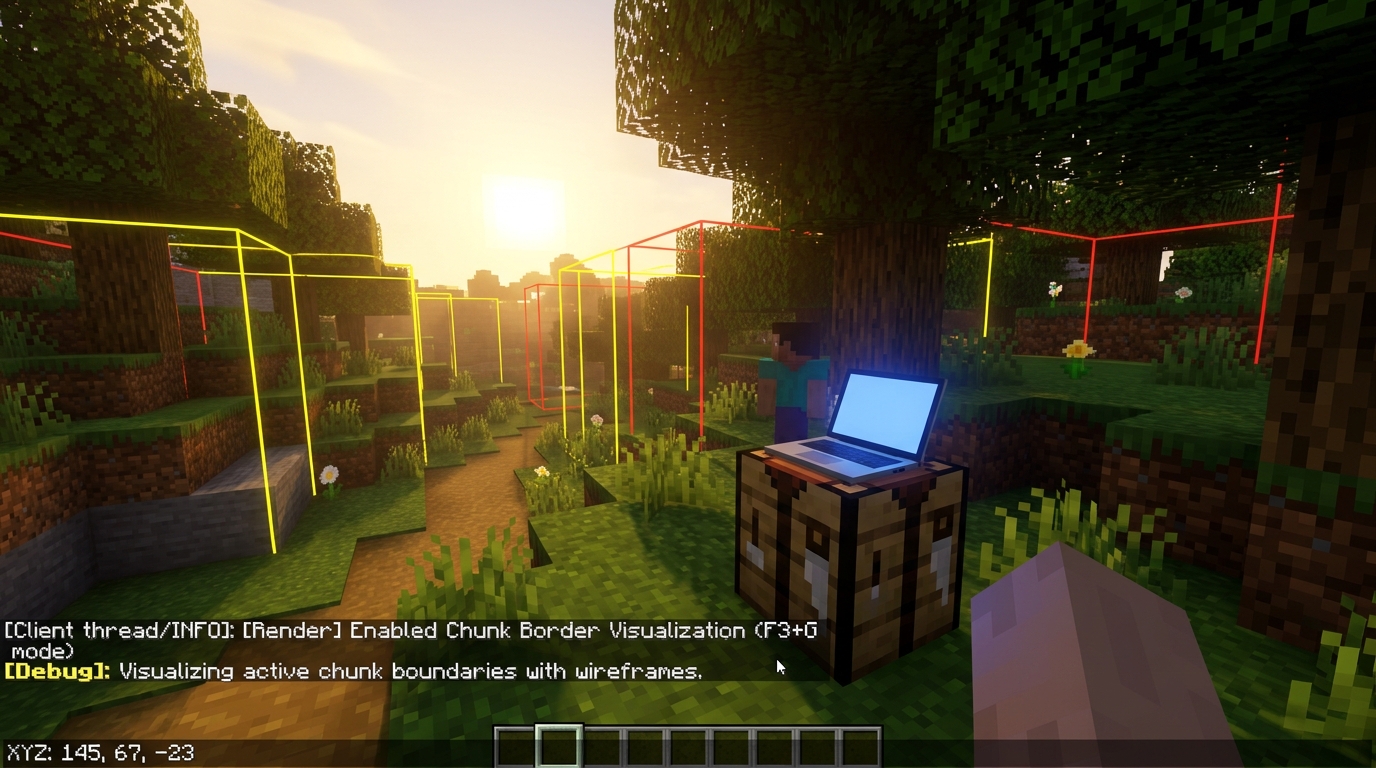
If pressing F3 and G does not bring up those handy grid lines on your screen, your keyboard setup is likely using standard media keys instead of function keys. On most laptops and Mac computers, the top row of keys defaults to changing your screen brightness or adjusting volume. To bypass this feature, you just need to hold down the Fn key while pressing your usual debug shortcut. Try pressing Fn + F3 + G at the same time to force your computer to recognize the command. This quick fix immediately reveals the 16×16 wireframe around your character, helping you map out redstone builds without guessing where chunk boundaries start and end.
Smaller keyboards like 60 percent layouts can complicate things further since they often lock function keys behind special secondary layers. On these compact boards, you might need to hold down your Fn key while pressing a number key to access F3 before tapping G. If your Mac computer keeps opening system features like Mission Control when you check your boundaries, you can easily adjust your system keyboard settings. Toggling the setting to use F1, F2, and F3 as standard function keys prevents your game from conflicting with your operating system. This simple tweak ensures you never miss a chunk edge when aligning complex crop farms or iron farms.
- Standard Laptops: Press Fn + F3 + G to bypass media keys like brightness and volume.
- Mac Systems: Hold Fn + F3 + G or enable standard function keys in System Settings.
- Compact Keyboards (60%): Press Fn + Number Key (such as Fn + 3) + G to trigger the debug overlay.
Having quick access to your chunk borders makes a massive difference when you design efficient builds in your world. For instance, building a slime farm requires you to clear out an exact block area inside a single chunk so mobs spawn correctly. If your redstone wire or chest storage crosses over a chunk boundary, unloaded chunks can easily freeze your machines or drop items. Once you master the right key combination for your specific keyboard, you can toggle boundaries instantly whenever you place blocks. You can then focus on building your technical projects with total accuracy without hardware issues getting in your way.
Using Chunk Borders for Farms and Redstone
Pressing F3 + G on your keyboard turns on a visible 3D grid that highlights the exact 16×16 boundaries of your current chunk. If you play on a Mac or use a laptop, you might need to press Fn + F3 + G to toggle this grid on and off. Seeing these bright lines helps you understand how the game loads and processes the world around you. Minecraft loads blocks in these specific 16×16 segments from the bottom of the world all the way up to the sky. Knowing where these imaginary lines sit gives you complete control over your builds and saves you from major technical headaches down the road.
Building across a chunk border can cause complex redstone contraptions to break when only half of the machine is loaded into the game. For example, a long repeater line or a flying machine will glitch out if part of it sits in an unloaded chunk. By turning on chunk borders, you can easily fit your entire redstone setup inside a single chunk so everything stays synchronized. This simple visual trick is also crucial for aligning mob farms, slime farms, and automatic crop harvesters.
- Prevent redstone breaks: Keep entire flying machines and delicate dust circuits inside one chunk so they do not freeze when unloading.
- Maximize mob farm efficiency: Align spawning platforms perfectly within chunk edges to optimize spawn rates and despawn radii.
- Locate slime chunks: Use chunk borders combined with seed maps to outline the exact area where slimes can spawn underground.
If the key shortcut does not work immediately, double-check your keyboard settings to see if your function keys are enabled. Players using compact keyboards often need to press Fn + Esc or hold their function layer key to access the F3 button properly. Once you get used to checking your boundaries, you can plan massive bases without worrying about broken farms or glitched redstone circuits. Taking a few seconds to toggle your grid before placing down blocks saves you tons of time fixing broken machines later.
Press F3 and G to See Chunk Borders
Mastering the chunk border shortcut is one of the easiest ways to level up your Minecraft building skills and technical projects. By simply pressing F3 and G together on Java Edition, you can instantly see the exact 16×16 grid lines that divide your world. This handy visual toggle takes all the guesswork out of placing delicate redstone contraptions, aligning village boundaries, or building efficient mob farms. Knowing where these boundaries land prevents frustrating redstone glitches caused by components crossing over two different chunks. You will save plenty of time and resources when you can see your build layout clearly from the start.
If the standard key combination does not work right away, remember to check your specific keyboard layout before giving up. Many laptop users, Mac players, and people with compact keyboards need to hold down Fn along with F3 and G to activate the grid. You will know it worked when a bright wireframe outline surrounds your character and a helpful confirmation message appears in your chat box. Keep this handy key combination in mind whenever you start planning your next major survival base or automated factory. With these visual lines enabled, you can confidently construct your technical builds knowing every single block is in the perfect spot.