
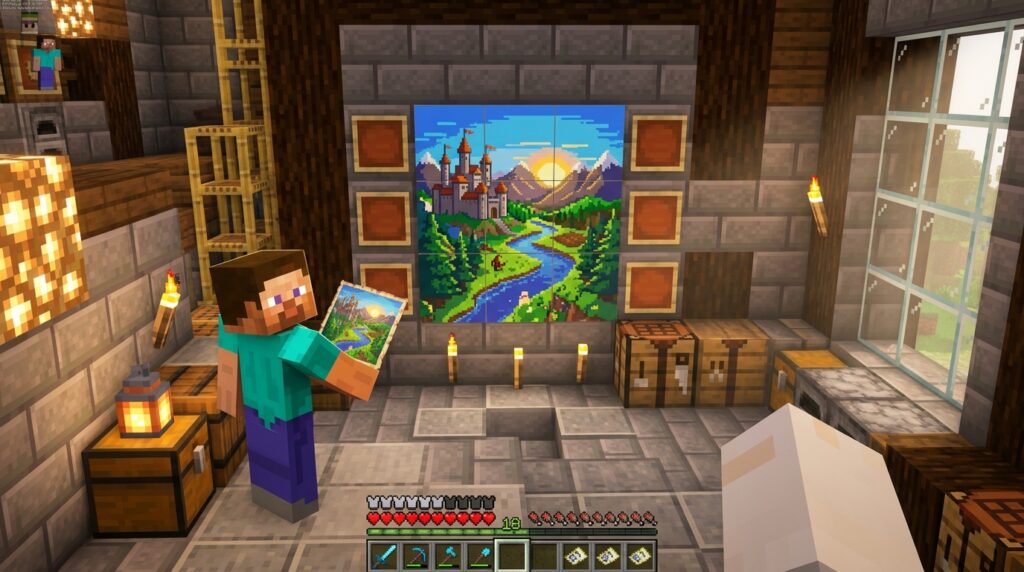
Transforming your Minecraft base from a simple stone shelter into a masterpiece starts with the walls. This custom map art tutorial helps you turn thousands of colored wool, glass, and concrete blocks into breathtaking portraits or detailed landscapes. Whether you want to hang a massive gold-trimmed celestial map in your library or display a watercolor-style portrait of your pet wolf, custom maps give your world a professional, high-end feel.
You no longer need to spend weeks manually placing every single block to get a beautiful result. Modern tools allow you to convert your favorite digital photos into block-by-block blueprints that you can build right in your survival world. From 3D textures that pop off the frame to minimalist street maps of your favorite server city, you have total creative control over your decor. Using these simple techniques ensures your builds look like they belong in a professional gallery.
Key Takeaways
- Utilize map art conversion software to translate digital images into block-by-block blueprints, allowing for precise material planning and professional-grade results in survival worlds.
- Prepare a perfectly flat 128×128 block canvas in a desert or ocean biome to ensure consistent lighting and prevent terrain features from interfering with the final map image.
- Implement ‘staircasing’ and color dithering techniques to create 3D depth and smooth gradients, transforming flat block placements into high-quality artistic displays.
- Lock the finished map design using a cartography table and a glass pane to permanently freeze the image and prevent future terrain changes from altering the artwork.
Converting Images With Map Art Software
To get started, use a map art conversion software website to upload the image you want to see on your base walls. These tools act as a bridge between your digital photos and Minecraft, converting pixels into specific block types like colored wool, terracotta, or concrete. You can adjust the settings to match the size of your map, whether you want a small portrait or a massive mural covering several item frames. The software even lets you toggle between different material palettes, so you can choose blocks that are easy for you to gather in your survival world. Once you are happy with the preview, the tool generates a layer by layer blueprint that tells you exactly where to place every single block.
Building your custom masterpiece is much easier when you use a schematic overlay or the downloadable material list provided by the tool. You will need to clear out a large, flat area in your world, usually a 128 by 128 square, to serve as your canvas for a standard map. As you place the blocks according to the grid, you will see your favorite photo start to take shape from a bird-eye view. After every block is in its proper place, simply right-click with an empty map while standing over the area to capture your art. You can then take this map back to your house and place it in an item frame to create a unique, personalized decoration that looks like a high-quality painting.
Preparing Your Flat Map Art Canvas
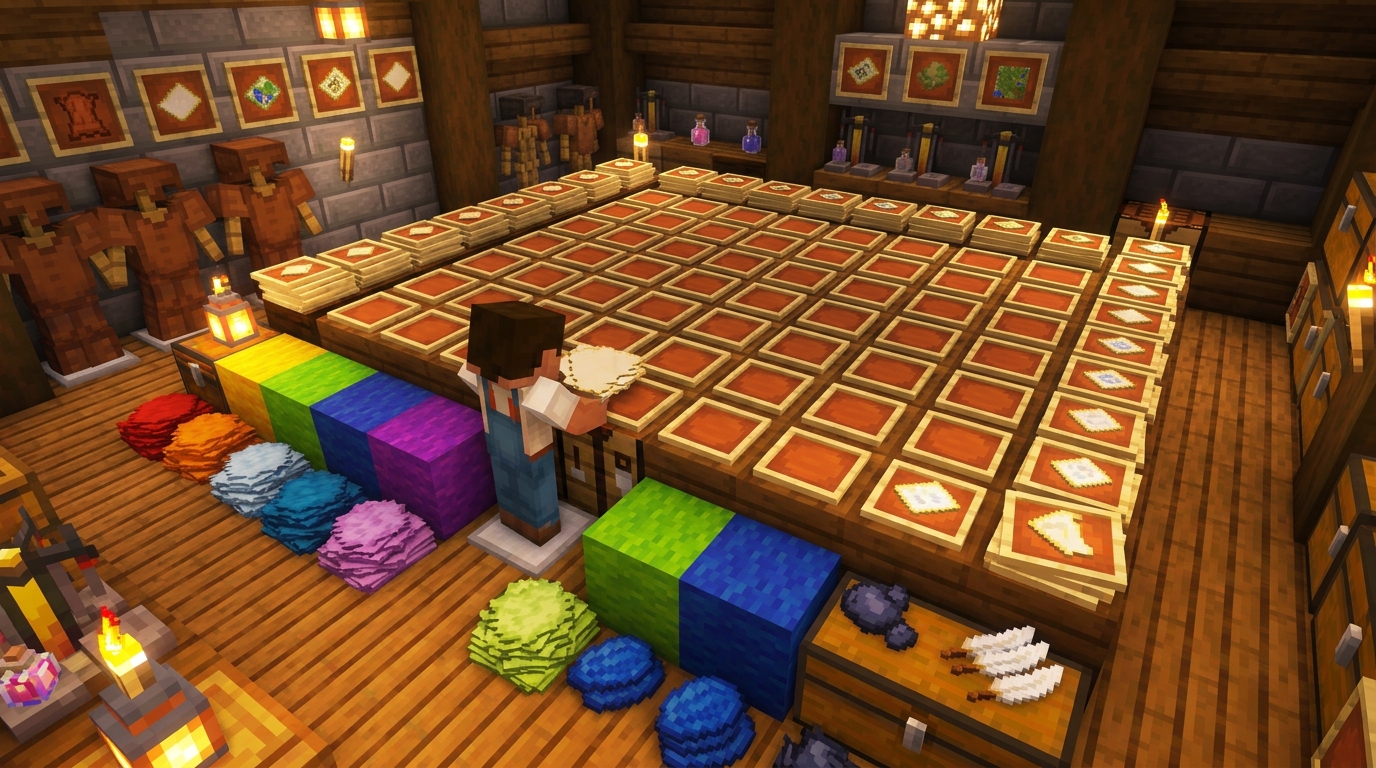
To start your custom map art project, you need to locate a massive 128×128 block canvas that will serve as your digital canvas. Choosing a flat desert or a deep ocean biome is your best bet because these environments offer the most consistent natural surfaces. In a desert, you can quickly shave off the top layer of sand with a high efficiency shovel to create a perfectly flat workspace. If you choose the ocean, you can build a platform out of glass or colorful wool right at the water level. This ensures that no stray shadows or jagged hills interfere with your final image when you look at it on a wall frame.
Clearing the land is the most labor intensive part, but it is essential for getting those crisp lines in your base decorations. You should use a map in your hand while standing in the center of your chosen area to make sure every block you place stays within the map borders. If you see green grass or dark caves peeking through, it will ruin the solid background of your custom painting. Many players prefer to fill the entire 128×128 square with a single color, like white concrete or black wool, before they begin the actual art. This creates a clean slate that makes your colors pop and gives your Minecraft home a professional, gallery style look.
Once your ground is totally level and cleared of any stray mobs or plants, you are ready to start the creative phase. Using a flat surface allows you to treat every block like a single pixel in a larger masterpiece. You can use different materials like terracotta for skin tones or glowing sea lanterns to make certain parts of your art shine at night. Because you took the time to prep the canvas correctly, your custom map will look like a real imported image rather than a collection of random blocks. This advanced building trick turns your boring walls into a personalized display of your favorite designs and patterns.
Placing Blocks For Color And Shading
To get the perfect colors for your custom wall art, you should start by gathering a wide variety of terracotta and concrete blocks. Terracotta is excellent for achieving soft, earthy tones and skin colors, while concrete provides the bold, saturated hues needed for vibrant pop art. When you place these blocks on your 128 by 128 canvas, remember that the map view simplifies colors based on the block type. For example, using yellow concrete will give you a bright sun, but switching to birch planks can create a more muted, natural look. Experimenting with different blocks in a small area first helps you see how they translate to the final map display.
Achieving a realistic 3D effect involves more than just picking the right color, as it requires a technique called staircasing. By placing blocks at different heights, you create shadows and highlights that make your image look like it is popping off the wall. When a block is one level higher than the one to its north, it appears lighter on the map, and when it is lower, it appears darker. This simple trick allows you to add depth to mountain ranges or create the illusion of rounded edges on a portrait. You can use these elevation changes to turn a flat image into a masterpiece with professional lighting.
Once you have your outlines down, focus on blending your colors together to avoid harsh lines. You can use a method similar to dithering by mixing two different block types along the edges where colors meet. For instance, if you are transitioning from dark blue concrete to light blue, scatter a few blocks of each color along the border to soften the look. This creates a smooth gradient that makes your custom paintings look much more high quality when hung in your base. Taking the time to adjust these small details will make your interior decorations feel like a true gallery of digital art.
Locking Your Map Design With Glass
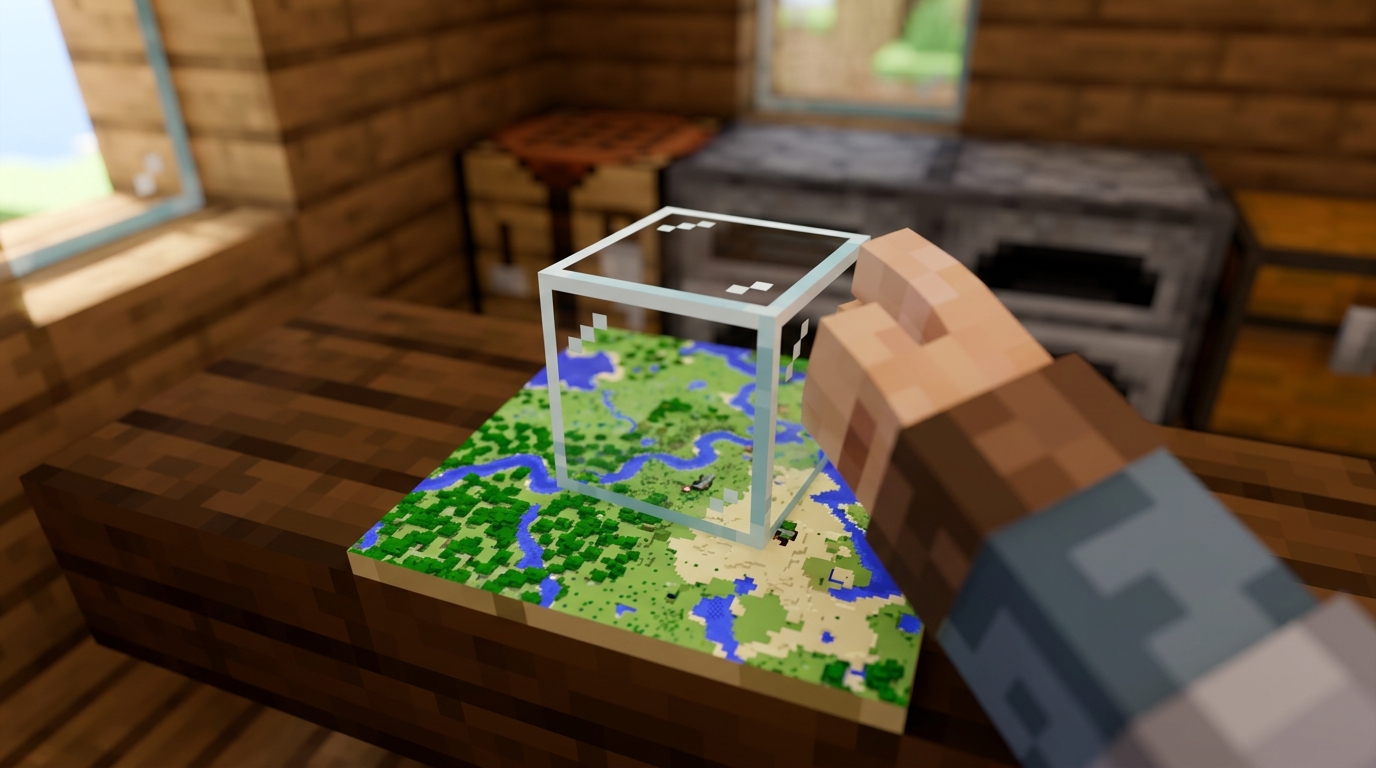
Once you have spent hours meticulously placing every block to create your custom masterpiece, the last thing you want is for a rogue creeper or an accidental block placement to ruin the image. In Minecraft, maps are dynamic by default, meaning they update in real time to reflect any changes made to the terrain below. This can be frustrating if you plan to use your map art as a permanent painting or a decorative rug in your base. To prevent your hard work from being altered, you need to lock the map so it stays exactly as it looks right now. This simple step ensures that your custom interior designs remain pristine regardless of what happens to the physical build site.
Securing your design is an easy process that only requires a cartography table and a single pane of glass. Start by opening the cartography table interface and placing your finished map in the top slot. Next, add a glass pane into the bottom slot, and you will see a new map icon appear in the result box with a small padlock symbol on it. This action effectively freezes the image data onto the map, creating a permanent snapshot of your artwork. Once you take the locked map out of the table, it will never update again even if you completely tear down the blocks you used to create the image.
Locking your maps is a helpful tactic for interior decorating because it allows you to repurpose your map art area for new projects. Since the image is now permanently saved to that specific map item, you can clear the ground and start building a completely different design without affecting your first piece. You can hang these locked maps in item frames to create custom wallpaper, detailed portraits, or creative furniture design ideas that give your home a high end look. You can also master the art of armor stand posing tricks to create life-like scenes that complement your new custom wall art. This trick is the best way to fill your Minecraft base with personalized art while keeping your build area clean and ready for your next creative idea.
Display Your Minecraft Map Masterpiece
Now that you have placed your final blocks and locked your map with a glass pane, it is time to turn your base into a professional art gallery. Head back to your build and find a prominent wall where you can place item frames to display your masterpiece. You can arrange multiple maps together to create a massive mural or keep it simple with a single framed portrait above your bed. Using glow item frames is a fantastic trick to make your custom artwork pop even in total darkness. This advanced decorating technique completely changes the vibe of your interior from a standard survival shelter to a personalized home.
Sharing your hard work with the rest of your server is the best part of finishing a map art project. You can craft copies of your map to trade with friends or use them as unique currency in your server’s shopping district. Some players even use these custom images to create realistic windows, detailed wallpaper, or unique shop signs that stand out from across the map. Your friends will be amazed at how you turned a flat plot of land into a vibrant painting without using any mods. Seeing your creative designs hanging in other players’ bases is the ultimate reward for all that careful block placement. You can even use the invisible item frame glitch to make your maps look like they are painted directly onto the wall surface. Understanding hidden item frame secrets can further help you integrate these maps into complex builds and secret rooms.
Frequently Asked Questions
1. What size area do I need to clear for my map art?
You need to clear a flat 128 by 128 block square for a standard single-map masterpiece. This area serves as your canvas where you will place every wool or concrete block to create the image.
2. How do I know which blocks to use for my image?
Map art software automatically converts the pixels in your photo into specific Minecraft blocks like terracotta or glass. It provides a full material list so you know exactly how many stacks of each color you need to gather before you start building.
3. Can I make map art in a survival world without cheats?
Yes, you can absolutely build these in survival by following the layer by layer blueprints provided by the software. Using the material list helps you prepare all your colored wool and concrete in advance so the building process goes smoothly.
4. What is the easiest way to follow the blueprint while building?
The best way to stay on track is to use a schematic overlay or the downloadable material guide from the tool website. These guides show you the exact placement for every block so you do not get lost while filling in large areas of color.
5. Can I create large murals that span multiple item frames?
You can create massive murals by adjusting the size settings in the software to cover multiple map sections. The tool will split your image into several 128 by 128 blueprints that you can hang side by side in item frames to create a huge gallery wall.
6. Is it possible to change the blocks if I do not have enough wool?
You have total control over the material palette in the settings before you generate your blueprint. You can toggle off expensive blocks and choose easier options like dirt or cobblestone to make sure the project fits your current survival resources.