
Nothing ruins a perfect building session or a tense Creeper encounter like a screen that freezes or blocks that take forever to break. Whether your game is stuttering, your server is dragging, or your inputs feel delayed, this fix minecraft lag guide covers everything you need to get back to smooth gameplay. You do not have to settle for low render distances or constant glitches that make your world unplayable.
The best way to boost your speed is moving away from old tools and embracing a modern performance setup. By combining mods like Sodium for better visuals and Lithium for faster game logic, you can triple your frame rates and keep your world running perfectly. If you have an NVIDIA graphics card, you can even use Nvidium to see across entire biomes without your computer breaking a sweat.
Key Takeaways
- Switch from outdated performance tools to a modern mod stack featuring Sodium and Lithium to triple frame rates and optimize game logic.
- Adjust in-game video settings by lowering render distance to 8-10 chunks and enabling features like Entity Culling to reduce hardware strain.
- Eliminate network latency and block-breaking delays by using a wired ethernet connection and selecting servers physically close to your location.
- Utilize pre-made performance packs and specialized mods like Nvidium to achieve high render distances without sacrificing system stability.
Upgrade To Sodium And Modern Performance Mods
For years, most players reached for the same old tools to fix their game speed, but the community has recently made a massive shift toward a more powerful setup. While older mods were great for their time, they struggle to keep up with the heavy demands of modern Minecraft updates. You will see much better results by switching to Sodium, which is the current gold standard for boosting your frame rates. This mod completely rewrites how the game handles graphics to make everything run smoother on your hardware. It is specifically designed to eliminate visual stuttering so you can explore dense jungles or massive caves without your screen freezing up.
To get the most out of your game, you should pair Sodium with Lithium to handle the logic happening behind the scenes. While Sodium makes your screen look fluid, Lithium fixes the hidden math that controls things like mob movements and block updates. This combination ensures that your game does not feel sluggish even when you have hundreds of animals or complex machines in your world. If you use a modern graphics card, you can even add Nvidium to the mix to see incredibly far across your map. These tools work together to provide a seamless experience that feels much faster than the standard version of the game.
The easiest way to get these upgrades is by installing a pre-made performance pack through a simple launcher. These packs bundle everything you need into one click, so you do not have to worry about technical settings or file folders. Once installed, you will notice that your menus load faster and your character moves with much more precision. This modern approach to fixing lag is the most effective way to upgrade your gameplay without needing a brand new computer. You can finally turn up your render distance and enjoy the beautiful views of your world without any frustrating delays.
Optimize Your Video Settings For Maximum Frames
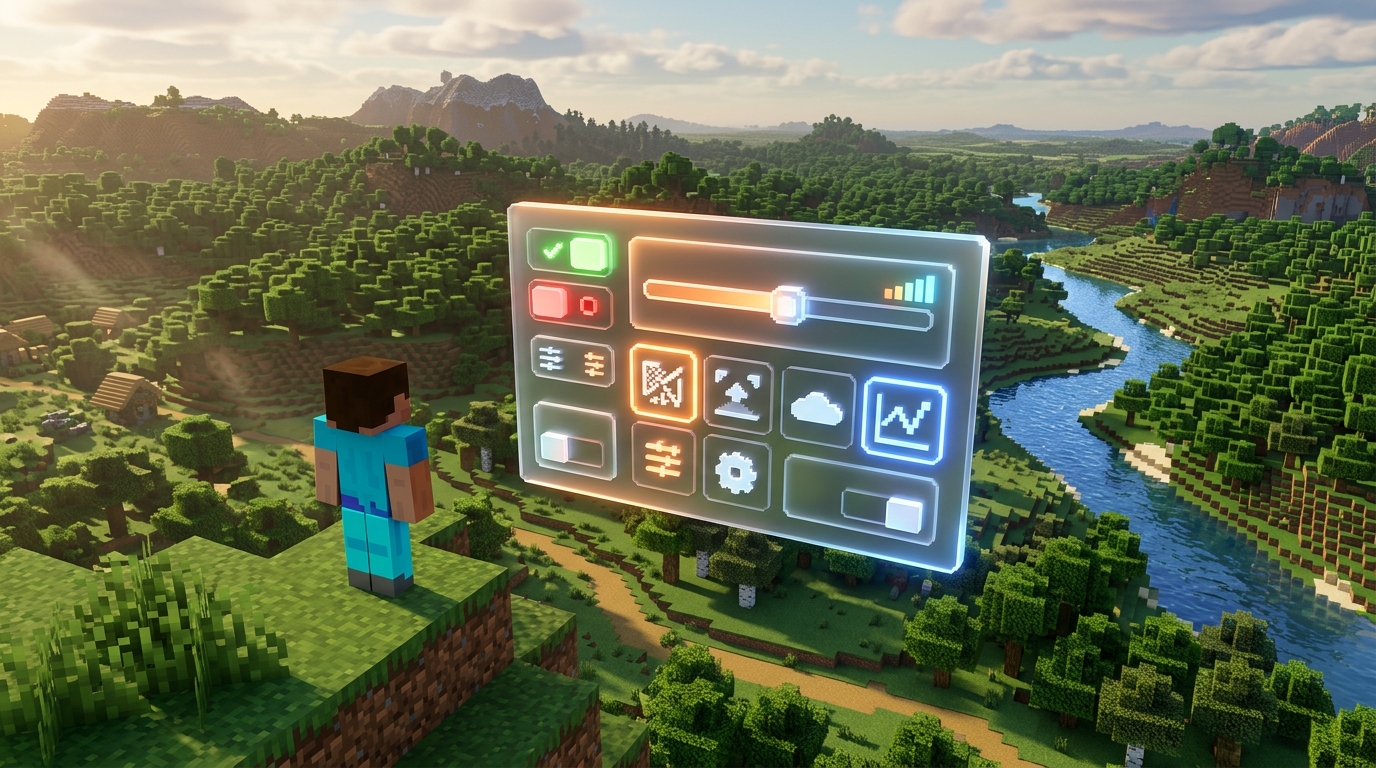
You can see an immediate boost in your frame rate by adjusting a few key sliders that usually hog your computer’s resources. Start by lowering your Render Distance to around 8 or 10 chunks, which prevents your game from trying to load miles of unnecessary terrain all at once. If you are using modern performance tools like Sodium, you should also enable Entity Culling to stop the game from rendering mobs that are hidden behind walls. This simple change keeps your GPU from working overtime on things you cannot even see on your screen. Turning off fancy clouds and setting your particles to decreased will also help clear up visual clutter during intense combat or explosions.
Finding the right balance between looks and performance does not mean your world has to look like a collection of blurry blocks. You should switch your video settings from Fabulous to Fancy or Fast to see a massive jump in stability without losing much detail. Lowering the simulation distance is another pro tip because it limits how far away from you crops grow and machines function, which takes a huge load off your processor. If you still notice tiny stutters while walking through forests, try disabling smooth lighting or reducing its intensity to help the game calculate shadows faster. These small tweaks work together to create a buttery smooth experience that lets you focus on building and exploring.
Reduce Server Latency And Network Lag Spikes
When you see other players frozen in mid-air or find yourself mining the same block three times before it finally drops, you are dealing with network latency rather than just low frame rates. High ping happens when the data takes too long to travel from your computer to the server and back again. To fix this, always try to use a wired ethernet connection instead of relying on Wi-Fi, which is prone to interference and sudden signal drops. Closing background apps like web browsers or streaming services can also free up your bandwidth for a much smoother experience.
Choosing a server location that is physically close to your actual home is one of the most effective ways to stop blocks from reappearing after you break them. If you live in New York but play on a server located in Europe, your commands have to travel across an entire ocean, causing a noticeable delay in every action. You can check your connection quality by hovering over the signal bars in the multiplayer menu to see your exact millisecond delay. Keeping this number as low as possible ensures that your hits register instantly during combat and your movements feel snappy.
If you are still experiencing rubber-banding where the game pulls you back to a previous spot, consider adjusting your in-game network settings. Lowering your chat preview and reducing the amount of data the game sends at once can help if your internet speed is on the slower side. Some modern performance mods also include small tweaks that optimize how Minecraft handles packets of data, making your connection more stable during busy events. These simple adjustments help keep your gameplay fluid so you can focus on building and exploring without the frustration of constant lag spikes.
Take Control of Your Framerate Today
Eliminating lag in Minecraft is all about finding the right balance between your hardware and your software settings. You should always start by checking your game version and ensuring you have modern performance mods like Sodium and Lithium installed. These tools do the heavy lifting by fixing how your computer renders blocks and processes mob movements, which stops those annoying freezes during gameplay. Remember to lower your render distance if you are exploring dense jungles or busy villages, as this quickly frees up your system resources. Keeping your drivers updated and closing extra background apps will also help your game run much smoother.
Once you have your frames per second stable, you can focus on the server side of things to ensure your world feels responsive. If you notice a delay when breaking blocks or opening chests, it usually means your game logic is struggling to keep up. Using optimization packs can fix these issues by streamlining how the game handles physics and redstone circuits. This allows you to build massive machines and explore deep caves without the game stuttering every few seconds. With these simple adjustments, you can spend less time troubleshooting and more time master your Minecraft world and enjoying your latest survival adventure.
Frequently Asked Questions
1. What is the best way to stop my game from stuttering?
The most effective solution is switching to the Sodium mod. It rewrites how your computer handles graphics to stop screen freezes and triple your frame rates while you explore.
2. How can I make my game logic run faster?
You should install the Lithium mod to handle the math behind the scenes. This keeps your world running smoothly even when you have hundreds of cows in a pen or complex redstone machines running.
3. Can I see farther without my computer lagging?
If you have an NVIDIA graphics card, you should use the Nvidium mod. It allows you to set your render distance to see across entire biomes without your computer breaking a sweat.
4. Why is my game still slow even with a good computer?
Modern Minecraft updates are very demanding, and old tools often struggle to keep up. Moving to a modern stack like Sodium and Lithium ensures your hardware is actually being used correctly for the best performance.
5. What should I do if my blocks take forever to break?
This is usually caused by internal server lag which you can fix by installing Lithium. It optimizes how the game processes block updates and mob movements so your actions feel instant again.
6. Are these performance mods hard to set up?
Not at all, as these mods are designed to work together right out of the box. Simply add Sodium and Lithium to your mods folder to enjoy a much smoother building and mining experience.