
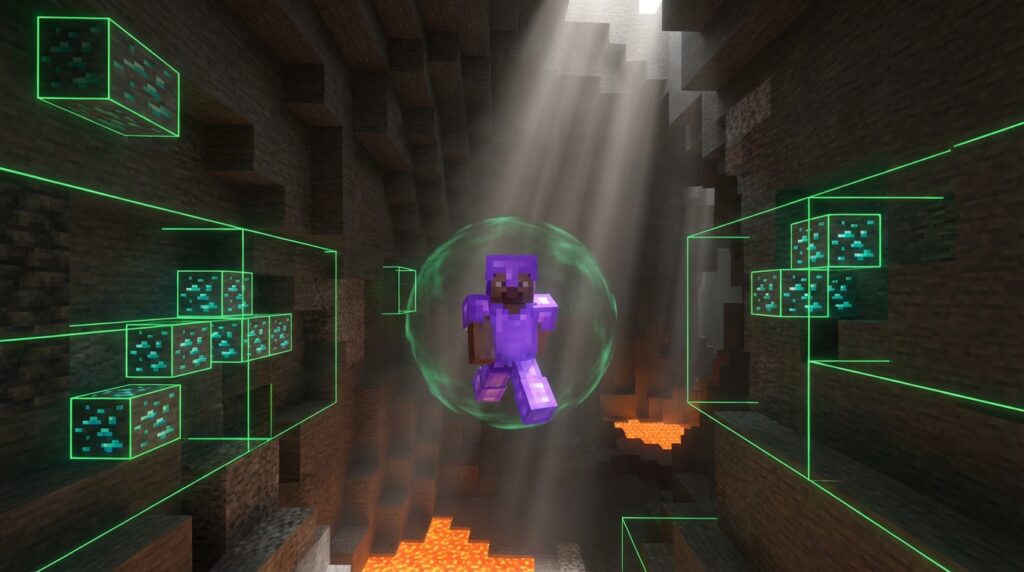
If you want to build massive bases faster or automatically spot hidden diamond ores, you need the right tools. Setting up the Wurst client changes how you play Minecraft by adding features like X-Ray vision and auto-mining. Installing these mods is incredibly easy once you know the steps.
Modern setups run on a system called Fabric, which keeps your game running smoothly while you use your new abilities. You just drop a couple of files into your game folder to activate features like automatic sword swinging for fighting off creepers. With a proper installation, you spend less time grinding for resources and more time enjoying your survival world.
Key Takeaways
- Installing the Wurst client requires the Fabric Loader and Fabric API, and all file versions must match your Minecraft version exactly to prevent crashes.
- Press the Right Shift key in-game to access the Wurst ClickGUI, a customizable menu where you can easily search, toggle, and configure utility modules.
- Powerful modules like X-Ray, BoatFly, and Killaura automate tedious survival tasks, drastically reducing the time spent mining, traveling, and fighting mobs.
- Resolve common client crashes and freezes by updating your system to the latest version of Java and installing current graphics card drivers.
Installing Wurst With Fabric Loader
Setting up the Wurst utility mod for modern Minecraft versions requires the Fabric Loader. First, visit the official Fabric website and download the universal installer file. Open the installer and select the exact Minecraft version you want to play, like version 1.21. Check the box that creates a new profile in your official Minecraft launcher. Click the install button to set up the base files you need to run custom modifications smoothly.
After installing the base loader, download the Fabric API file because Wurst relies on it to function. This API acts as a bridge that lets your new utility features communicate with the game world. You can find the correct Fabric API version on trusted Minecraft modding websites. Next, head to the official Wurst website to download the client file that matches your chosen game version. Always double-check that your game version, Fabric API, and Wurst download share the exact same version number to avoid crashes when joining a multiplayer survival server.
The final step is moving your downloaded files into your hidden Minecraft mods folder. Find this directory by typing %appdata% into your computer search bar and opening the .minecraft folder. If you do not see a folder named mods inside this location, create a new one. Drag both the Fabric API file and the Wurst file directly into this mods folder. Open your Minecraft launcher, select the new Fabric profile, and hit play to start using features like auto-mining in your next resource-gathering session.
Navigating The Wurst ClickGUI Menu
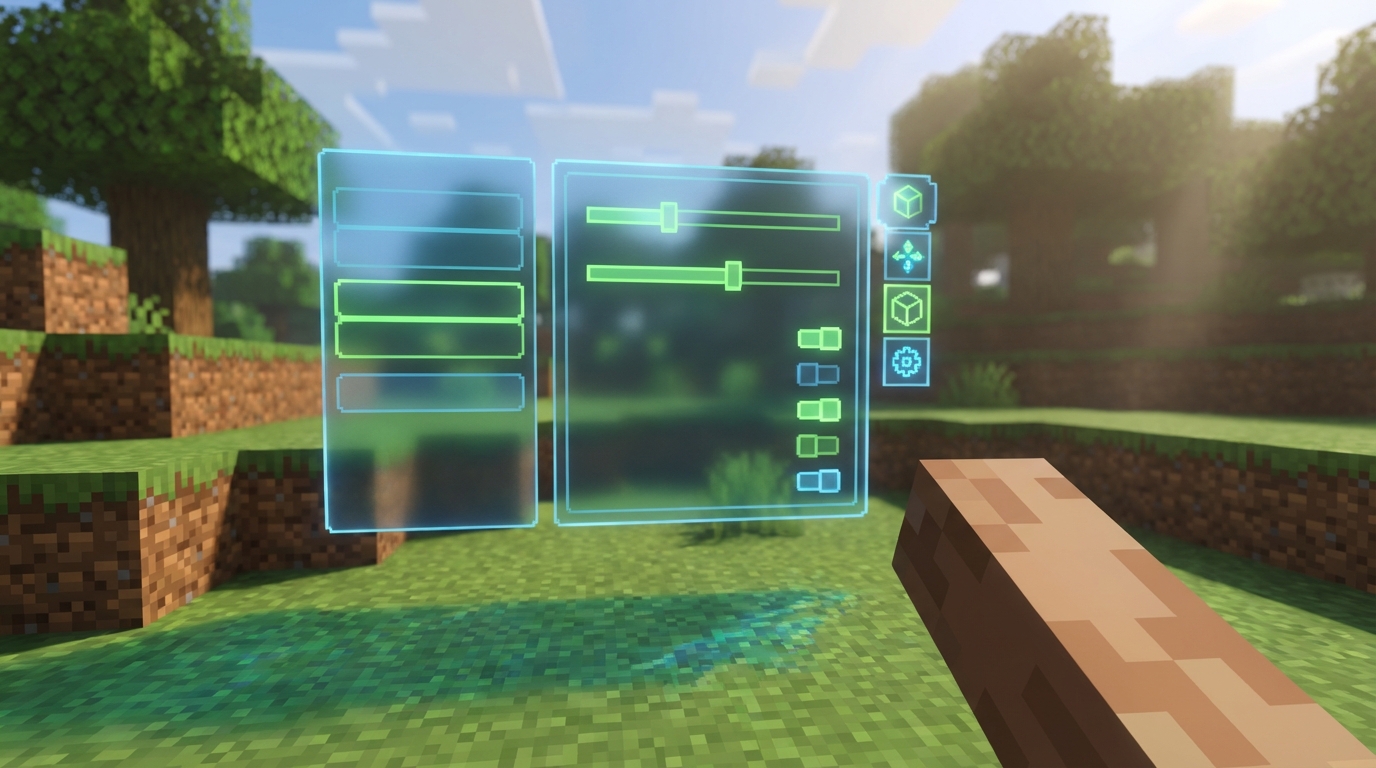
Once you load into your Minecraft world, accessing your new utility tools is simple. Press the Right Shift key on your keyboard to open the Wurst ClickGUI menu on your screen. You will see a neat layout of different category windows like Combat, Movement, and Render. This menu is your main control center for everything the client offers. You can click and drag the top of any category window to move it around and customize your screen layout.
Finding the exact feature you need is easy thanks to the built-in search bar at the top of the menu. If you are looking for a specific tool like AutoFish or BoatFly, type the name into the search box. The menu highlights the exact module you want, saving you from clicking through every category window. You can also click the pin icon on any window to keep it open while you play. Pinning your favorite categories lets you quickly access your most-used tools without reopening the main menu every time.
Turning your utility features on and off takes a simple left click. When you click a button like Fullbright, it highlights to show the feature is active. This makes exploring dark caves much easier since everything lights up instantly without torches. If you want to customize how a tool works, right-click the button to open its specific settings. For example, you can right-click the Killaura button to adjust your attack range or choose which mobs to target during a fight.
Top Wurst Modules For Survival And Combat
Surviving in Minecraft becomes much easier when you know which Wurst modules to activate. If you are tired of digging aimlessly for hours, the X-Ray feature changes how you mine. Turning on this module makes common blocks like dirt and stone invisible, leaving only valuable ores visible on your screen. You can easily spot bright blue diamond clusters hidden deep underground and tunnel straight to them. This saves pickaxe durability and helps you craft your best armor faster.
Exploring your world is another area where this utility mod shines. The BoatFly module allows you to place a standard wooden boat and fly it across the sky. Instead of struggling to cross massive oceans or climbing steep mountain biomes, you glide right over them. You can control your altitude with your jump key and steer exactly where you want to go. It makes traveling thousands of blocks to find a rare woodland mansion or a distant village feel like a quick trip.
When the sun goes down and hostile mobs spawn, you need reliable combat tools to keep your character safe. Killaura is a powerful combat module that automatically attacks any enemies that walk within your reach. If a group of zombies tries to swarm you or a creeper sneaks up from behind, your weapon instantly swings to hit them. You do not even need to click your mouse or aim directly at the monsters to deal damage. This lets you focus entirely on your movement and health while the client handles the fighting for you.
Fixing Common Wurst Client Crashes
When you try to launch your Minecraft world with the Wurst Client, you might see a screen full of error codes. These crashes often happen because your computer is running an outdated version of Java that cannot handle modern Fabric mods. To fix this issue, head to the official Java website and download the newest installer for your system. Once you install the fresh Java update, restart your Minecraft launcher and try opening the game again. Your game should boot up perfectly, letting you get right back to building your base or exploring new biomes.
If your game still crashes right as you load into a multiplayer server, your graphics drivers are likely the culprit. Minecraft relies heavily on your graphics card to render blocks, player models, and the extra utility features Wurst provides. You can resolve this by visiting the website of your graphics card manufacturer to download their latest update tool. After running the driver update and restarting your computer, load up your favorite survival world to test the changes. Your game should now run smoothly without any sudden freezes or crash reports interrupting your diamond mining trips.
Jump Into Your Modded Minecraft World
You now know the basics of setting up and installing the Wurst Client for your Minecraft world. By dropping the required mod file into your folder alongside the Fabric API, you unlock a massive toolkit of helpful features. You can confidently launch your game knowing everything is configured correctly for your current version. All that is left to do is boot up your favorite survival world and start experimenting.
Using these new tools changes how you tackle everyday survival tasks. You can switch on the AutoMine feature to gather stacks of diamonds without breaking a sweat in the deep caves. If building is more your style, use the automated building tools to instantly construct massive bridges or walls to protect your base. Surviving the night becomes simple when you activate combat helpers to automatically fend off crowds of zombies and creepers. These utility features take the tedious grind out of your daily gameplay and let you focus on the fun parts of your adventure.
As you spend more time with the client, you will discover even more creative ways to customize your gameplay experience. Take your time exploring the different menus to see exactly what each unique setting does in your world. You might find a new favorite tool that helps you farm crops faster or travel across the map in record time. Just remember to respect server rules if you decide to play online with your friends. Enjoy a completely fresh and exciting way to play Minecraft.
Frequently Asked Questions
1. What exactly does the Wurst client do in Minecraft?
The Wurst client adds utility features to your game that save you tons of time. You can use X-Ray vision to spot hidden diamond ores instantly or turn on auto-mining to gather materials effortlessly. It even has automatic sword swinging to help you fight off creepers in your survival world.
2. What is Fabric and why do I need it?
Fabric is the base system that allows custom modifications like Wurst to run smoothly in your game. You just download the universal installer from the official Fabric website and select your Minecraft version. It creates a new profile in your launcher so you can play with your new abilities without any hassle.
3. Do I need any extra files besides Wurst and Fabric?
Yes, you need to download the Fabric API file for everything to work properly. This file acts as a bridge that lets your new utility mods communicate with your Minecraft world. Just drop it into your game folder right next to your Wurst download.
4. How do I prevent my game from crashing when using Wurst?
The most important step to avoid crashes is making sure all your file versions match exactly. If you want to play on Minecraft version 1.21, your Fabric Loader, Fabric API, and Wurst client must all be made specifically for 1.21. Double-check these numbers before joining a multiplayer server so your game runs perfectly.
5. Where do I put the downloaded mod files?
Once you have your Wurst client and Fabric API files, drop them directly into your Minecraft mods folder. If you do not see a folder named mods inside your main Minecraft directory, you can create a new one yourself. After placing the files there, open your launcher and select your new Fabric profile to start playing.
6. Is setting up these mods difficult to do?
Setting up these mods is incredibly easy. You only need to run the Fabric installer and drop a couple of files into your game folder. Once you know these simple steps, you spend way less time grinding for resources and more time building massive bases.