
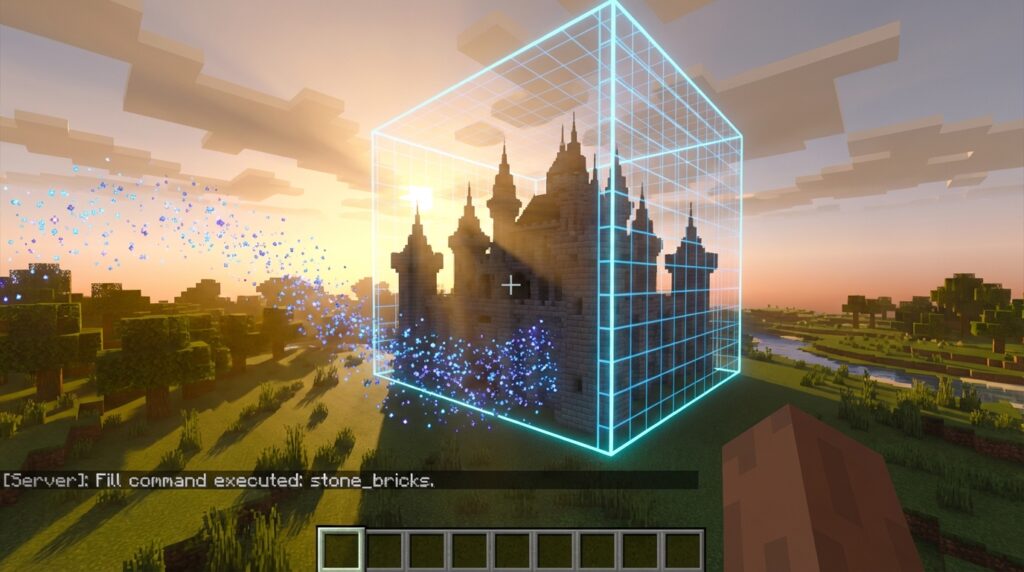
Building massive castles or clearing out giant underground bases block by block takes forever. If you are tired of spending hours clicking your mouse just to build a simple wall, learning the fill command helps. With one simple line of text, you can instantly turn a whole mountain into solid diamond or clear out a massive ocean of water and replace it with air.
You can do way more than just spawn huge solid cubes of dirt. By adding a few simple words to your command, you can build hollow boxes for instant houses or replace only the annoying gravel in your mine without touching the valuable ores. Understanding how to use these different modes gives you the power to shape your entire world in seconds instead of days.
Key Takeaways
- The /fill command drastically reduces building time by allowing you to instantly place, remove, or swap massive amounts of blocks with a single line of text.
- Using exact X, Y, and Z coordinates lets you pinpoint build locations, while tilde symbols (~) allow you to quickly generate structures relative to your character’s current position.
- Adding special modifiers like hollow, keep, or replace to your command allows you to instantly generate empty rooms, protect existing builds, or swap out specific materials without destroying surrounding blocks.
Mastering Coordinates And Helpful Tilde Symbols
When you want to build a massive structure or clear a huge mountain, you need to tell the game exactly where to start and stop using X, Y, and Z coordinates. These three numbers represent your exact location in the world, with X and Z marking your flat position and Y showing how high up you are. To use the fill command, you will pick a starting corner and write down its coordinates. Next, you will travel to the opposite diagonal corner of your planned build and note those numbers as well. Typing a command like /fill 10 65 20 20 75 30 stone will instantly spawn a giant solid block of stone between those two exact points.
If writing down long strings of numbers feels too tedious, you can use the helpful tilde symbol to place blocks relative to where you are currently standing. Typing a tilde instead of a specific number tells the game to use your exact current position for that coordinate. You can also add numbers right after the tilde to shift the starting or ending point away from your character. For example, typing /fill ~ ~ ~ ~5 ~5 ~5 glass will instantly create a glass cube right next to you. This trick saves you a massive amount of time because you never have to open your debug screen to check your current location.
You can even mix exact coordinates and tilde symbols in the same command to customize exactly how your new terrain generates. A creative builder might stand at the base of a planned tower and use tildes for the starting corner while typing exact numbers for the very top. This flexibility allows you to hollow out underground bases or build giant castle walls in just a few seconds. Once you practice typing these coordinate patterns, you will easily bypass the boring process of manual block placement. Your big projects will come to life incredibly fast when you let the game do the heavy lifting for you.
Core Fill Command Syntax With Block Examples
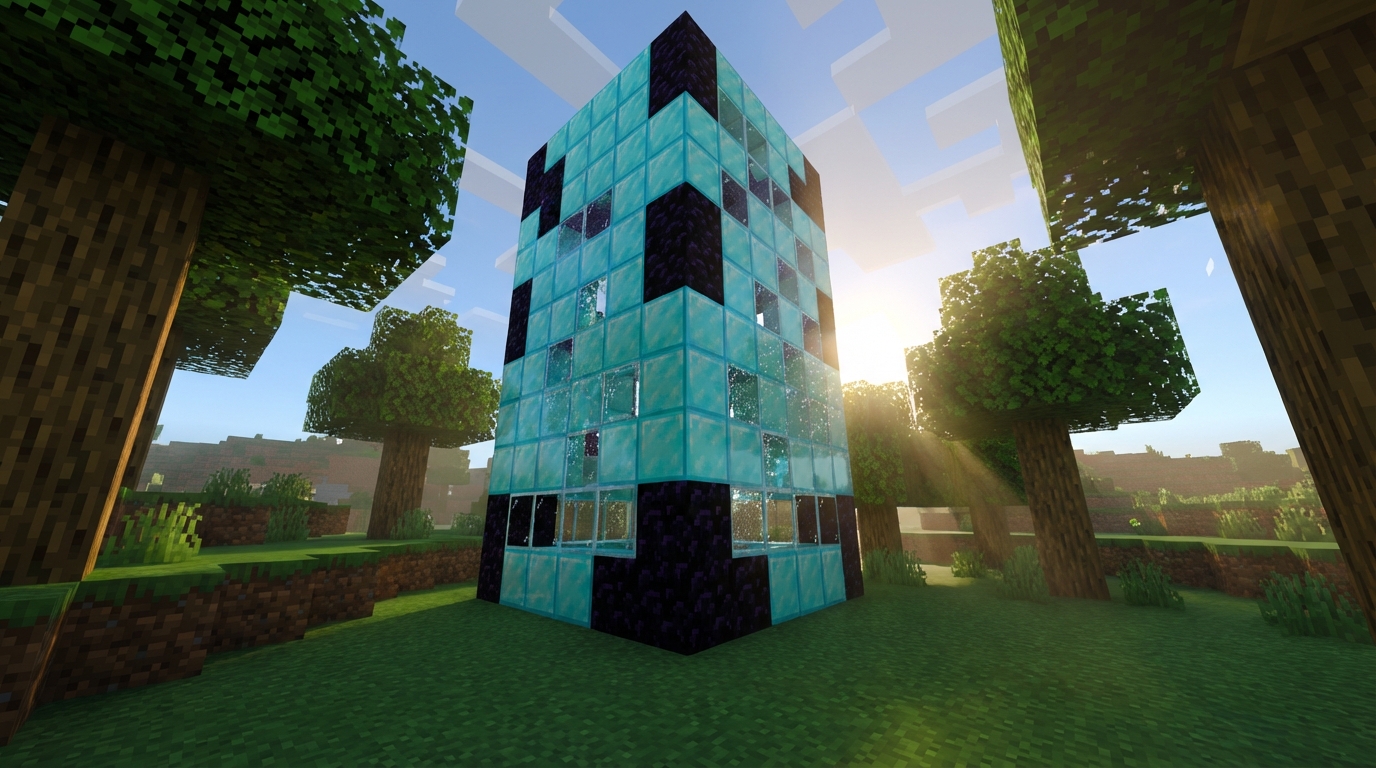
To start building massive structures instantly, you need to understand the basic formatting of the fill command. You will open your chat bar and type a specific string of coordinates and block names to tell the game exactly what to do. For example, typing /fill ~ ~ ~ ~10 ~5 ~10 stone will instantly generate a solid block of stone right where you are standing. The tilde symbols represent your current location, while the numbers tell the game how many blocks outward and upward to stretch the shape. This simple line of text saves you the headache of manually placing hundreds of individual blocks by hand.
Once you grasp the basic numbers, you can use this tool for incredibly practical gameplay shortcuts. If you want to build a giant glass wall for a modern skyscraper, you just adjust the coordinates to stretch high into the air and specify glass as your material. You can also pave a massive dirt floor for a new farm by keeping the height coordinate flat and spreading the length and width coordinates outward. Instead of spending hours clicking your mouse, your new foundation appears in a fraction of a second. You can swap out the material name at the end of the command to use wood, diamond, or any other block you desire.
The command also comes with special modes that make your creative building process even easier. By adding the word hollow to the end of your text, you can create a structure that only has an outer shell. This is perfect for instantly making an empty room or a large house without having to dig out the solid center. You can also use the replace mode to swap an entire mountain of dirt into a mountain of solid gold. Mastering these quick tricks gives you the ultimate power to shape your world exactly how you want it.
Using Hollow Keep And Replace Block Modes
You can save hours of tedious building by using the hollow mode to create an instant house shell. When you add the word hollow to the end of your fill command, the game generates a giant solid box and automatically empties out the inside. For example, typing /fill ~ ~ ~ ~10 ~10 ~10 stone hollow creates a perfectly empty stone room ready for your interior design. This trick is perfect for setting up quick bases or creating massive custom arenas without having to mine out the interior layer by layer. Just remember to leave a spot for your door so you can actually get inside your new creation.
Another amazing tool for your building projects is the keep mode, which lets you add blocks without ruining your hard work. This special tag tells the game to only place new blocks in spaces that are currently filled with air. If you want to fill in annoying nearby caves with dirt but already built an underground base, this mode protects your existing structures. You simply type your coordinates followed by your block name and the word keep to safely plug all the empty holes around your base. Your torches, chests, and carefully placed stone bricks will remain completely untouched while the useless cavern spaces vanish forever.
Sometimes you need to remove something specific, and that is exactly where the replace function shines. Instead of spending days soaking up an annoying ocean with sponges, you can swap every single water block for air in seconds. By typing a command like /fill ~ ~ ~ ~20 ~20 ~20 air replace water, you instantly drain a massive lake without affecting the sand or gravel underneath. You can use this exact same logic to swap a boring cobblestone castle into a shiny diamond fortress. Mastering these different modes gives you ultimate control over your Minecraft world and frees up your time for the fun parts of building.
Stop Placing Every Minecraft Block by Hand
Mastering the fill command completely changes how you approach massive building projects in Minecraft. Instead of spending hours clicking to place every single block by hand, you can now clear out huge mountains or generate giant walls in just a few seconds. This powerful shortcut is incredible for creative builders and server admins who need to shape massive areas quickly. Whether you are clearing space for a sprawling custom city or laying down the foundation for a giant castle, these automated commands take the tedious work out of your hands.
Now that you understand the basic syntax and different modes, it is time to put these new skills to the test. Grab your favorite diamond pickaxe, jump into your creative world, and start experimenting with these massive block-placing shortcuts today. Try using the hollow mode to instantly build the outer shell of a towering skyscraper, or use the replace mode to swap an entire lake of water into solid glass. The more you practice typing out these coordinates and block names, the faster you will become at designing epic builds. Your next incredible server project is just a few keystrokes away, so go out there and start building something amazing!
Frequently Asked Questions
1. What exactly does the fill command do in Minecraft?
The fill command lets you instantly place or remove huge amounts of blocks at once. Instead of clicking your mouse to build a giant wall or clear out a heavy mountain, you just type one line of text. You can turn a whole ocean into air or build a solid diamond cube in seconds.
2. How do X, Y, and Z coordinates work?
These three numbers tell the game your exact location in the world. The X and Z numbers mark your flat position on the map, while the Y number shows how high up you are. You will need these numbers to tell the game exactly where your giant stone wall or new floor should start and stop.
3. How do I use the fill command with exact coordinates?
First, pick a starting corner for your build and write down its X, Y, and Z numbers. Next, travel to the opposite diagonal corner and note those numbers too. Finally, type a command like /fill 10 65 20 20 75 30 stone to instantly fill that exact space with stone blocks.
4. What is the tilde symbol used for?
The tilde symbol (~) saves you from typing out long strings of exact coordinate numbers. When you type a tilde, you tell the game to use the exact spot where your character is currently standing. It is a massive time saver when you want to build something right next to you.
5. Can I build something near me without knowing the exact coordinates?
Yes, you can use the helpful tilde symbol to build blocks relative to your character. Just add numbers right after the tilde to shift the starting or ending point away from you. For example, typing /fill ~ ~ ~ ~5 ~5 ~5 glass will instantly pop a nice glass cube right next to your character.
6. Can I build hollow boxes for houses instead of solid cubes?
You absolutely can build hollow boxes for instant houses. By adding a few simple words to the end of your command, you can change the mode from a solid cube to a hollow shell. This gives you the perfect empty room to start decorating your new base right away.
7. How do I get rid of annoying blocks without breaking my valuable ores?
You can use a special replace mode with your fill command to swap out only specific blocks. This means you can target all the annoying gravel in your mine and turn it into air. Your valuable diamonds and gold ores will stay perfectly safe and untouched.