
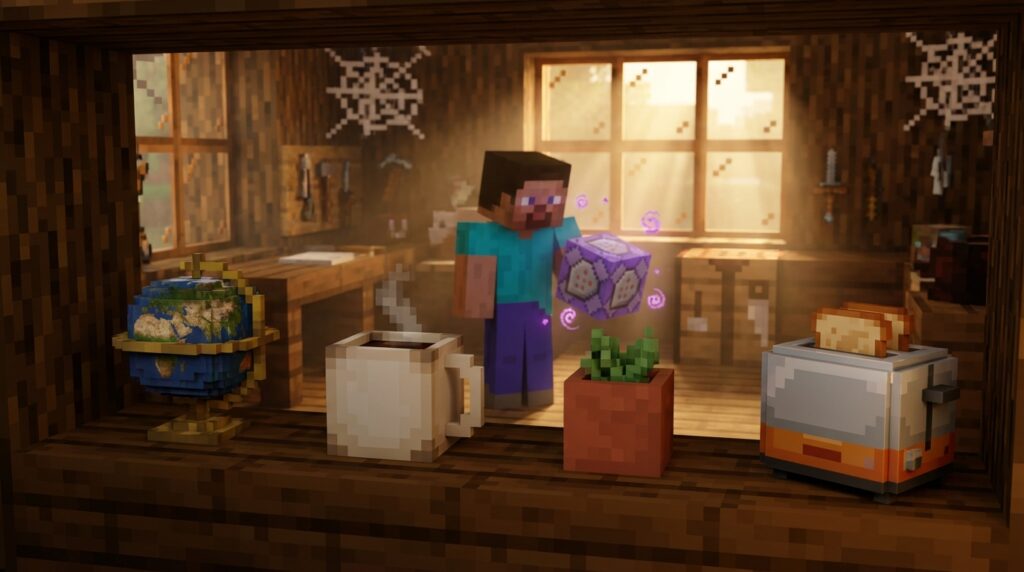
If you want to take your Minecraft builds to the next level, you need to master custom player head commands. These versatile items allow you to add realistic details like tiny toasters, mini-globes, or even the faces of your friends to your base. Whether you are decorating a cozy kitchen or designing an intricate adventure map, these heads act as the perfect custom furniture.
With the release of Minecraft 1.20.5 and 1.21, the way you summon these items has changed from old NBT tags to new Data Components. You can now use a simple command to grab a player’s head by their name or use a Base64 string for a permanent decorative block. Learning the new square bracket syntax ensures your commands work perfectly in the latest game versions.
Key Takeaways
- Minecraft versions 1.20.5 and 1.21 replaced old NBT tags with a new Data Component syntax using square brackets for summoning custom player heads.
- Use the profile component command
/give @p minecraft:player_head[profile={name:"PlayerName"}]to quickly obtain heads based on specific player skins. - Utilize Base64 texture strings to create permanent decorative mini-blocks, such as food or electronics, that remain consistent even if a player changes their skin.
- Custom player heads bypass the limitations of the standard block palette, allowing builders to add professional-level detail and realism to interior designs.
Master The New Data Component Syntax For Version 1.21
If you are a builder looking to add that extra layer of detail to your world, mastering the new Data Component syntax is essential for version 1.21. Gone are the days of simple NBT tags, as the game now uses a square bracket system to define item properties. This change means you can no longer rely on your old 1.20 commands to summon decorative items like tiny globes, cameras, or food platters. By learning this updated format, you can easily pull any custom texture into your game to act as a mini block. These small additions are perfect for cluttered desks, kitchen counters, or realistic shop displays that standard blocks just cannot replicate.
To get a head based on a specific player name, you will now use the profile component command inside square brackets. For example, typing /give @p minecraft:player_head[profile={name:"Notch"}] will instantly place that iconic head into your inventory. If you want to use a unique decorative texture that stays the same regardless of skin changes, you will need to use a Base64 string within the properties section. This allows you to summon specific designs like a tiny taco or a realistic toaster to place on your kitchen counters. Using these commands gives you a massive library of custom assets that make your interior designs look professional and unique.
Bringing your builds to life is much easier once you understand how the id and value fields work within the new command structure. You can find thousands of unique textures online that provide everything from miniature treasure chests to tiny potted plants. Simply copy the long texture string and paste it into the value section of your square bracket command. This technique is a favorite among the building community because it bypasses the usual limitations of the block palette. With just a few keystrokes, you can transform a plain room into a highly detailed space filled with custom props and realistic decorations.
Summon Decorative Mini Blocks With Base64 Texture Strings
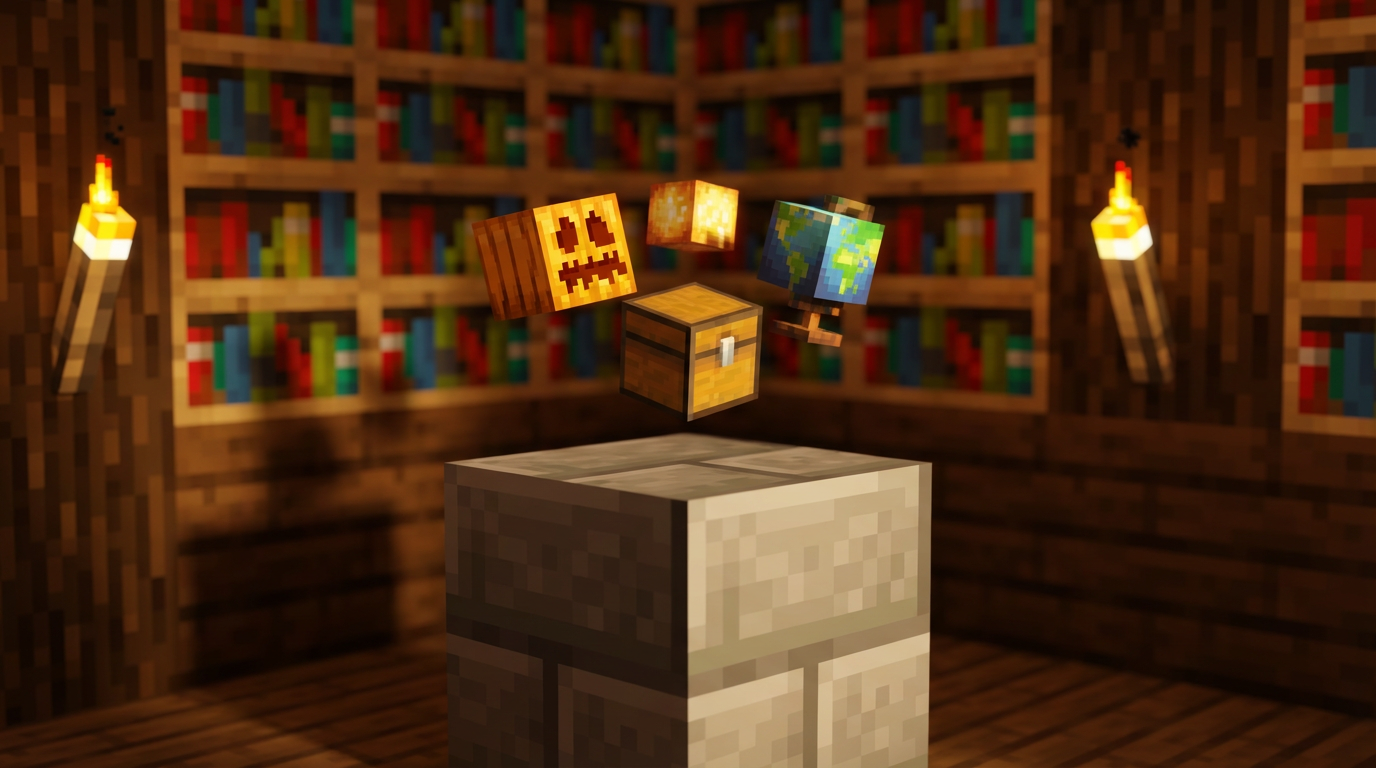
If you want to take your interior design to the next level, using Base64 texture strings is the ultimate building hack. While standard player heads change whenever a user updates their skin, these custom strings lock in a permanent look that never disappears. This allows you to place tiny, detailed models like delicious tacos, realistic globes, or miniature crates directly onto your shelves and tables. These mini blocks act as the perfect clutter to make your base feel lived in and professional. It is the best way to add intricate details that simply do not exist in the default Minecraft block palette.
Starting with Java Edition 1.20.5 and moving into 1.21, the way you summon these decorative items has changed to a new system called Data Components. You no longer use the old NBT tags, but instead use a specific profile component within square brackets to define the texture. The command requires a long string of encoded text that tells the game exactly which custom image to wrap around the head. By using the /give command with these specific properties, you can spawn a stack of items that stay consistent across any server or world. This modern syntax ensures your decorations remain functional and visually stunning even after the latest game updates.
To get started, you just need to find the specific Base64 value for the object you want to create. You can find these codes on various community databases that host thousands of unique designs ranging from tiny electronics to assorted fruits. Once you have the code, you paste it into the value section of your player head command to bring your vision to life. This technique is a favorite among map makers because it allows for incredible environmental storytelling without needing a separate resource pack. Your builds will instantly stand out when you start adding these custom flourishes to your kitchens, libraries, and workshops.
Grab Specific Player Skins Using Profile Name Commands
Bringing the likeness of your favorite creators or your own friends into your Minecraft world is a fantastic way to add personality to your builds. If you are playing on version 1.20.5 or 1.21, you will need to use the updated data component syntax to summon these items correctly. You can easily grab a specific player skin by typing /give @p minecraft:player_head[profile={name:"PlayerName"}] into your chat or a command block. This simple line replaces the old NBT tags and ensures the head displays the correct skin immediately. It is a perfect trick for creating Hall of Fame galleries or adding realistic statues to your base.
Beyond just using friend names, this command is the secret to getting incredible decorative mini blocks like tiny globes, tacos, or even cameras. Many builders use specialized accounts that keep permanent textures for these objects so your decorations never change. If you want to place a miniature globe on a desk, you simply use the profile name associated with that specific texture. These tiny details fill the gaps that standard blocks cannot, making your interior designs look professional and lived in. You can turn a boring shelf into a cluttered masterpiece by mixing and matching different creative furniture design ideas from the community.
Bring Your Builds to Life with Custom Heads
Mastering custom player head commands is the ultimate secret to taking your Minecraft builds from basic to professional. By using these simple scripts, you can finally add those tiny details like steaming coffee mugs, colorful globes, or even a plate of tacos to your kitchen counters. These mini-blocks provide a level of realism that standard blocks simply cannot match, allowing you to tell a story within your rooms. Whether you are decorating a cozy cottage or a high-tech laboratory, these custom textures give you the creative freedom to design exactly what you imagine.
Since the recent updates to version 1.21, using the new data component syntax ensures your decorative heads will work perfectly in your latest worlds. You no longer have to worry about a player changing their skin and ruining your build because the Base64 texture strings keep your mini-blocks looking consistent forever. Simply copy the updated command into your chat or a command block to instantly summon these unique items into your inventory. Much like how you can master the Minecraft teleport command syntax to move quickly across your world, learning these decorative commands saves you time and effort in achieving the perfect aesthetic. You can further enhance your scenes if you master the art of armor stand posing tricks to create life-like displays alongside your custom heads. Start experimenting with these powerful tools today to add that final layer of personality and polish to your favorite creative projects.
Frequently Asked Questions
1. What are custom player heads used for in Minecraft?
You can use these heads to add incredible detail to your builds, like placing a tiny toaster on a kitchen counter or a mini-globe on a desk. They act as custom furniture pieces that help you decorate areas where standard blocks are too big.
2. How do I get a specific player’s head in version 1.21?
You need to use the new profile component syntax in your chat console. Simply type /give @p minecraft:player_head[profile={name:"PlayerName"}] to instantly receive that person’s head.
3. Why did my old head commands stop working?
Minecraft versions 1.20.5 and 1.21 changed how the game reads item data from old NBT tags to new Data Components. You now have to use square brackets instead of curly braces to define the properties of the head you want to summon.
4. What is the benefit of using a Base64 string for a custom head?
Using a Base64 string ensures your decorative head always keeps its specific texture, even if the original player changes their skin later. This is perfect for permanent decorations like food platters or cameras in your adventure maps.
5. Can I use these commands to get heads of famous players like Notch?
Yes, you can easily grab iconic heads by using their specific username in the profile command. Just use the command /give @p minecraft:player_head[profile={name:"Notch"}] to get that specific look for your collection.
6. Do I need to be in Creative Mode to use these commands?
You generally need to have operator permissions and be in Creative Mode to use the /give command successfully. While commands are great for decoration, survival players might prefer to build a reliable mob head farm to collect standard trophies. Once you have the head in your inventory, you can place it anywhere in your world just like a regular block.