
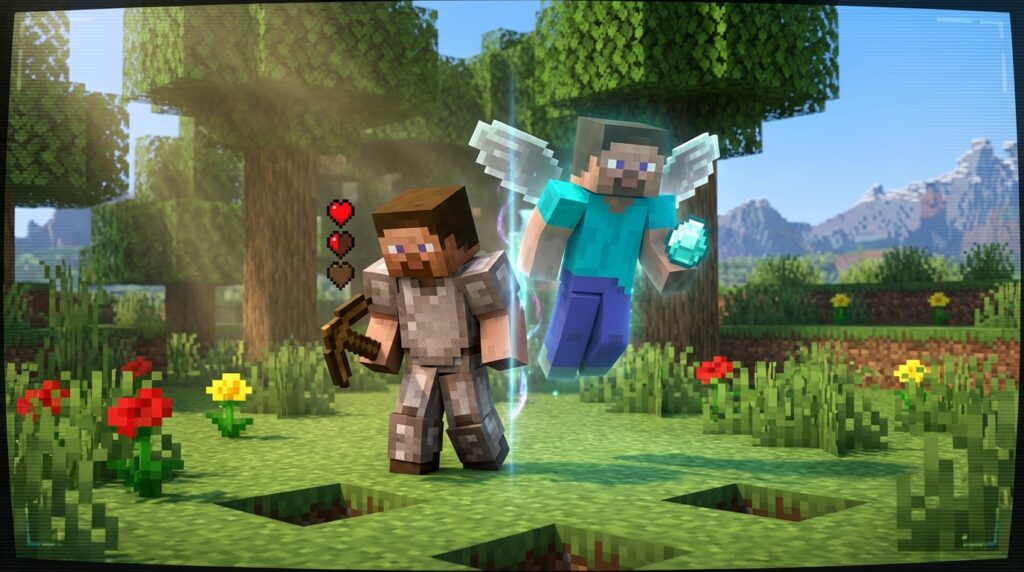
Whether you are trying to escape a surprise Creeper explosion or want to fly through the clouds to see your latest build, the change game mode command is your most powerful tool. This simple shortcut lets you swap instantly between gathering resources in Survival and having unlimited blocks in Creative. It is the best way to fix a mistake, test a new redstone machine, or just explore your world without worrying about taking damage.
To get started, you just need to make sure cheats are turned on in your world settings or that you have operator status on your server. While the command looks a little different depending on if you play on a PC or a console, it always works to give you total control over how you play. You can use it to rescue yourself from a deep lava pool or to switch into Spectator mode to find hidden caves beneath your base.
Key Takeaways
- The /gamemode command is the primary tool for instantly toggling between Survival, Creative, Spectator, and Adventure modes to gain total control over gameplay physics.
- Cheats must be enabled through world settings or by using the ‘Open to LAN’ feature in Java Edition to gain access to the command console and operator privileges.
- Mastering specific mode commands allows for instant utility, such as using Spectator mode to phase through blocks for scouting or Adventure mode to protect custom maps from griefing.
- Administrators can manage multiplayer environments by targeting specific players or groups with the /gamemode command to assist teammates or enforce server rules.
Enabling Cheats For Gamemode Command Access
Before you can start flying through walls or instantly gathering diamonds, you need to make sure your world allows for command inputs. If you are starting a brand new world, you can easily toggle the Allow Cheats option to on during the initial setup screen. For those already playing in a world where this was left off, just head into your pause menu and look for the Open to LAN option in the Java Edition. Once there, you can switch Cheats to on and start the session to gain immediate access to the console. Bedrock players can find a similar toggle directly in the game settings under the Cheats category at any time.
Having these permissions active is the key to bypassing the slow grind of gathering materials or surviving dangerous nights. You will know you are ready when you can press the forward slash key and see the command box appear on your screen. This simple shortcut turns your standard survival map into a flexible playground where you control the rules of physics. It is the fastest way to jump from a struggle for food into a creative building session without losing any of your progress. Once enabled, you can swap between modes instantly to test out new redstone ideas or find your way back home if you get lost.
Switching Between Survival And Creative Modes
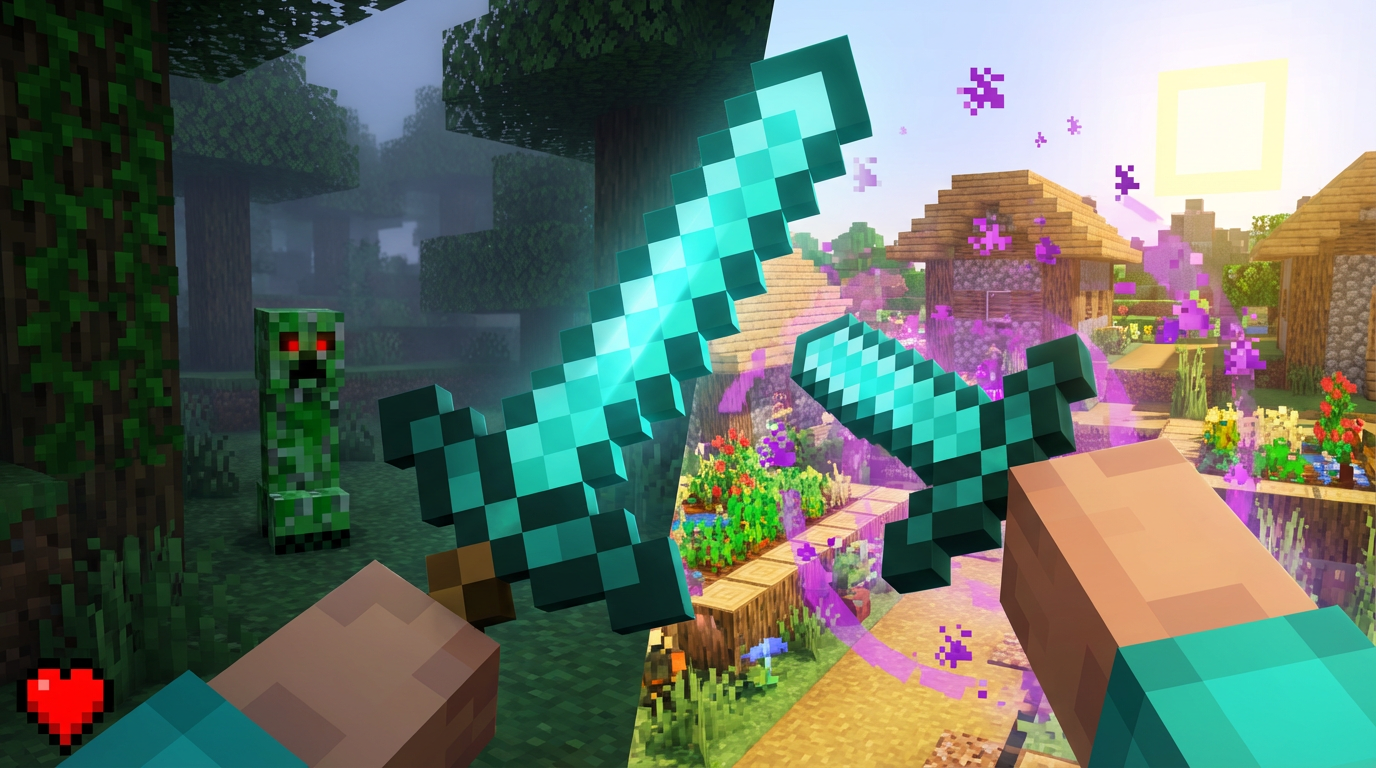
When you want to stop worrying about hunger bars and start building massive structures, the /gamemode command is your best friend. Instead of quitting to the main menu to change your world settings, you can simply open your chat window and type /gamemode creative to get instant access to every block in the game. This quick swap is perfect for those moments when you run out of materials mid build or need to fly around to get a better view of your surroundings. If you are playing on the Java Edition, you can even use the F3 and F4 keys as a shortcut to toggle between modes even faster. Just remember that you must have cheats enabled in your world settings or hold operator status on a server for these commands to work.
Switching back to survival mode is just as easy and keeps your adventure moving without any frustrating delays. By typing /gamemode survival into the console, you immediately return to the classic experience where you have to gather resources and defend yourself from mobs. This command is incredibly helpful for testing out farm designs or redstone contraptions in a safe environment before trying them out for real. You can also change the mode for other players on your server by adding their username to the end of the command. Whether you are jumping into a project or returning to the grind, mastering this simple syntax gives you total control over how you interact with your Minecraft world.
Using Spectator And Adventure Command Options
If you want to explore your world without any physical limits, the spectator command is your best friend. By typing /gamemode spectator into your chat bar, you instantly become a ghost capable of flying through solid blocks and deep underground. This is perfect for finding hidden caves, spotting village seeds, or checking out your friends’ secret bases without being seen. You won’t have to worry about mobs attacking you or falling into lava because nothing can touch you in this state. It is a fantastic tool for taking high angle screenshots of your builds or scouting out the perfect location for your next big project.
When you are designing a custom map or a challenge for friends, the adventure mode command is the tool you need to keep things fair. Typing /gamemode adventure prevents players from breaking blocks with their bare hands, ensuring that your carefully built structures stay exactly as you intended. This mode is excellent for parkour courses or story driven quests where you want players to focus on the journey rather than digging through walls. You can still interact with buttons, levers, and doors, which lets you create complex puzzles that require logic instead of brute force. It adds a professional layer to your world by setting clear rules for how others can interact with your environment.
Switching between these modes is much faster than clicking through menus, especially when you are in the middle of a build. Whether you are using the Java Edition or Bedrock Edition, these commands give you instant control over your gameplay experience. You can quickly jump into Spectator mode to check your redstone wiring behind a wall and then hop back into survival or adventure mode to continue playing. Mastering these simple commands makes you a more efficient builder and a better host for your multiplayer sessions. It really changes how you view the game by giving you a perspective that regular survival mode simply cannot offer.
Targeting Other Players With Gamemode Commands

Administering your own server is a lot more fun when you can help your friends out on the fly. Instead of making everyone dig through their individual settings menus, you can use the game mode command to change their status instantly. By adding a specific username after the command, you can move a struggling friend from survival into creative mode so they can fly or build without limits. This is perfect for those moments when a teammate gets stuck in a clue or needs a quick health boost during a tough battle. You just need to make sure you have operator status or cheats enabled to make these changes for others.
The actual syntax is very straightforward and follows a simple pattern whether you are on Java or Bedrock. For example, typing /gamemode creative Steve will immediately give the player named Steve the ability to fly and access infinite blocks. If you want to bring everyone back to the standard experience, you can swap the mode to survival to restore the challenge of hunger and health. You can even use shorthand targets like @a to change every single person on the server at the same time. This level of control keeps the game moving fast without anyone having to pause their adventure for long.
Being able to swap modes for others makes you the ultimate host for your Minecraft world. If you are building a massive castle together, you can toggle your friends into spectator mode so they can fly through walls and check the layout from a new perspective. Once the tour is over, a quick command puts them right back into the action with their feet on the ground. Using these commands saves a massive amount of time compared to clicking through menus or restarting the world. It keeps the focus on playing and creating together rather than managing technical settings.
Take Control with the /gamemode Command
Mastering the change game mode command is the ultimate shortcut to taking full control over your Minecraft world. Instead of clicking through several layers of pause menus and settings, you can simply type a quick line in the chat to swap from Survival to Creative. This is incredibly helpful when you are about to fall into a pit of lava or when you suddenly run out of building blocks during a massive project. Using the /gamemode command ensures that you spend less time navigating menus and more time actually playing the game.
To make your gameplay even faster, remember that you can use shorthand versions and keyboard shortcuts to switch modes in a heartbeat. In the Java Edition, pressing F3 and F4 at the same time brings up a quick cycle menu that lets you swap modes without typing a single word. If you prefer the chat console, you only need to type /gamemode followed by the first letter of the mode, such as s for survival or c for creative. These small tricks allow you to bypass the grind and save time in your world.
Whether you are testing a complex redstone machine or just trying to fly across the map to find a village, these commands give you instant flexibility. Just make sure your cheats are enabled in your world settings so the commands work whenever you need them. By keeping these simple shortcuts in your toolkit, you can easily manage your health, inventory, and building abilities. You are now ready to jump between different playstyles and truly make the Minecraft experience your own.
Frequently Asked Questions
1. How do you turn on cheats if you already started your world?
If you are on the Java Edition, just open your pause menu and select Open to LAN to toggle cheats on. For Bedrock players, you can find the Cheats toggle directly in your world settings menu at any time.
2. What is the easiest way to swap to Creative mode?
You can quickly switch by typing /gamemode creative into your chat box. This gives you instant access to unlimited blocks and the ability to fly so you can build anything you imagine.
3. Can you use this command to save yourself from dying in lava?
Yes, you can quickly type /gamemode creative or /gamemode spectator to stop taking damage immediately. This is the perfect way to rescue your character and save your items when you fall into a dangerous lava pool.
4. How do you check for hidden caves near your base?
You should switch to Spectator mode using the command /gamemode spectator. This allows you to fly through solid ground and see exactly where hidden dungeons or diamond veins are located underground.
5. Why isn’t the command working when I type it?
The most common reason is that cheats are not enabled in your world settings. Make sure you have operator status on a server or have toggled the Allow Cheats option to on in your game menu.
6. Is there a way to go back to regular gameplay after building?
Simply type /gamemode survival into the chat box to return to the standard game. You will go back to gathering resources and dealing with hunger while keeping everything you built in Creative mode.