Taking your Minecraft anarchy or utility gameplay to the next level requires the right tools, and this meteor client installation guide is your roadmap to success. Whether you want to automate your crystal combat or enhance your building with advanced overlays, getting your setup right is the first step toward mastering your favorite server. This client is built for the modern game, meaning you can enjoy all the latest features of version 1.21 while using powerful utility tools.
Setting everything up is easy because the software runs on the Fabric Loader, a lightweight system that keeps your game running smoothly even during intense base raids. You just need to make sure you have the right version of Java and the Fabric API ready in your mods folder. Once you follow these simple steps, you will be ready to hop into the game and start customizing your HUD and modules exactly how you like them.
Key Takeaways
- Successful installation requires the Fabric Loader, the Fabric API, and the correct Java Runtime version (such as Java 21 for Minecraft 1.21) to ensure system stability.
- The Meteor Client .jar file and the Fabric API must be placed directly into the ‘.minecraft/mods’ folder for the utility tools to load correctly in the game launcher.
- Users can access and customize the utility suite in-game by pressing the Right Shift key to open the ClickGUI, which manages modules for combat, movement, and building.
- Always download files from the official website and match the client version to the specific Minecraft version to prevent crashes and ensure a secure environment.
Preparing Your Fabric Loader Environment
To get started, head over to the official Fabric website to grab the installer. This small tool acts as the bridge that allows Minecraft to communicate with your new utility mods. Download the Universal JAR or the Windows EXE version depending on your computer type. Once you open the file, you will see a simple menu where you can select the exact game version you want to play, such as 1.21.1. Make sure you have already launched that specific version of the game at least once in your regular launcher so the files are ready.
Choosing the right version is vital because the client is built to work with specific updates of the game. Double check the version of the client you downloaded to ensure it matches the loader version you are currently installing. If you are playing on an anarchy server that uses the latest game features, picking the most recent stable release is usually your best bet. After you click the install button, the tool creates a new profile in your Minecraft Launcher automatically. This new profile is where everything happens once you start adding your mod files.
Before you move on, open your Minecraft Launcher and verify that the Fabric Loader profile appears in your list. You do not need to be a computer expert to handle this, as the installer does most of the heavy lifting. Look for the Fabric icon in the bottom left corner of the play screen to confirm everything is linked correctly. Having this foundation set up properly prevents errors and crashes when you finally launch the game with your utility tools active. Now that your environment is prepped, you can focus on moving your mod files into the right folder.
Downloading Official Meteor Client Files
To continue your setup, head over to the official website to grab the latest version of the software. Always make sure you are downloading the .jar file that matches your specific Minecraft version, such as 1.21.1, to avoid crashes when you launch the game. Since this is an open-source project, sticking to the official site ensures you are getting a clean, safe file. Simply click the download button for the latest release and save it somewhere easy to find, like your desktop or downloads folder. This file is the heart of your new utility suite and will live inside your Minecraft mods folder.
Once you have your file ready, your next stop is the Fabric website to pick up the Fabric API. While the client itself is powerful, the Fabric API acts as a bridge that helps different mods talk to each other and run smoothly. Look for the version that corresponds exactly with the game version you plan to play. Most utility mods rely on this API to function correctly, so skipping this step might lead to your game failing to load. After the download finishes, you will have two essential files ready for the final installation step.
Before moving these files, double check that you have the correct Java Runtime installed for the version of Minecraft you are playing. Recent updates like 1.21 require Java 21, and having the wrong version is one of the most common reasons the game won’t start. You can quickly verify this by opening your command prompt and typing a simple version check command. If your Java is up to date, you are all set to drop your new .jar files into the mods folder located in your .minecraft directory. Once those files are in place, you are just one click away from seeing the new interface in your game menu.
Moving Meteor To Your Mods Folder
Once you have downloaded the jar file, you need to find where Minecraft stores data on your computer. If you are on Windows, press the Windows Key and R at the same time, then type %appdata% into the box. This shortcut opens a folder full of app data, and you just need to look for the one named .minecraft at the top of the list. Mac users can find this by opening Finder, selecting Go from the top menu, and holding the Option key to reveal the Library folder. Navigating to this folder is a key step because it ensures your mods actually show up when you launch the game.
Inside your .minecraft folder, look for a folder specifically labeled mods. If you do not see a mods folder already, simply right-click and create a new folder with that exact name. Open that folder and drag the client file you downloaded earlier directly into it. Make sure you also place the Fabric API file in here if you plan on using other helpful add-ons for your anarchy adventures. Once the file is sitting safely inside, you are ready to close the window and start your Minecraft launcher.
To finish the process, open your game launcher and select the Fabric profile that matches the version you just installed. When you hit the play button, the game will load with all your new utility features ready to use. You can usually open the menu in-game by pressing the Right Shift key on your keyboard once you are standing in a world. This setup allows you to enjoy enhanced movement and helpful overlays while exploring massive builds or protect your loot while navigating tricky terrain. Now that everything is in the right place, you can start customizing your settings to fit your playstyle.
Launching Meteor And Configuring ClickGUI
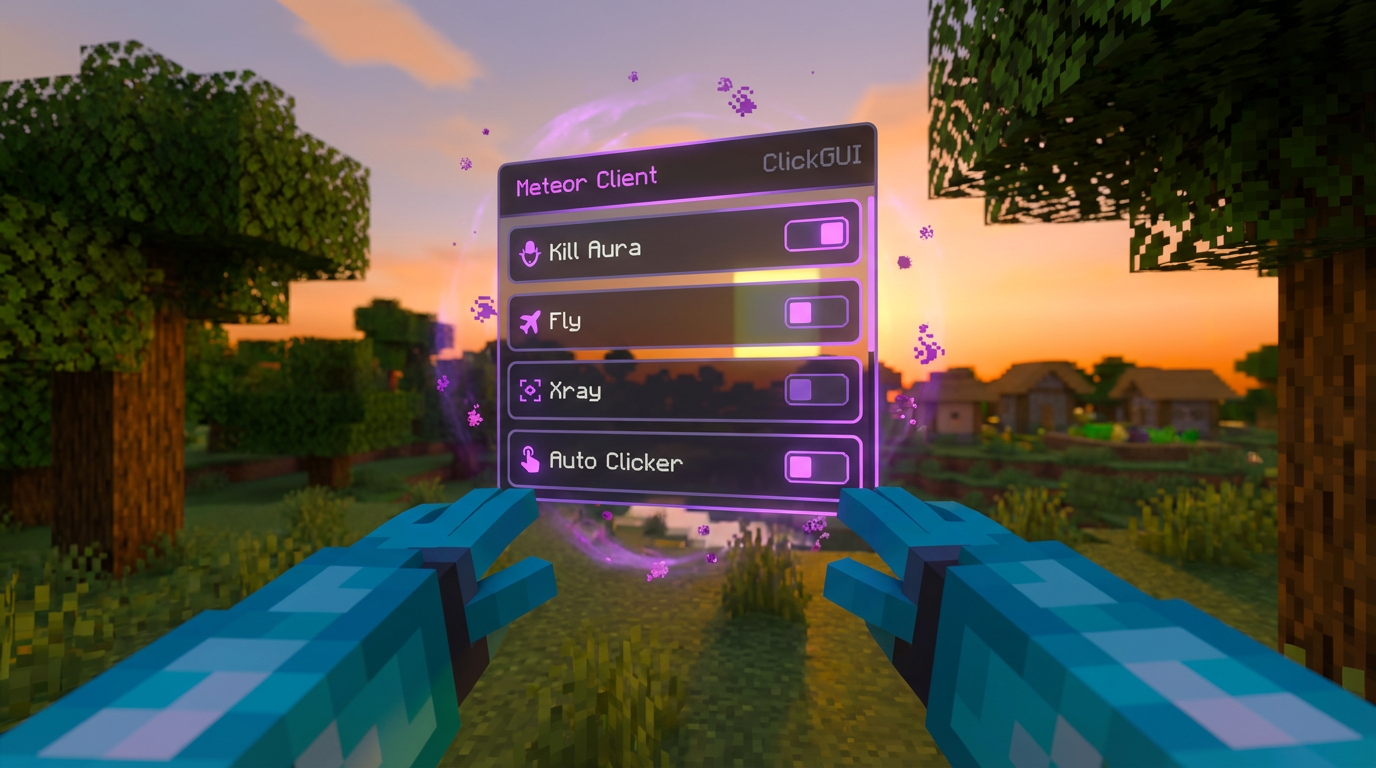
Once you have placed the files in your mods folder, open your Minecraft Launcher and select the Fabric profile from the dropdown menu. Click the play button and wait for the game to load the main menu, where you should see the logo in the top corner. This confirmation means the mod is active and ready for you to jump into your favorite anarchy server or single-player world. If the game crashes, double check that your Java version matches the requirements for your specific game version. Joining a world is the final step before you can start customizing your experience.
After you have spawned into the game, simply press the Right Shift key on your keyboard to bring up the ClickGUI interface. This menu is the heart of your new setup, allowing you to toggle modules like CrystalAura, Flight, or ESP with a single click. You can drag and drop different windows to organize your layout exactly how you like it for quick access. If the Right Shift key does not work immediately, check your in-game controls to ensure no other actions are bound to that button. Right-clicking any module within this menu will open deeper settings so you can fine-tune things like reach distance or block placement speed.
Navigating the ClickGUI becomes second nature once you spend a few minutes exploring categories like Combat, Movement, and Player. You can hover over any feature to see a short description of what it does, which helps you learn the system without feeling overwhelmed. If you want to keep certain tools visible at all times, you can pin specific windows to your screen for a custom heads-up display. Remember to save your configuration so your favorite settings are always ready the next time you launch the game. Using these utility features makes building massive structures or navigating dangerous terrain much easier.
Ready to Start Your Minecraft Anarchy Adventure
You are now fully equipped to start your next anarchy adventure with a powerful set of tools at your fingertips. By following these steps, you have successfully bridged the gap between a standard game and a highly customized utility setup. It is a great feeling to see that GUI pop up for the first time after a clean installation. You can now explore the world with enhanced visuals and helpful HUD elements that make survival much easier. Keep your Fabric Loader updated to ensure everything stays compatible as the game evolves.
Testing your new features on a local world or a creative server is a smart way to get comfortable before heading into the chaos of a real anarchy environment. You can experiment with different module settings like crystal optimizer or auto-eater to see what fits your personal playstyle best. Having these utilities ready means you can focus more on building your base or finding rarest resources rather than struggling with basic tasks. If you ever run into a glitch, checking your Java version is usually the quickest fix to get back into the action.
The beauty of using a client built on the Fabric ecosystem is how easily you can add more mods to your setup later. You might want to include a map mod or a performance enhancer to make your gameplay even smoother during intense raids. Since you already have the Fabric API and the correct folders ready, adding new tools is as simple as dragging and dropping a file. Your Minecraft experience is now much more flexible and tailored to exactly how you want to play. Enjoy the freedom of your new setup and have fun on the server.
Frequently Asked Questions
1. What is the best way to install Meteor Client?
You should install the client by using the Fabric Loader, which is a lightweight system that keeps your game running smoothly. Simply download the Fabric installer, select your game version like 1.21, and place the jar file into your mods folder.
2. Do I need any other files for Meteor to work?
Yes, you must download the Fabric API and place it in your Minecraft mods folder alongside the client. This file acts as a bridge that allows the utility tools to communicate correctly with the game engine.
3. Which Minecraft version should I use for this client?
You should use the most recent stable version, such as 1.21.1, to enjoy the latest features and modern utility tools. Always make sure the version of the Fabric Loader you install matches the specific version of the client you downloaded.
4. How do I make sure the installer works correctly?
You need to launch your desired version of Minecraft at least once in the regular launcher before running the Fabric installer. This ensures all the necessary game files are already on your computer so the meteor client installation loader can find them.
5. Will this client help me on anarchy servers?
This client is perfect for anarchy play because it includes powerful tools to automate crystal combat and manage base raids. You can also customize your HUD with advanced overlays to keep track of your gear and surroundings during a fight.
6. Can I use this client for building projects?
You can definitely use it for building by enabling advanced overlays that help you place blocks more accurately. These utility tools make it much easier to visualize your project and manage your inventory while you work on large structures.